VARUNA CO., LTD. (ARV / PTTEP) · 1 yr 8 mo · Oct 2024 – May 2026
Design Process & Workflow
From Ecosystem Map to Next Version
From the product ecosystem, personas and one problem statement, through the information architecture and a design system shared across products, to the finished interface, usability testing and the direction for the next version.
Step 01
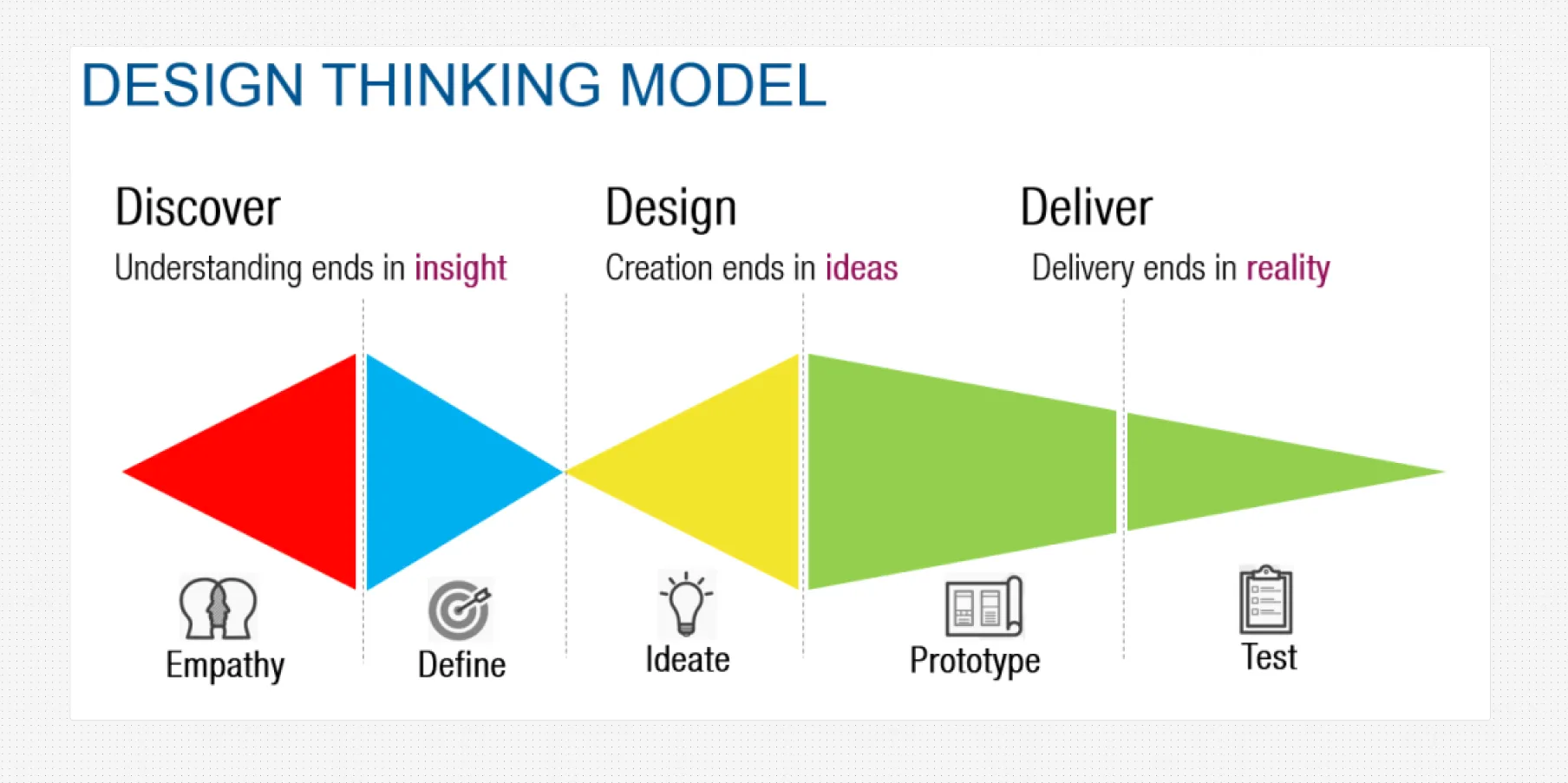
Process and Design Thinking Model
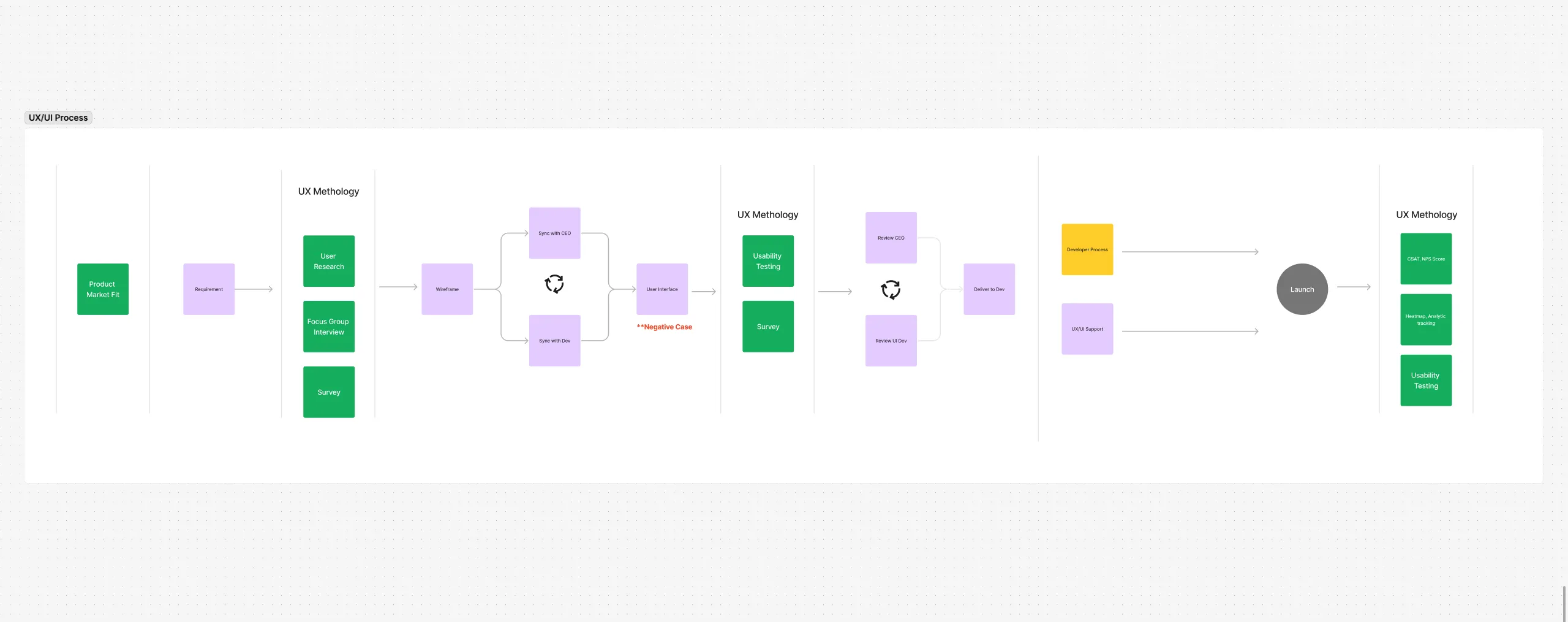
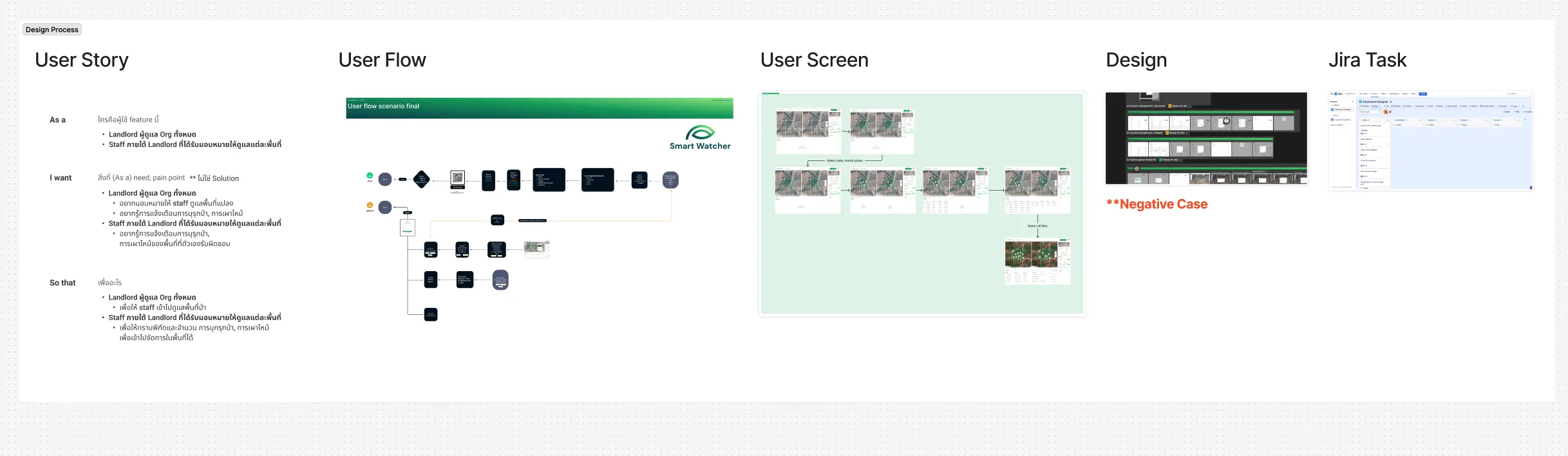
The first boards set out how the work would run. The team process goes from product-market fit and requirements through research, wireframes reviewed with the CEO and the developers, the interface with its negative cases, usability testing, handover and launch, and then back into analytics, satisfaction scores and further testing. Each feature followed the same short chain: a user story written as who, what they need and why, a user flow, the screens, the design with its negative cases, and a Jira task.
Step 02
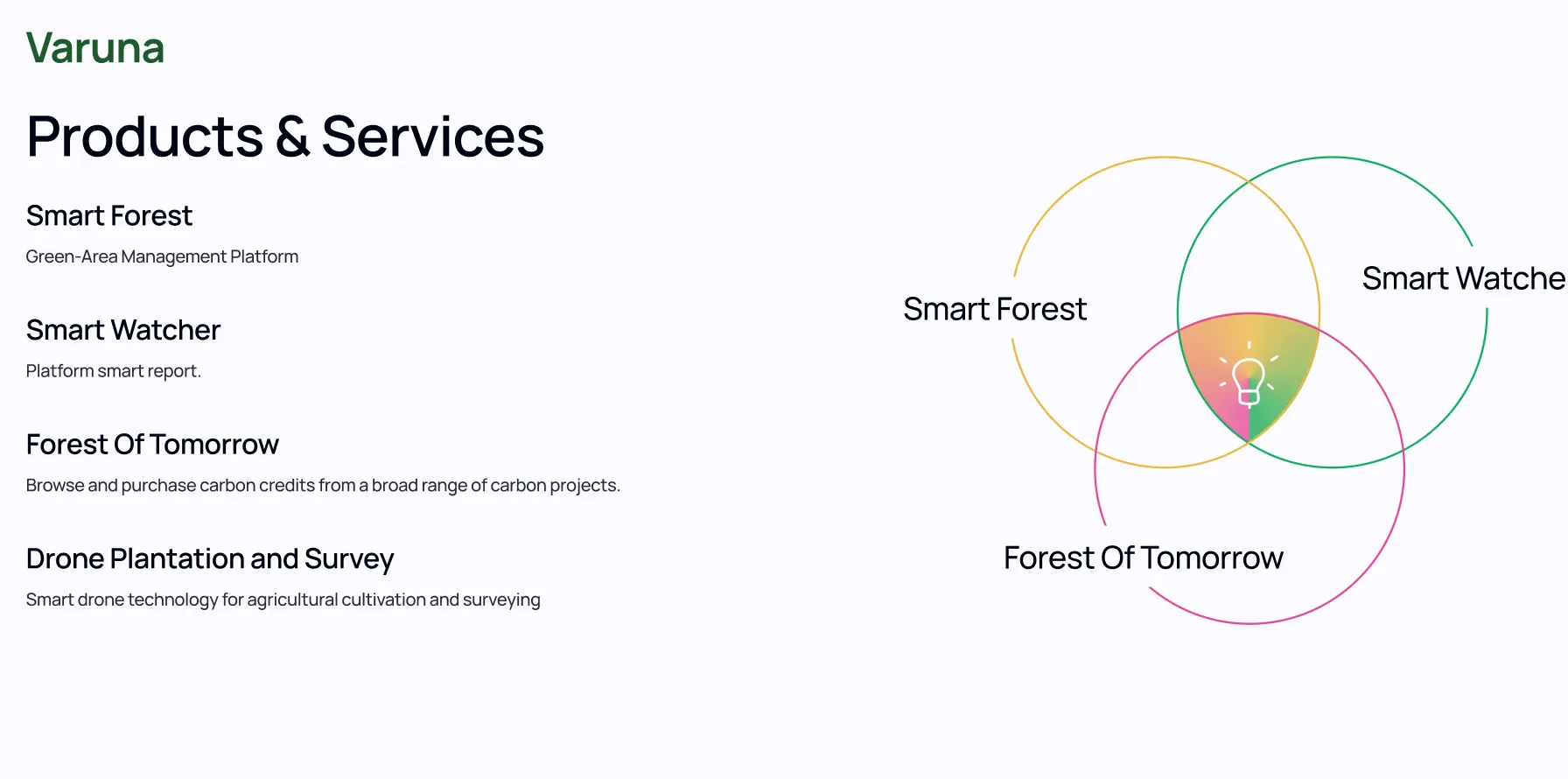
Product Ecosystem Mapping
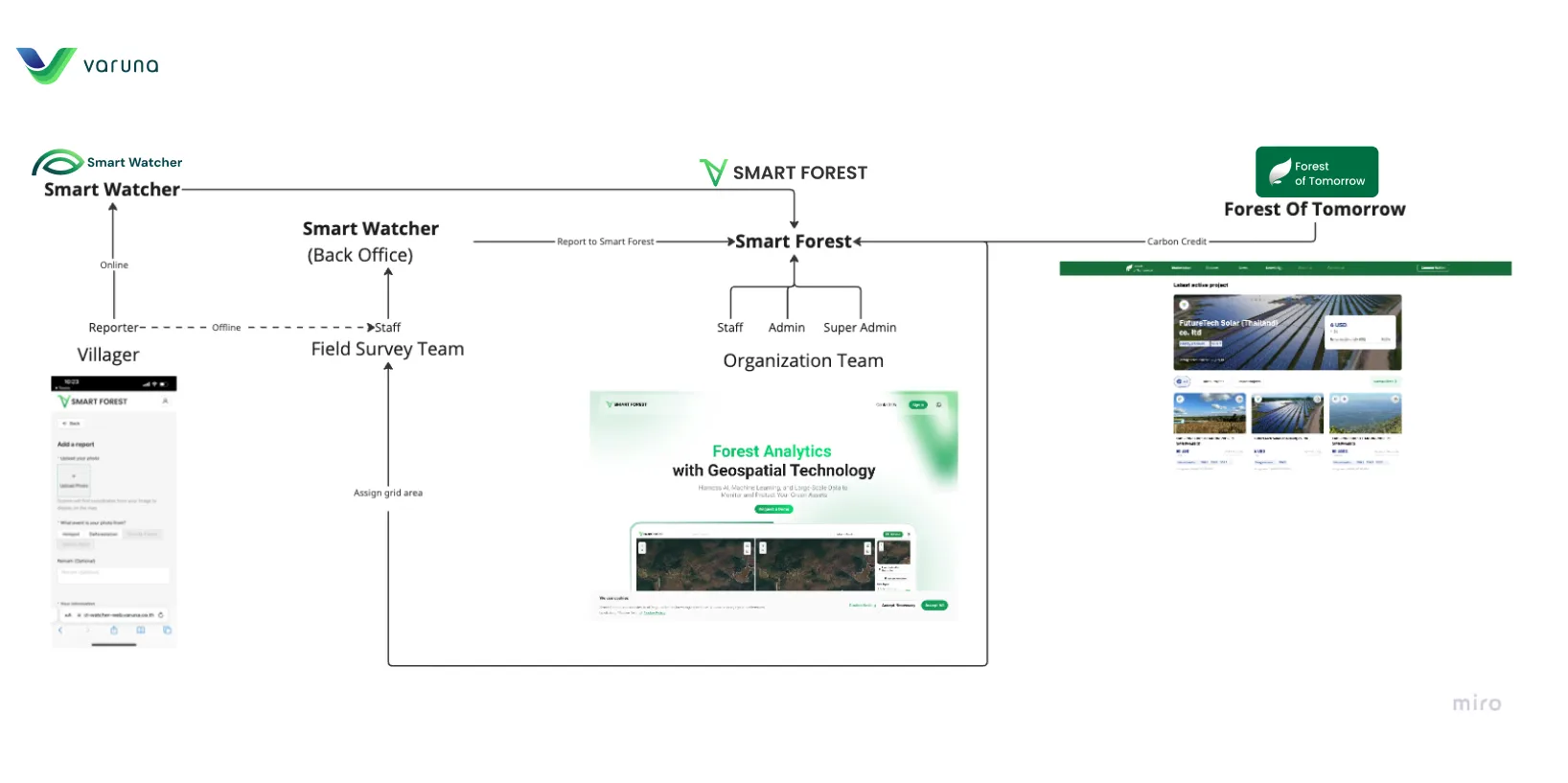
Smart Forest is one of several connected products, so the ecosystem was mapped first. Villagers report through Smart Watcher online, and field survey staff report offline from the grid areas assigned to them; those reports reach the Smart Watcher back office and are sent on to Smart Forest. Inside Smart Forest, the organisation team works as staff, admin and super admin, and the platform is linked to Forest of Tomorrow, the marketplace for carbon credits. Knowing what each product hands to the next decided what Smart Forest had to show.
Step 03
Competitive and Portfolio Analysis
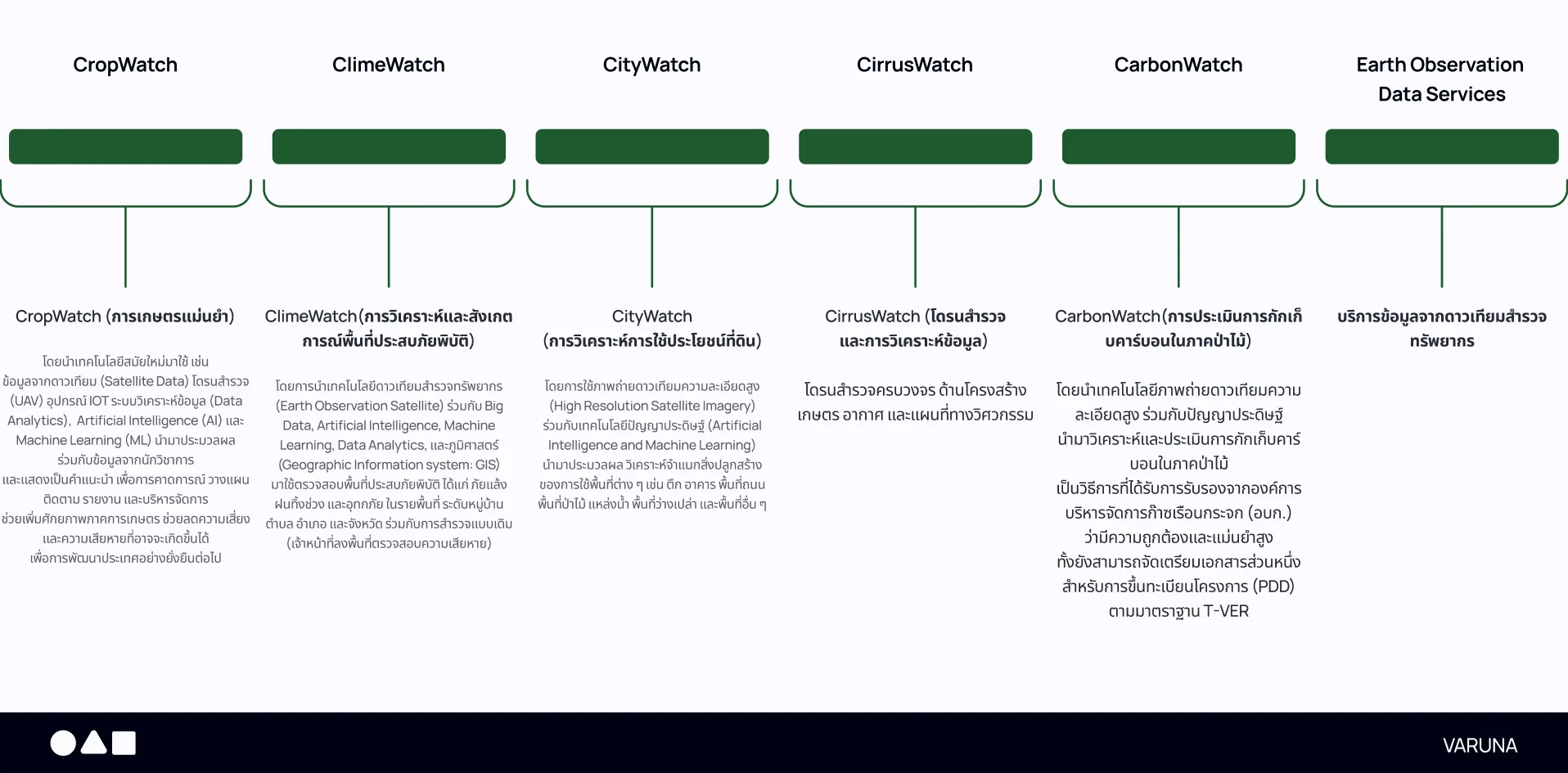
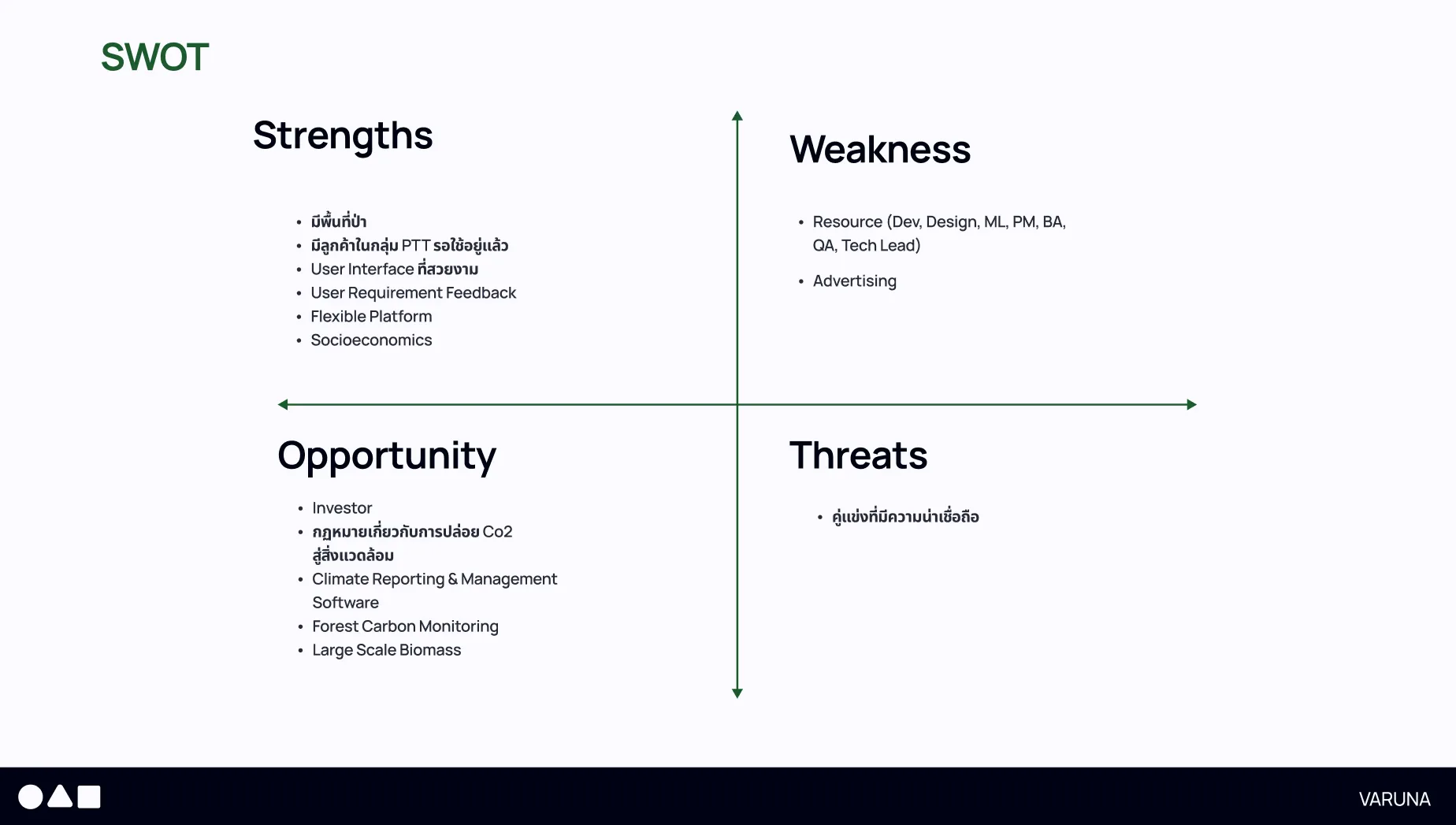
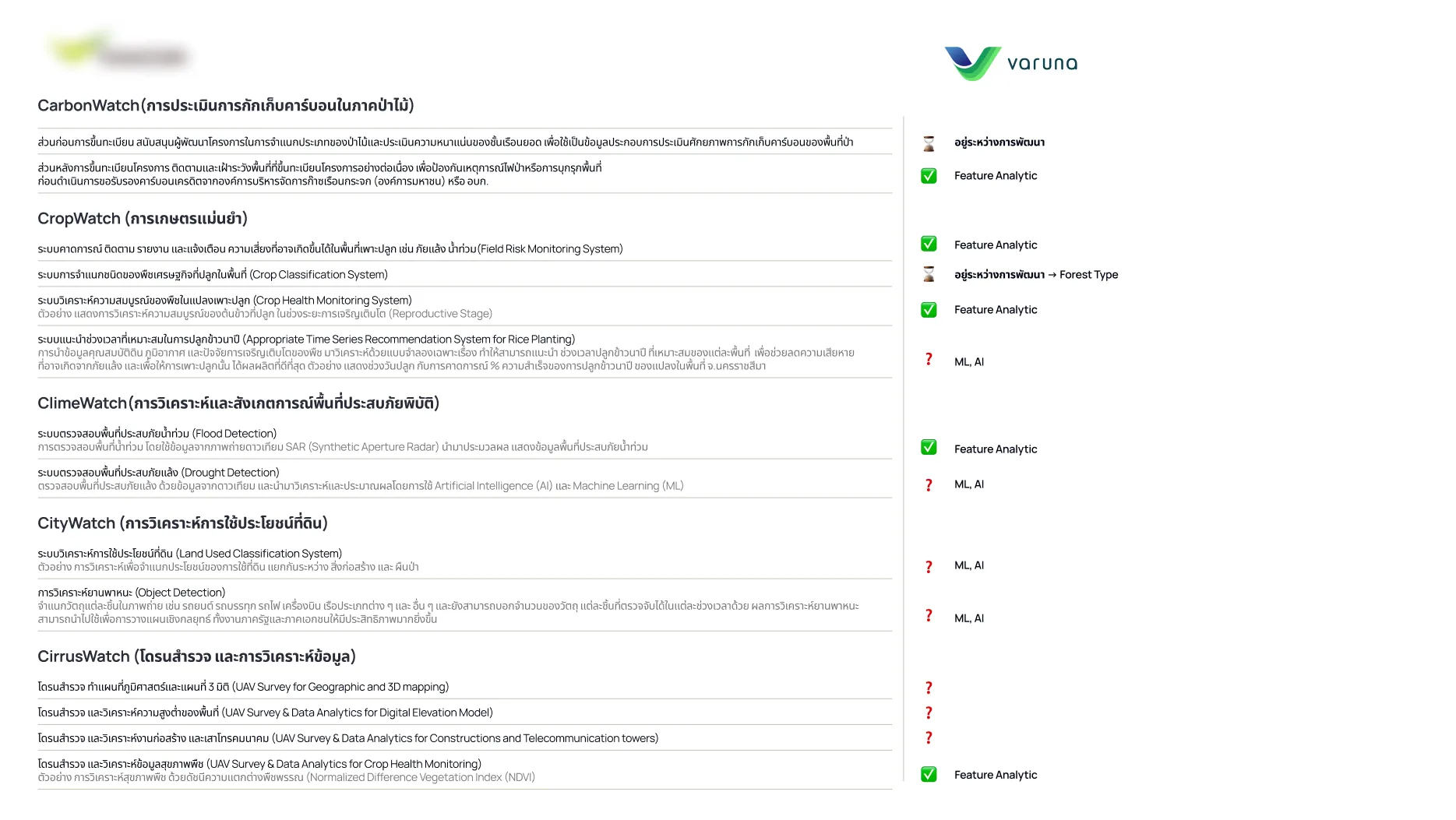
The company's own product line and an established set of remote-sensing services were laid side by side. A SWOT summarised the position, and a feature table checked each capability of the other product family, from carbon assessment and crop monitoring to flood detection and drone surveys, against whether Smart Forest already offered it as an analytic feature, had it in development, or would need machine learning to build it.
Step 04
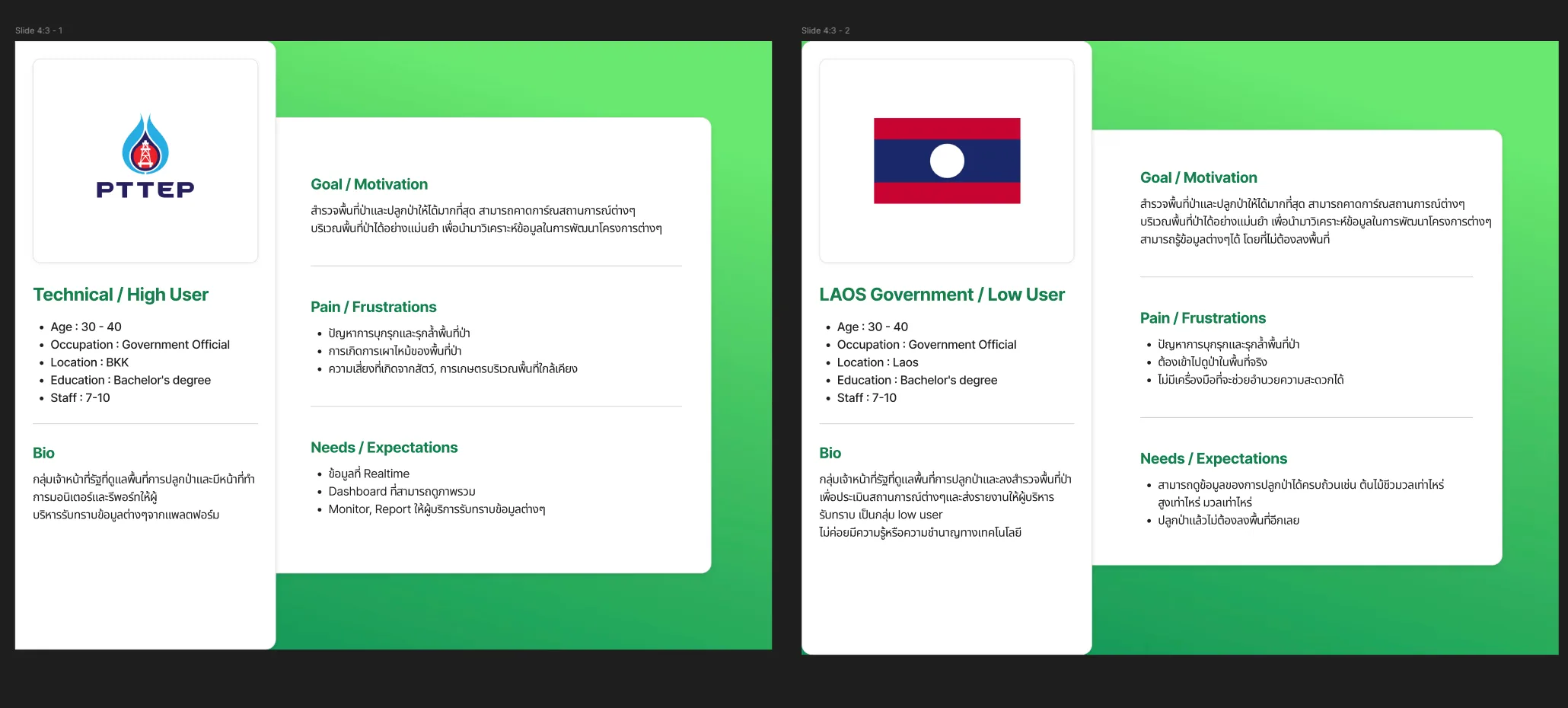
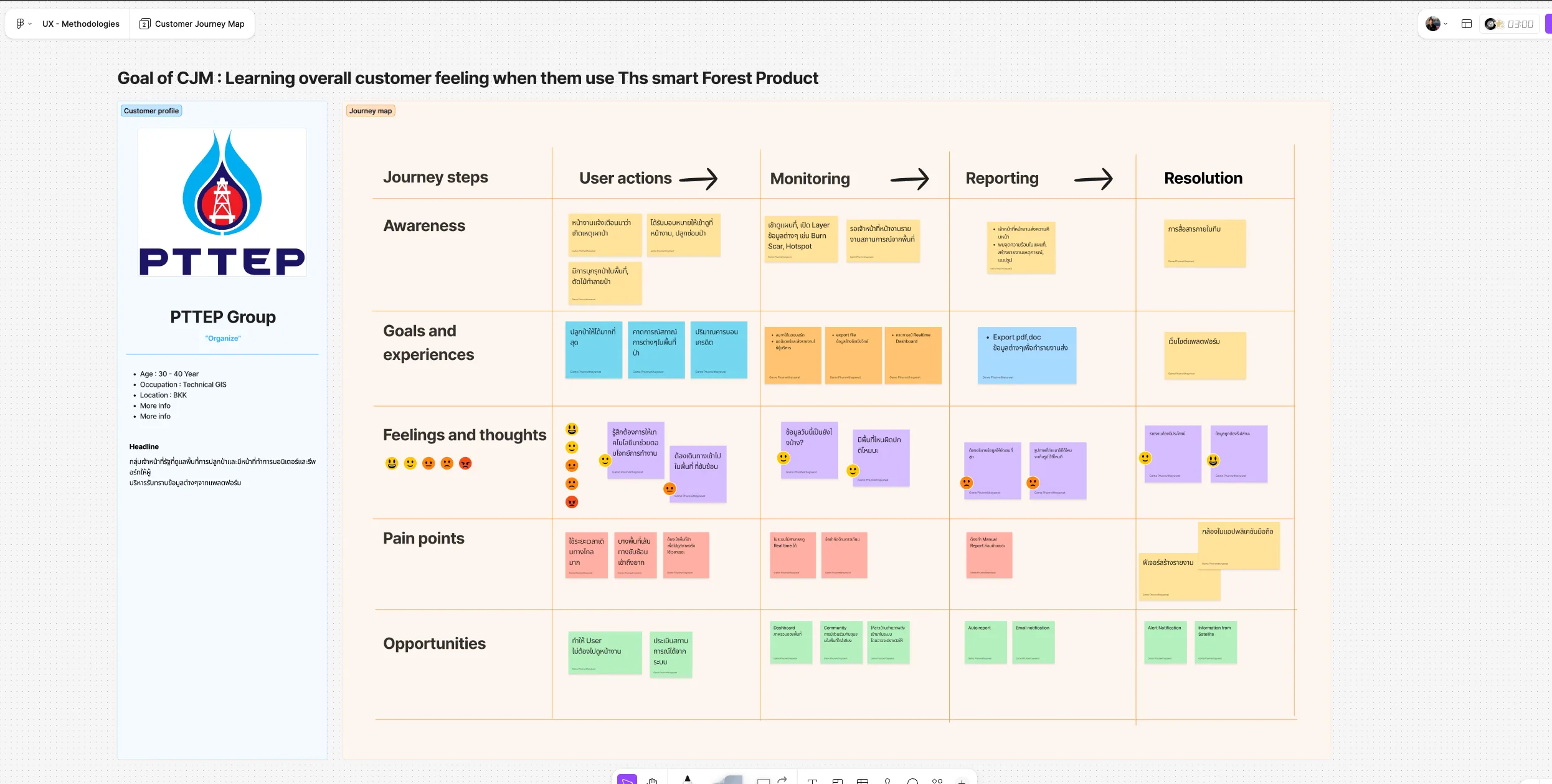
Personas and Customer Journey
Two personas came out of the research. The first is a technical government officer in Bangkok who monitors planted areas and reports upward, and needs current data, an overview dashboard and reports. The second is a less technical officer in Laos who has to travel into the forest to assess an area and has no tool for it. A customer journey map then followed the technical profile through action, monitoring, reporting and resolution, recording long journeys to hard-to-reach plots and manual reports as pain points, and a dashboard, automatic reports, email alerts and satellite information as opportunities.
Step 05
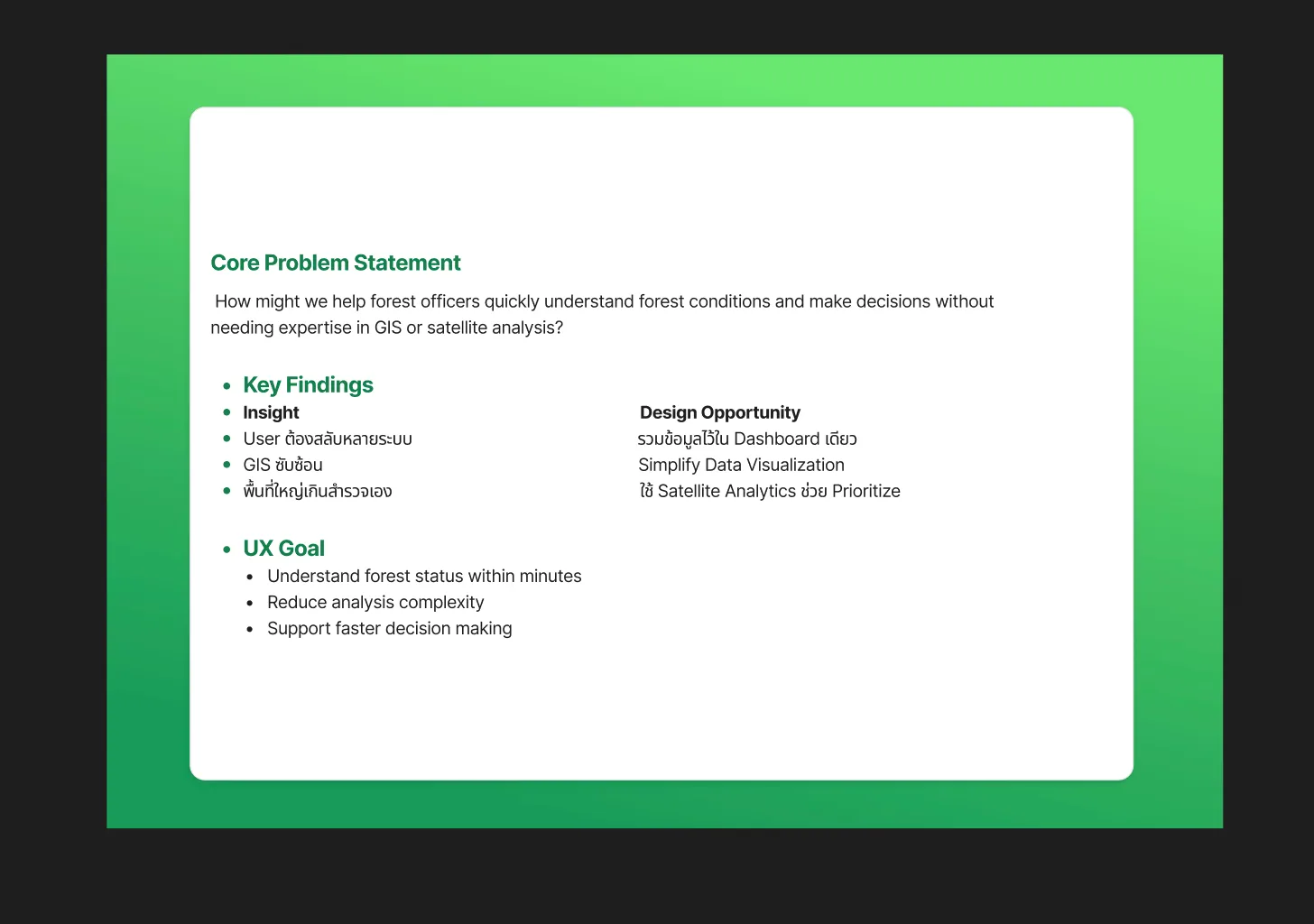
Core Problem Statement
The research was reduced to one question: how might we help forest officers understand forest conditions quickly and make decisions without needing expertise in GIS or satellite analysis? Three insights sit under it, users switching between several systems, GIS being complex, and areas too large to survey on foot, each paired with a design opportunity: one dashboard for the data, simpler data visualisation, and satellite analytics to show where to look first. The UX goals followed: understand forest status within minutes, reduce analysis complexity, and support faster decisions.
Step 06
Language Survey and Data-Layer Workshop
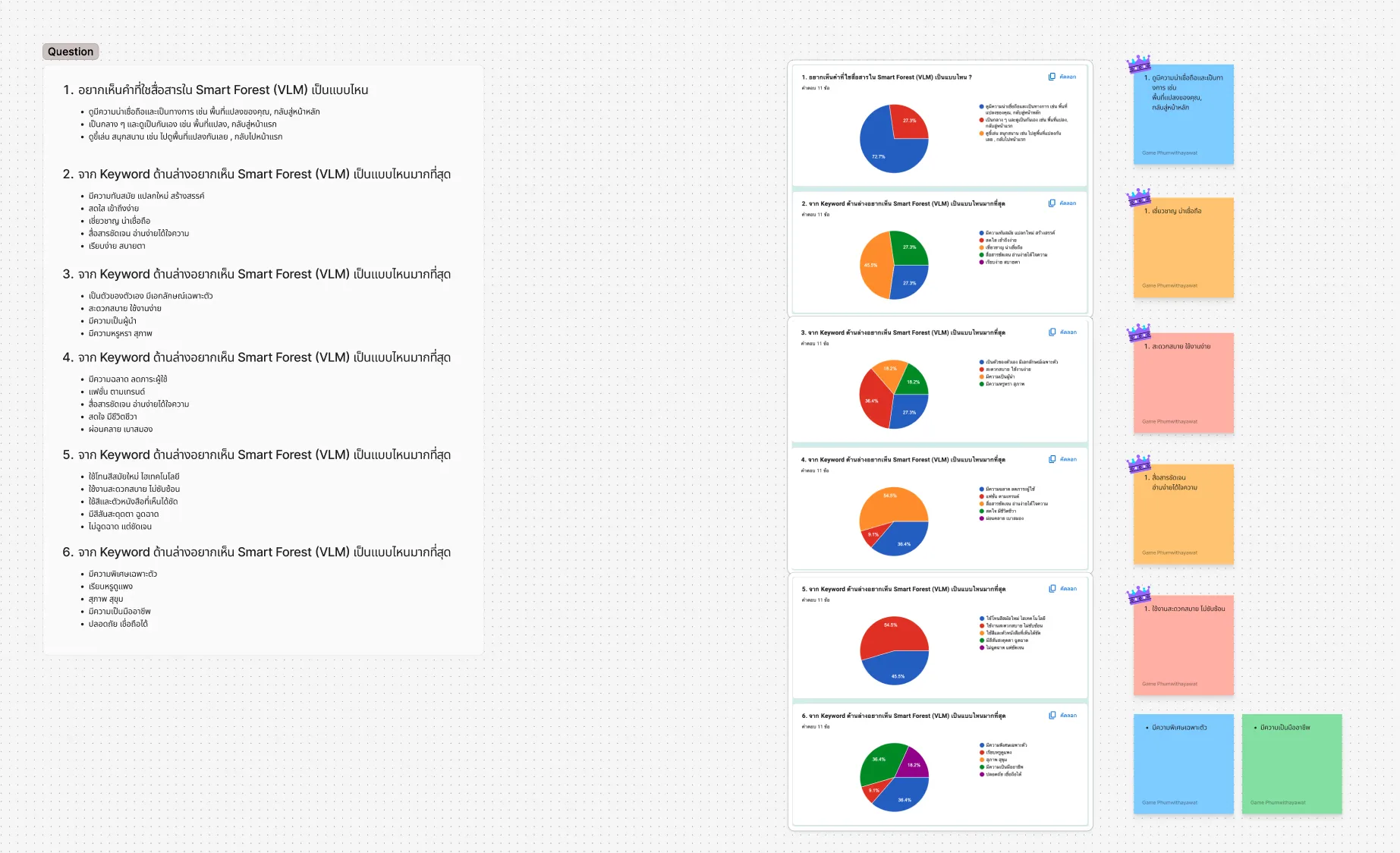
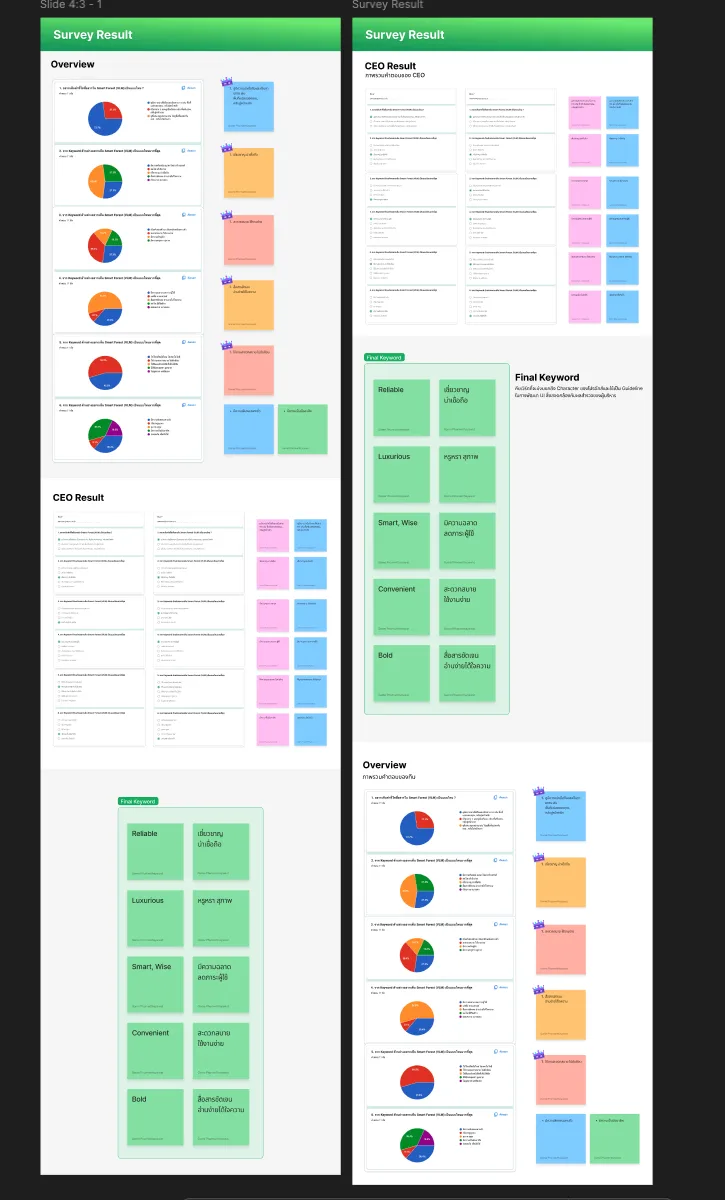
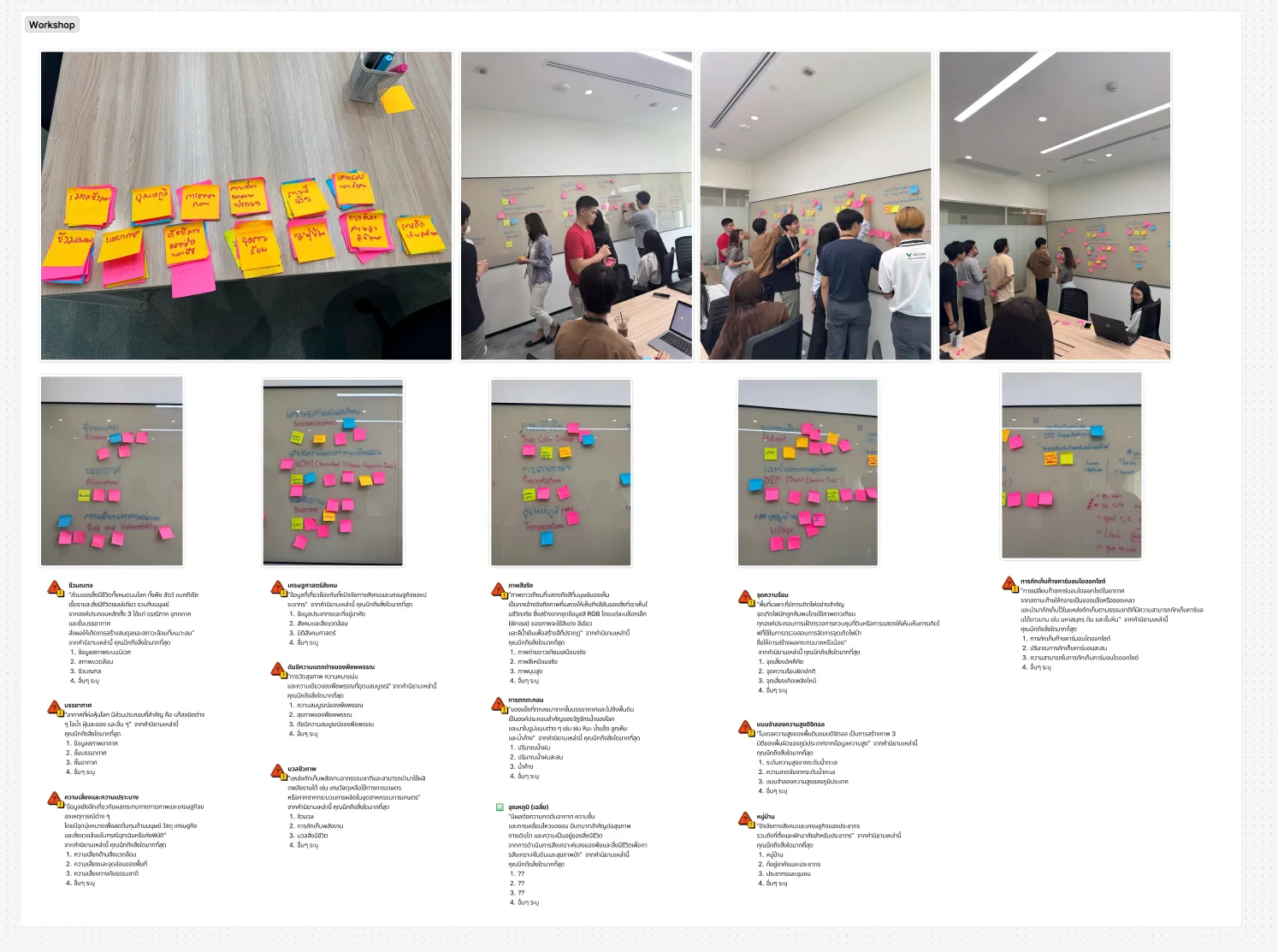
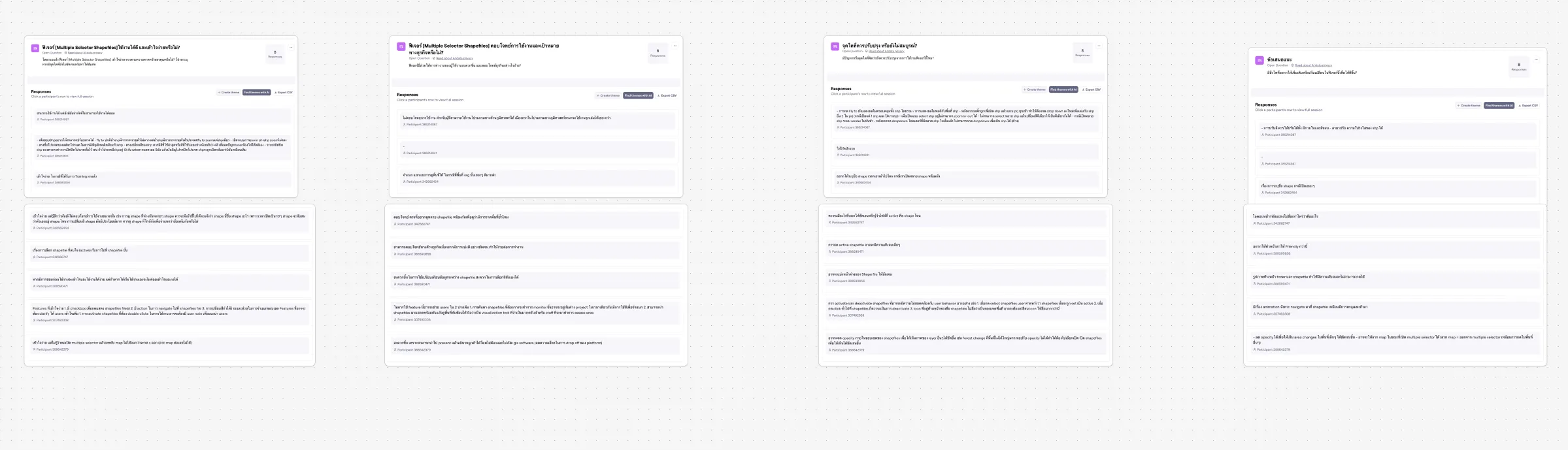
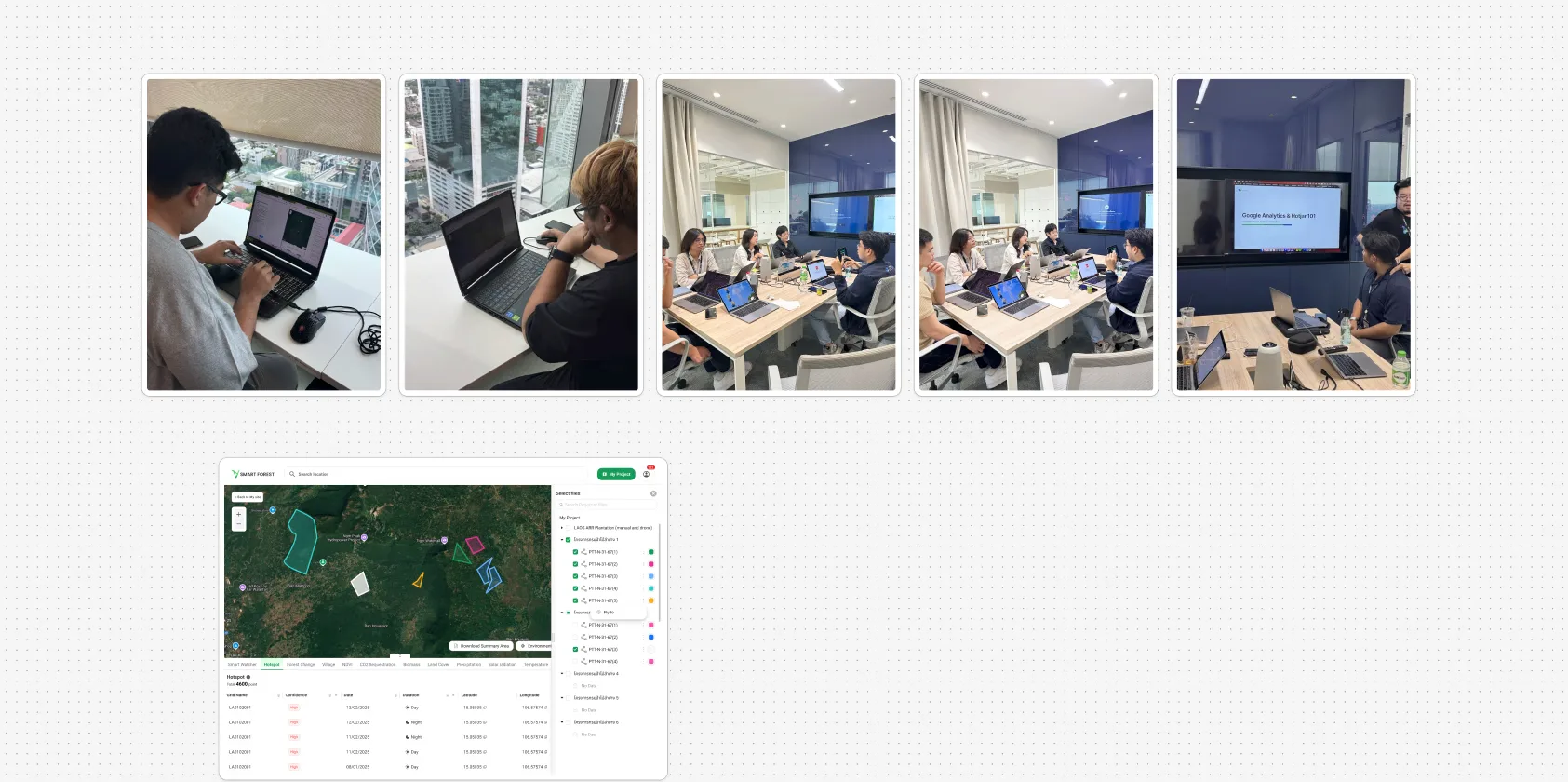
A survey asked the team and the CEO, separately, how Smart Forest should speak and which words should describe it, and settled on five keywords: reliable, luxurious, smart, convenient and bold. A workshop then had stakeholders write and vote on a plain-language explanation for every data layer, from biomass and NDVI to hotspots, elevation and villages. Open questions on the multiple-shapefile selector and an analytics and Hotjar session for the team complete the set.
Step 07
Information Architecture
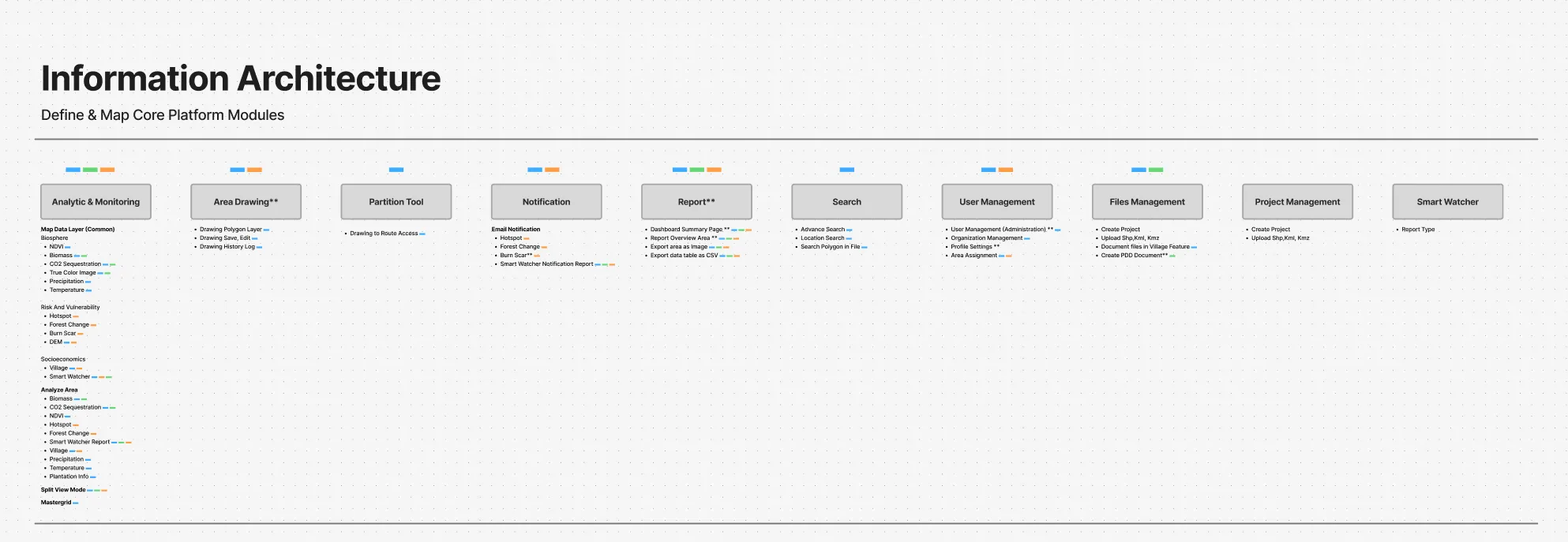
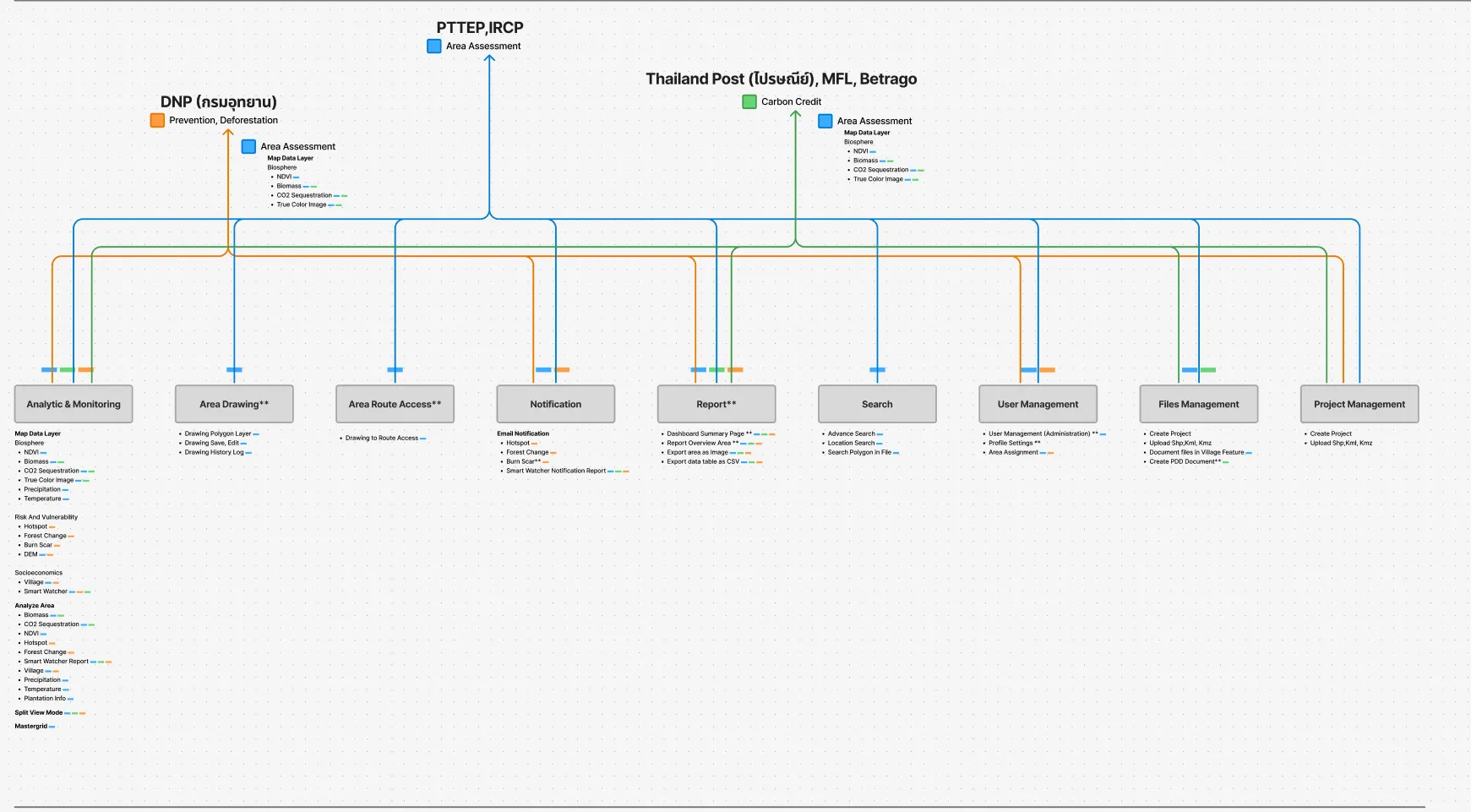
The platform was broken into modules: analytic and monitoring with its map data layers, area drawing, route access, notification, report, search, user management, files and project management, and the Smart Watcher link. A second board maps every module to the customer group it serves, prevention and deforestation for the national parks department, area assessment for PTTEP and IRCP, and carbon credit for Thailand Post, MFL and Betrago, so the priority of each feature could be argued from who needs it.
Step 08
Ideation and Wireframes
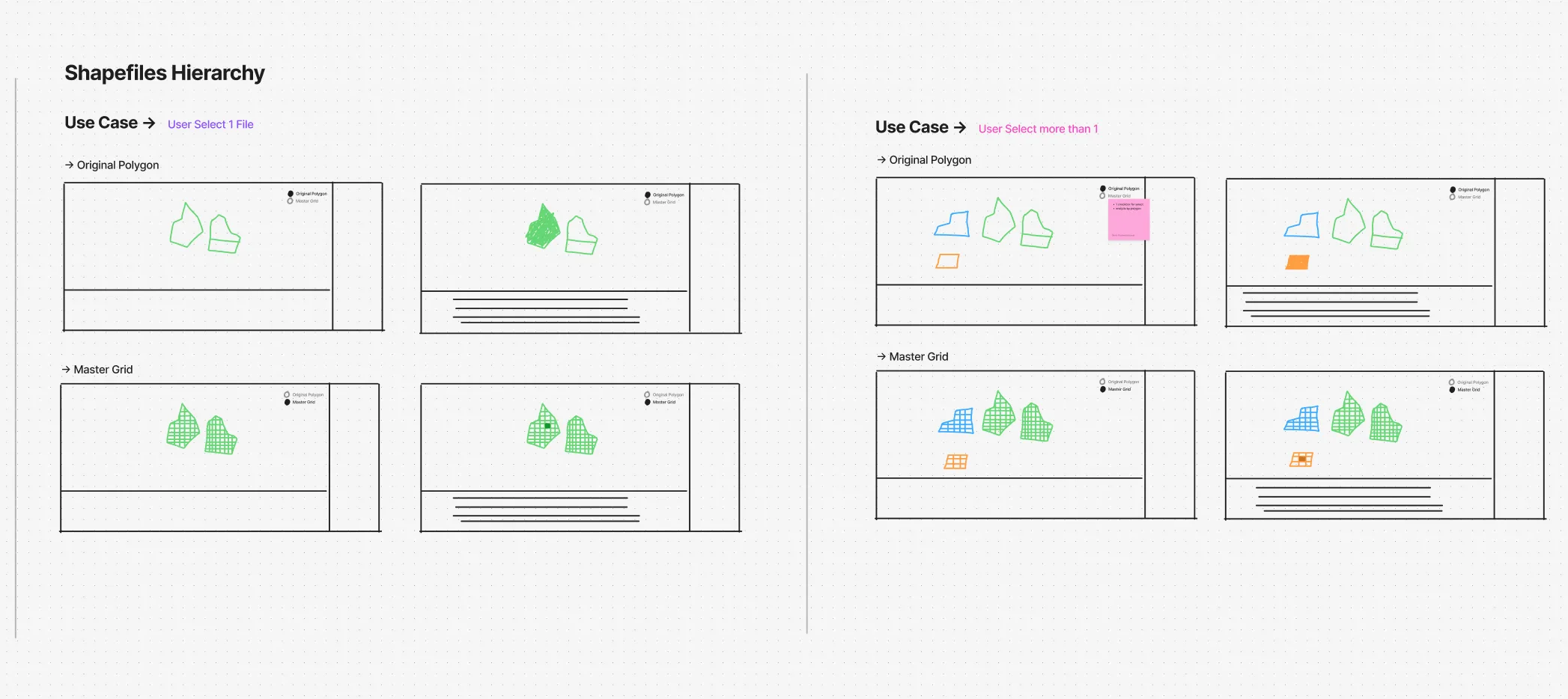
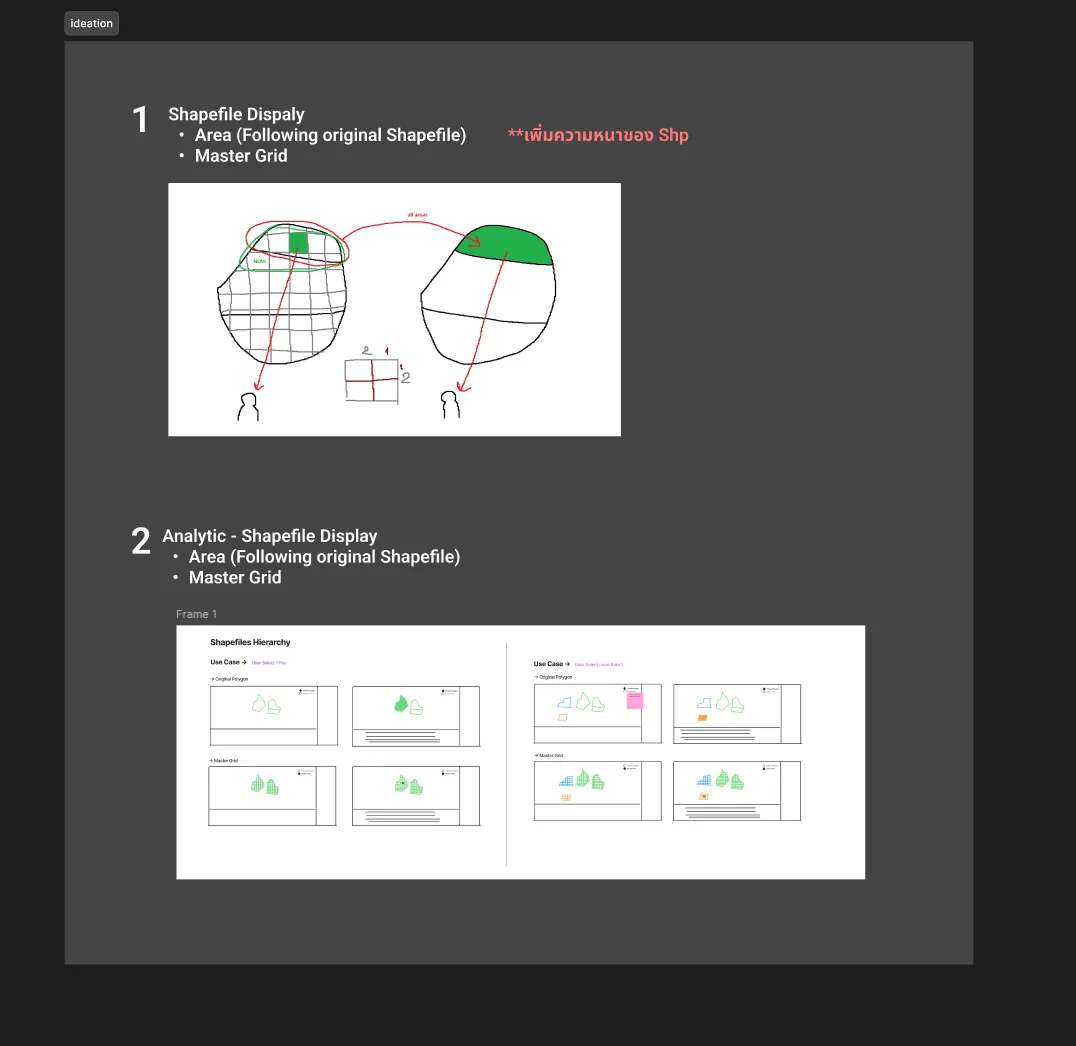
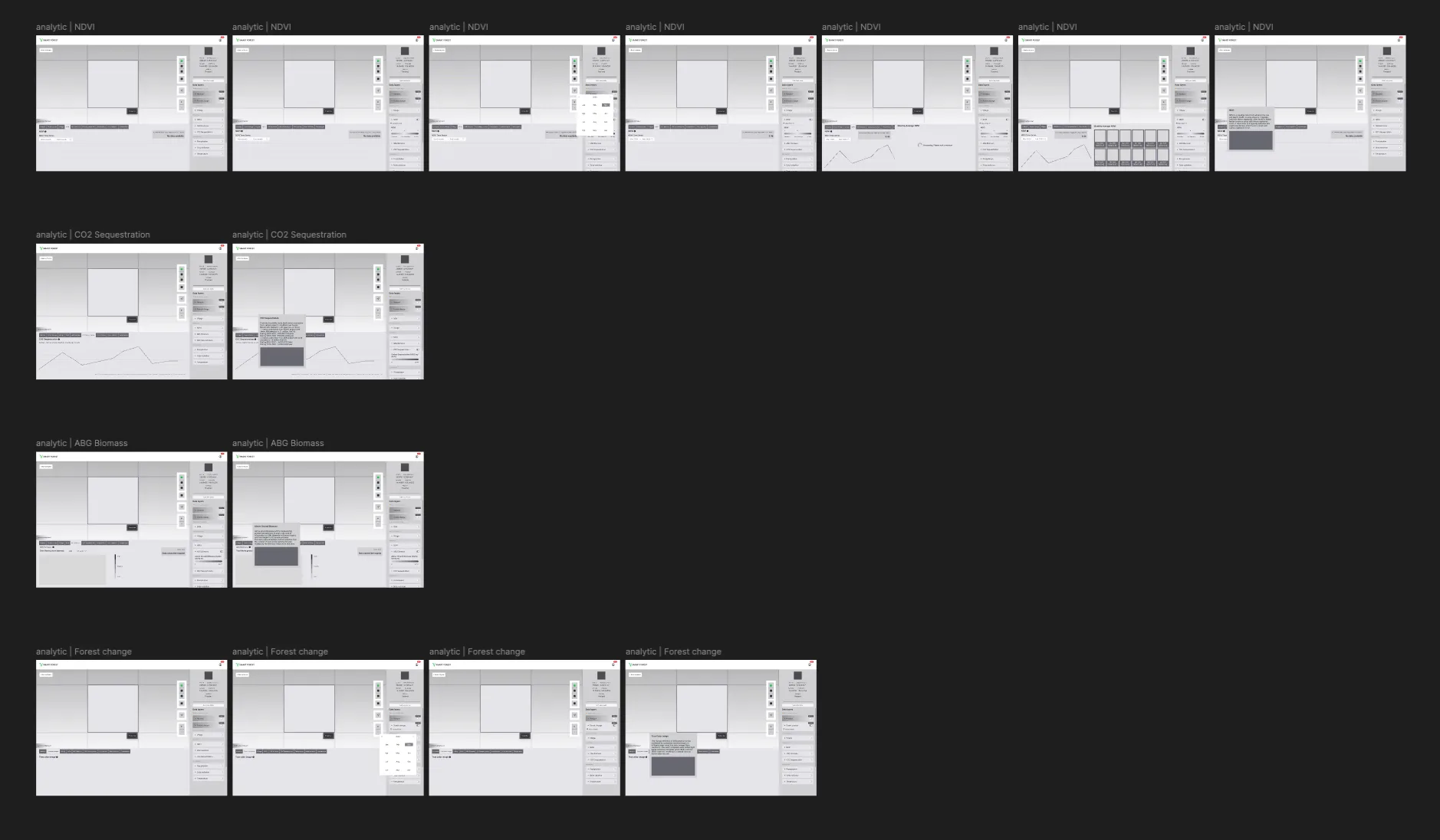
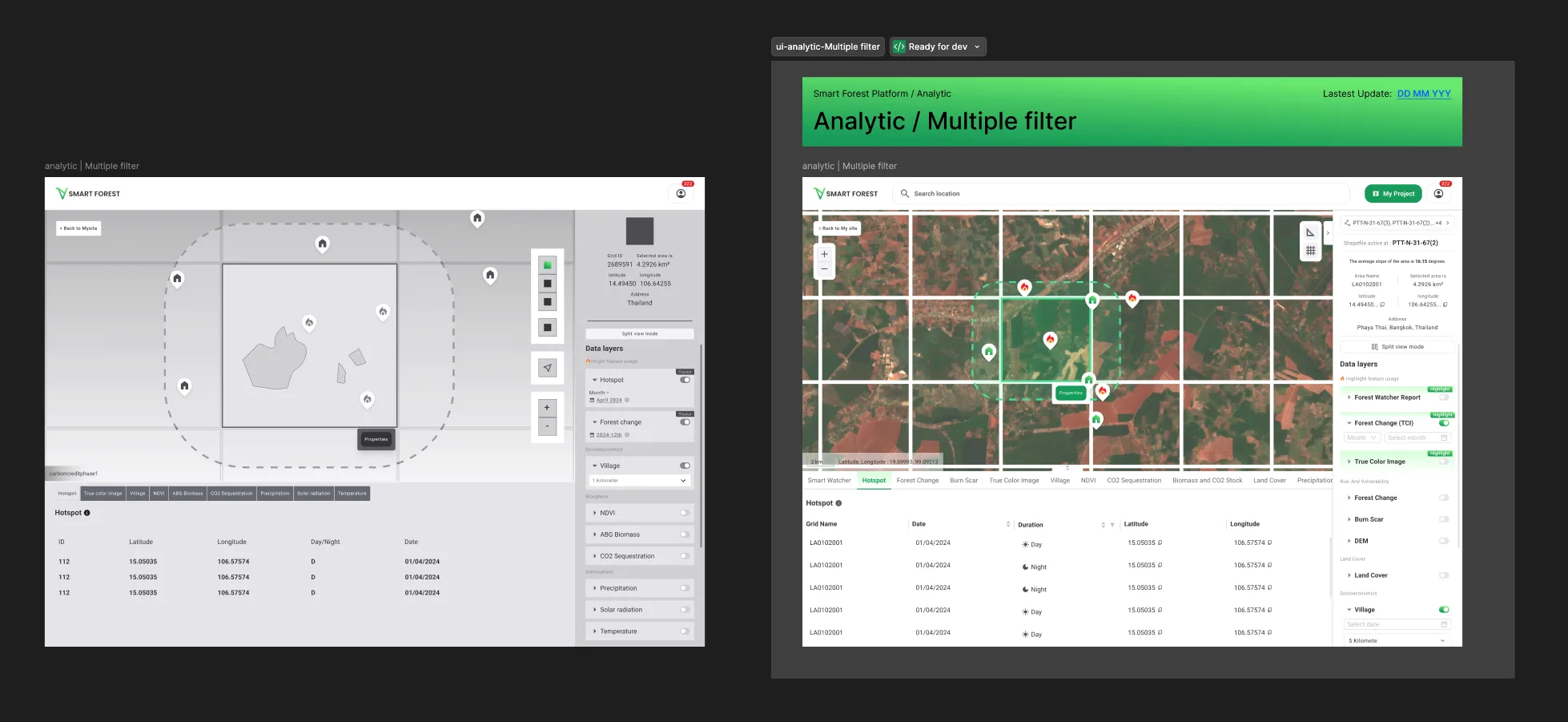
The hardest structural question was how a shapefile appears on the map: as the original polygon, or as the master grid used for analysis, and what changes when one file or several are selected. It was worked out in sketches and then in a set of use-case frames for both cases. Grey-scale wireframes followed for the analytic views, NDVI, CO2 sequestration, above-ground biomass and forest change, each drawn with its date picker, chart, information tooltip and empty state.
Step 09
Design System and Chart Library
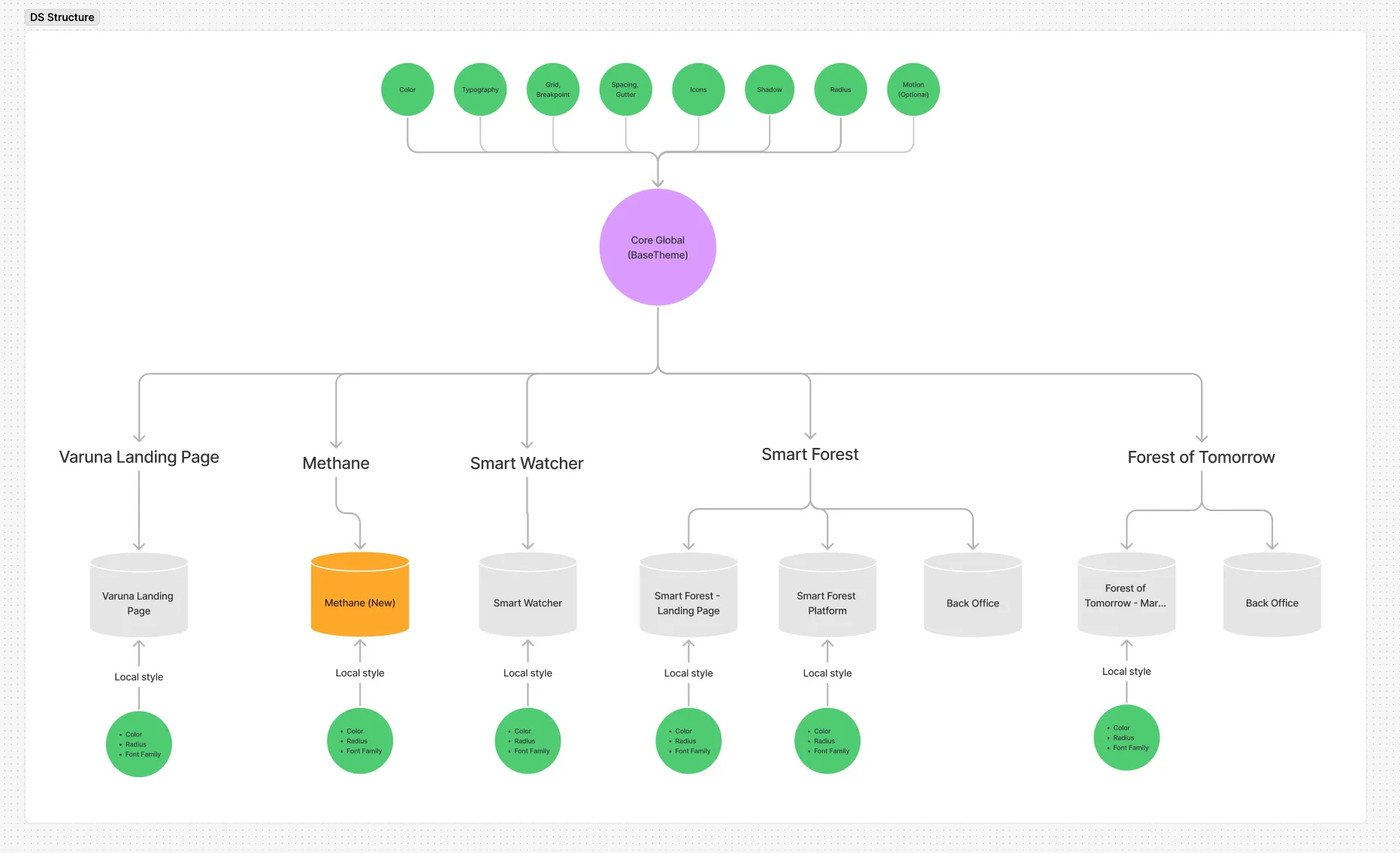
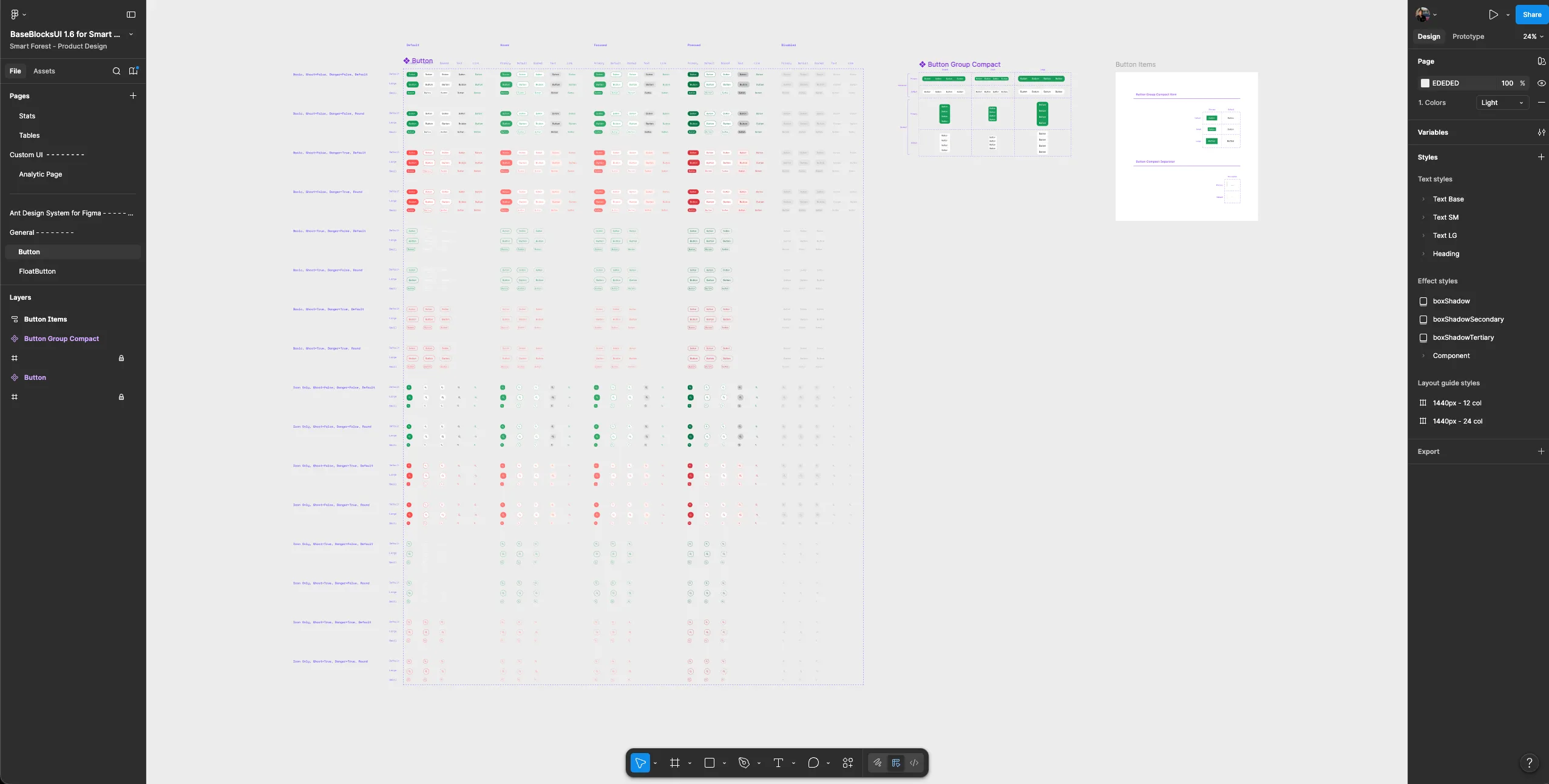
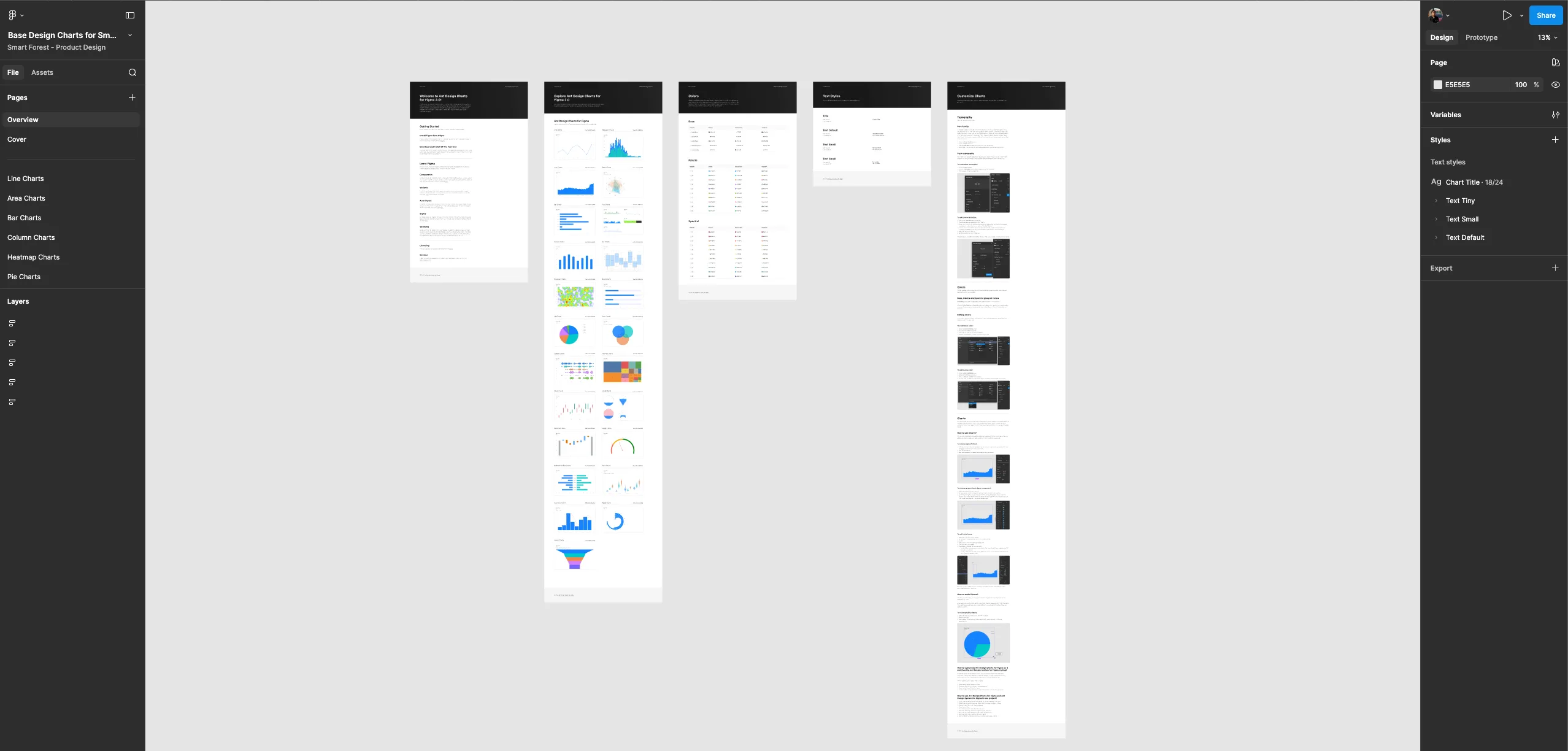
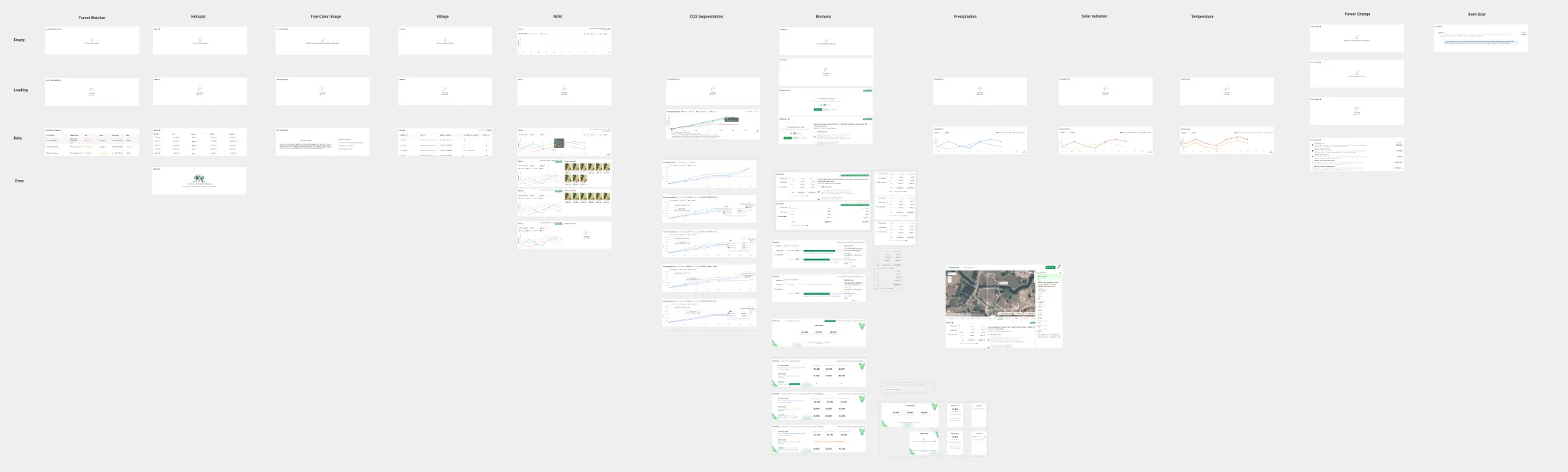
The system is structured as one core theme, colour, type, grid, spacing, icons, shadow, radius and motion, shared by every product the company runs, with each product overriding only its colour, radius and font family. Smart Forest's components live in BaseBlocksUI, built on the Ant Design kit for Figma, with every button variant drawn in each of its states. A separate chart library sets the chart styles, and a states board gives every data layer an empty, loading, data and error state.
Step 10
Final Interface
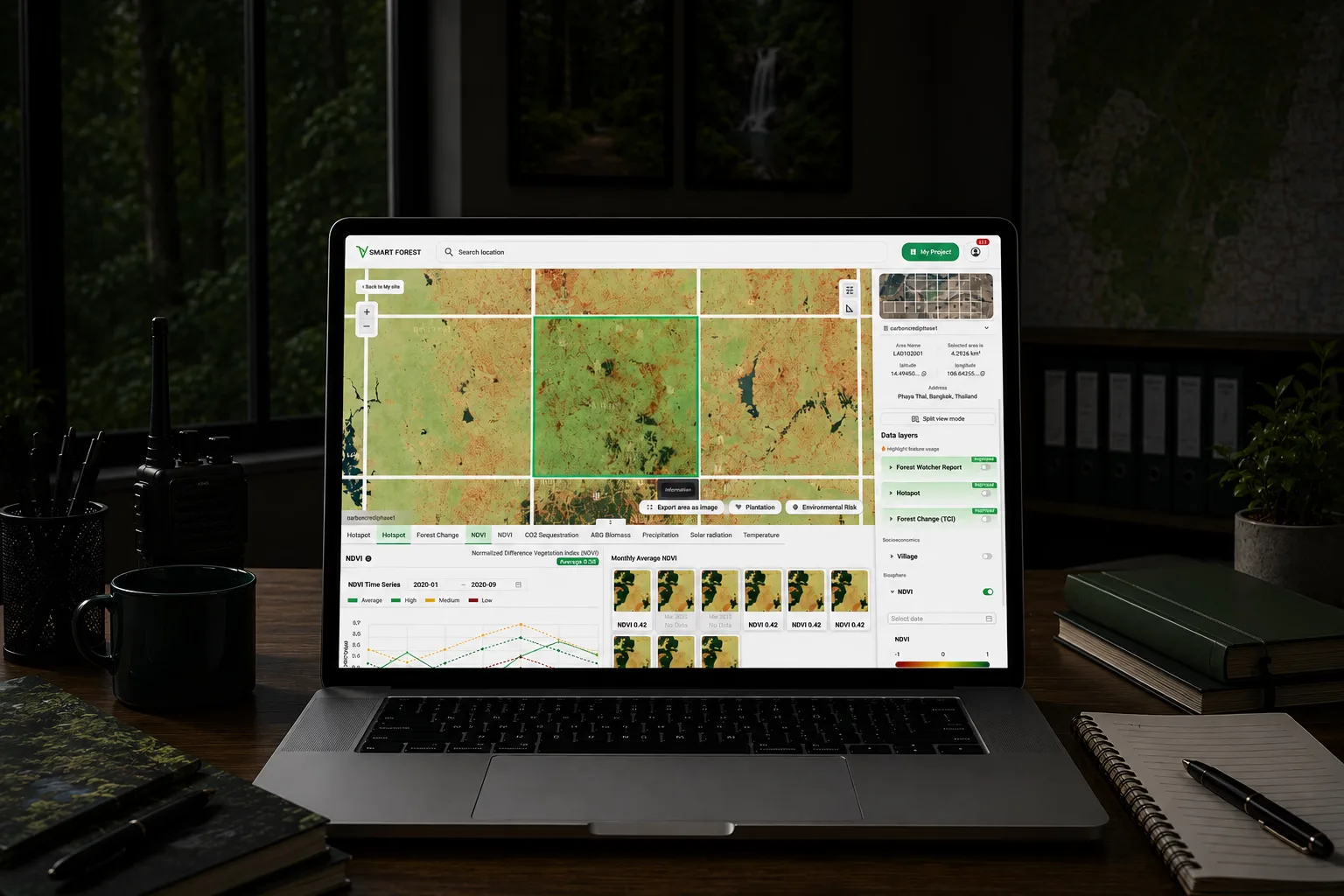
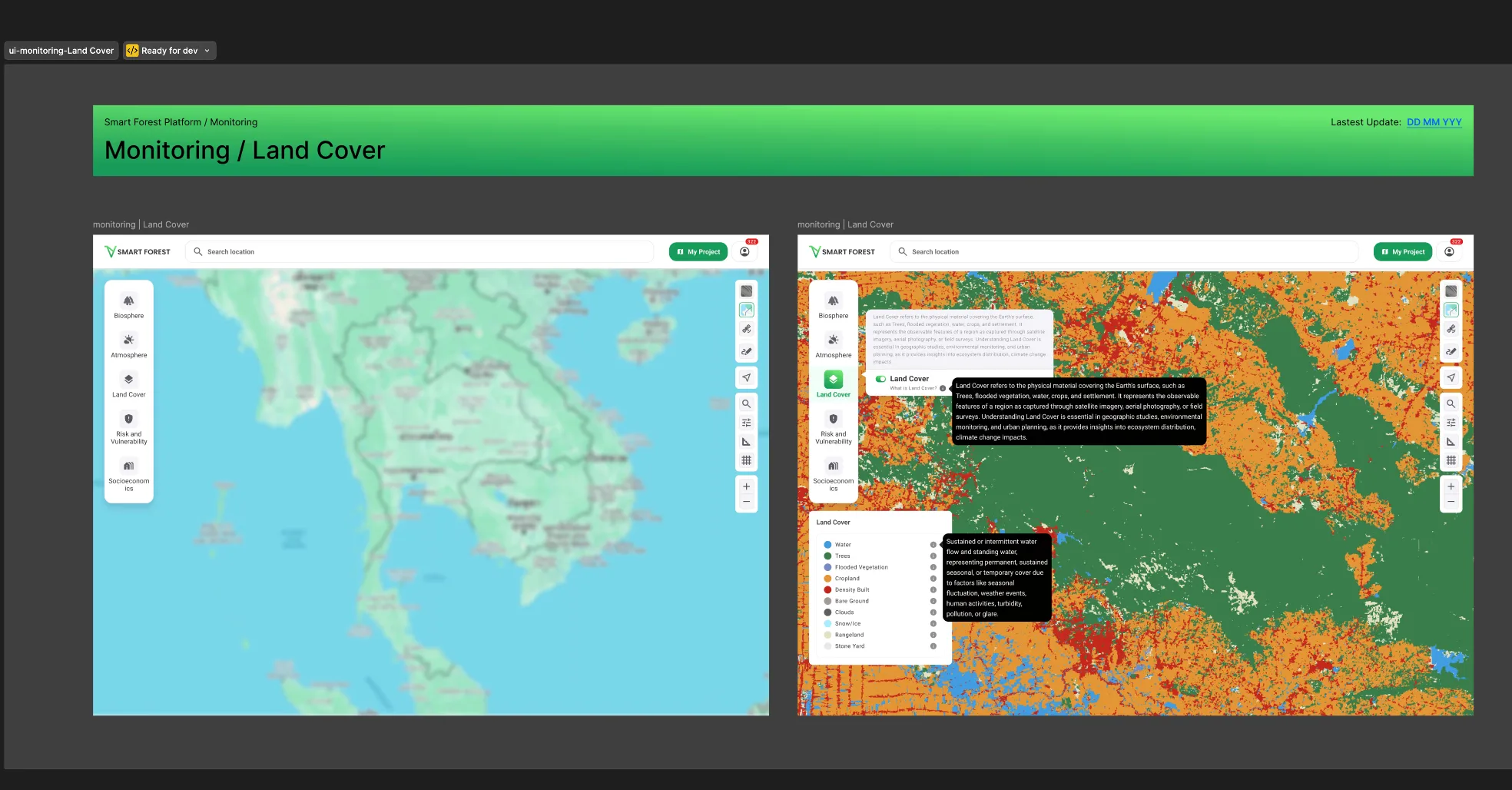
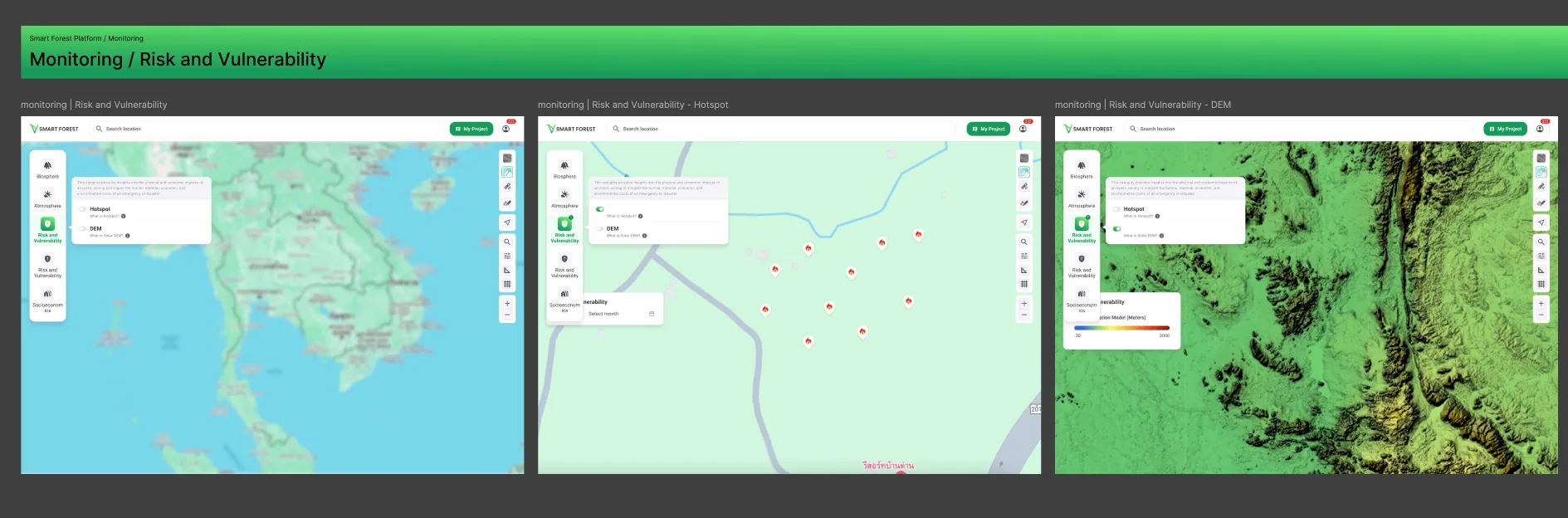
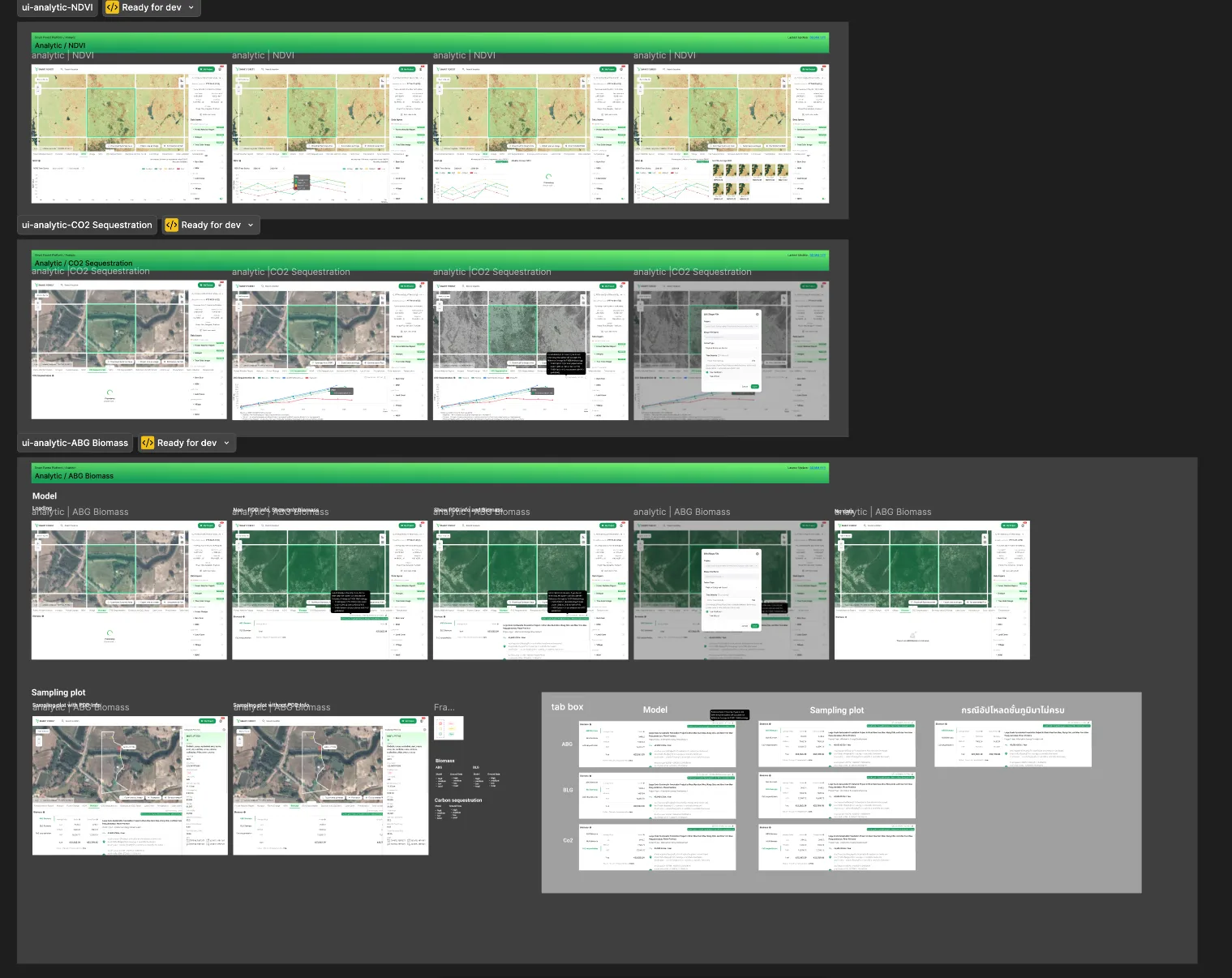
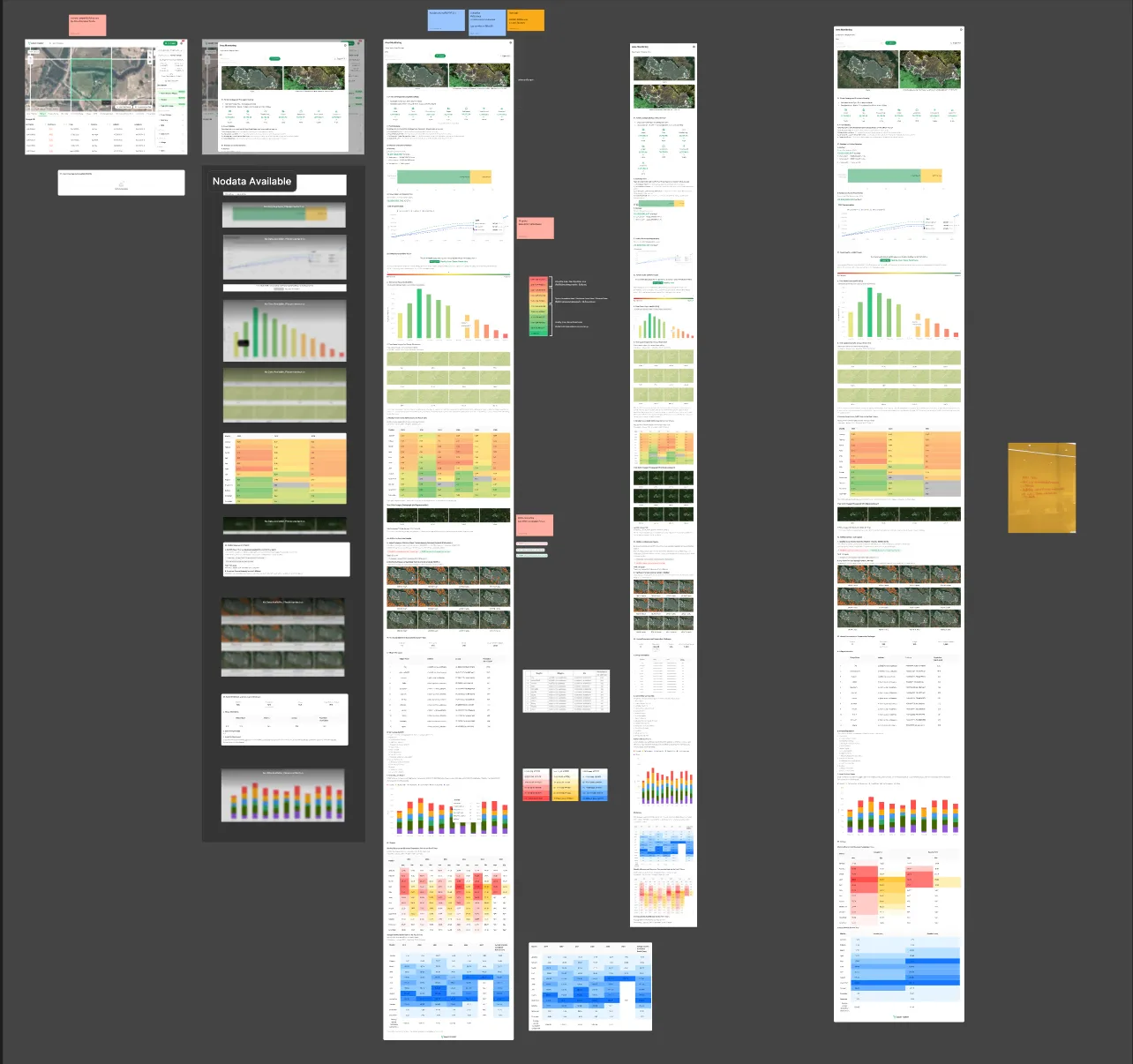
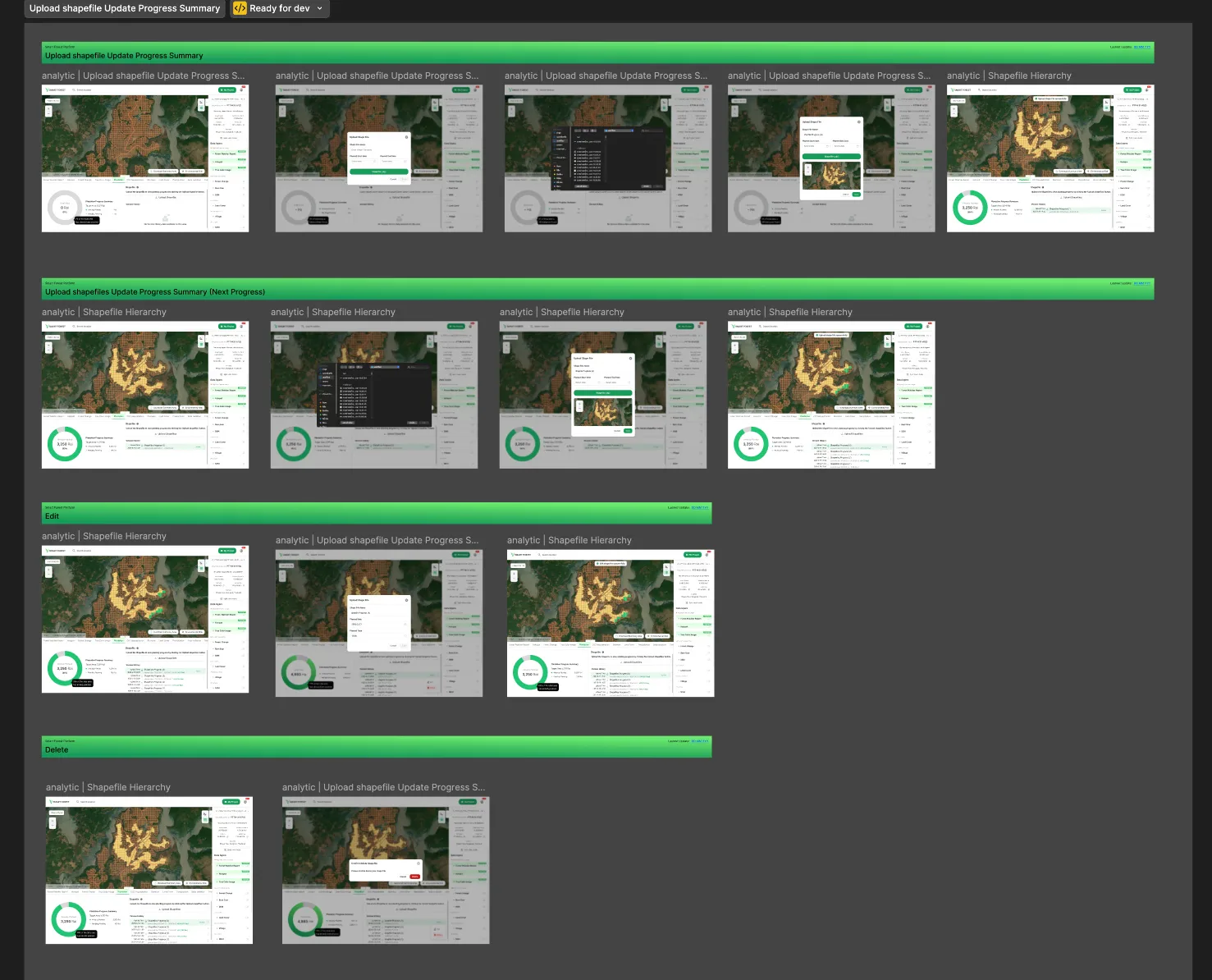
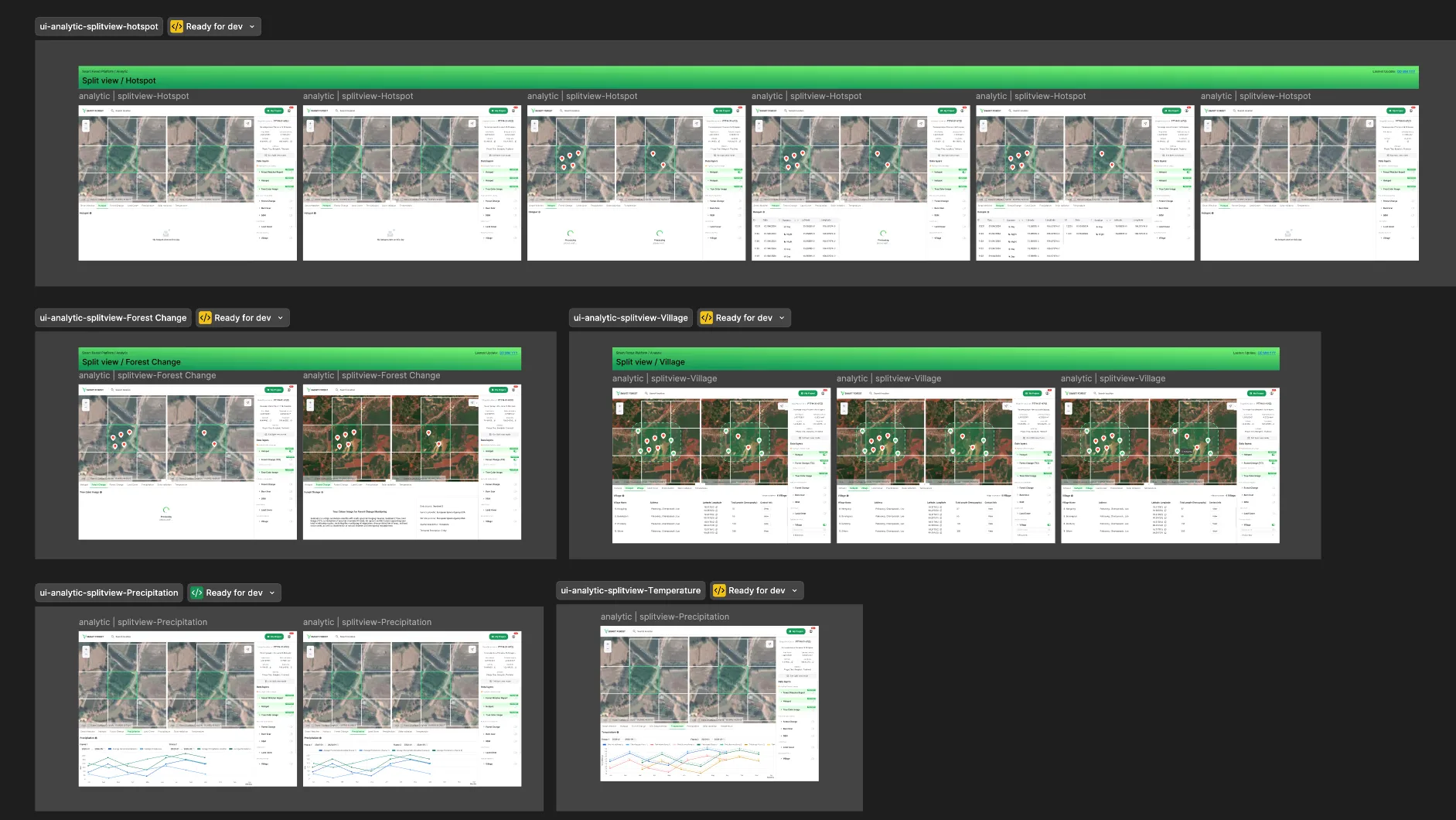
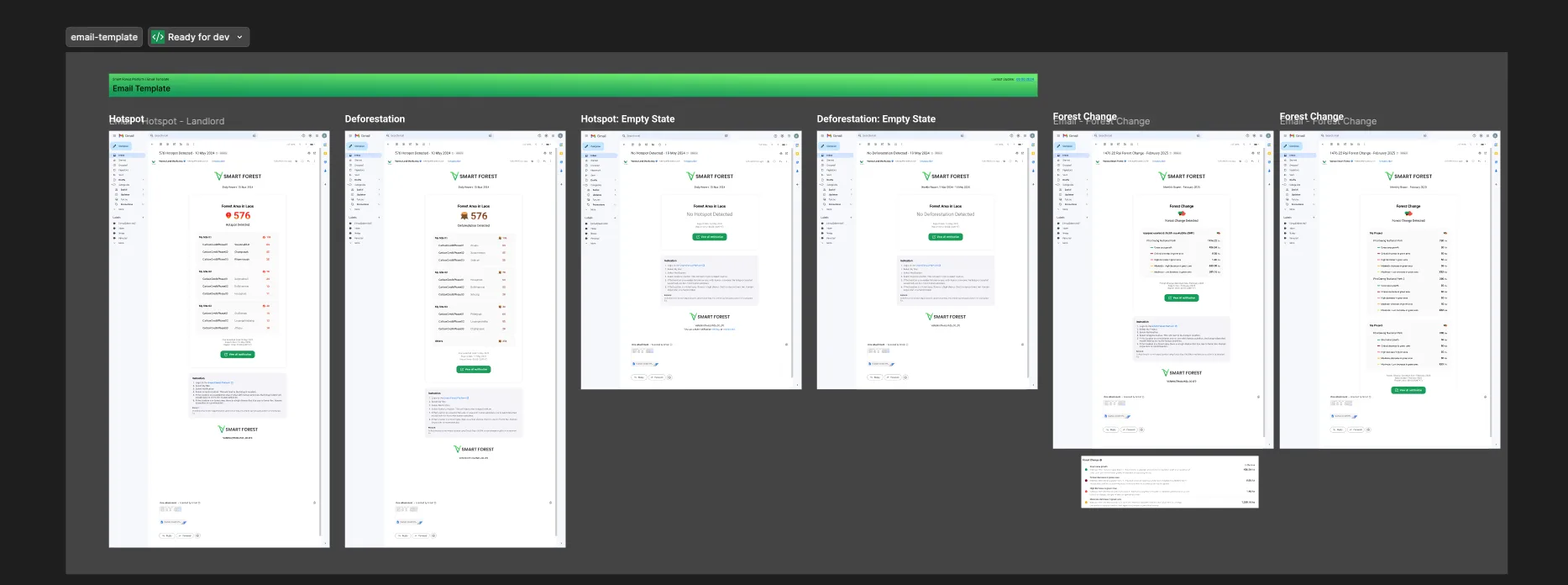
The finished screens were marked ready for development page by page. Monitoring groups the map layers into biosphere, atmosphere, land cover, risk and vulnerability, and socioeconomics, and every layer carries a short explanation and a legend. The analytic pages give each metric its own view, with above-ground biomass shown from the model or from sampling plots and a defined state for incomplete data. Around them sit shapefile upload, edit and delete with a progress summary, a one-page area summary with its no-data states, and email alerts for hotspots, deforestation and forest change, including the email sent when nothing was detected.
Step 11
Screen Flow and Interactive Prototype
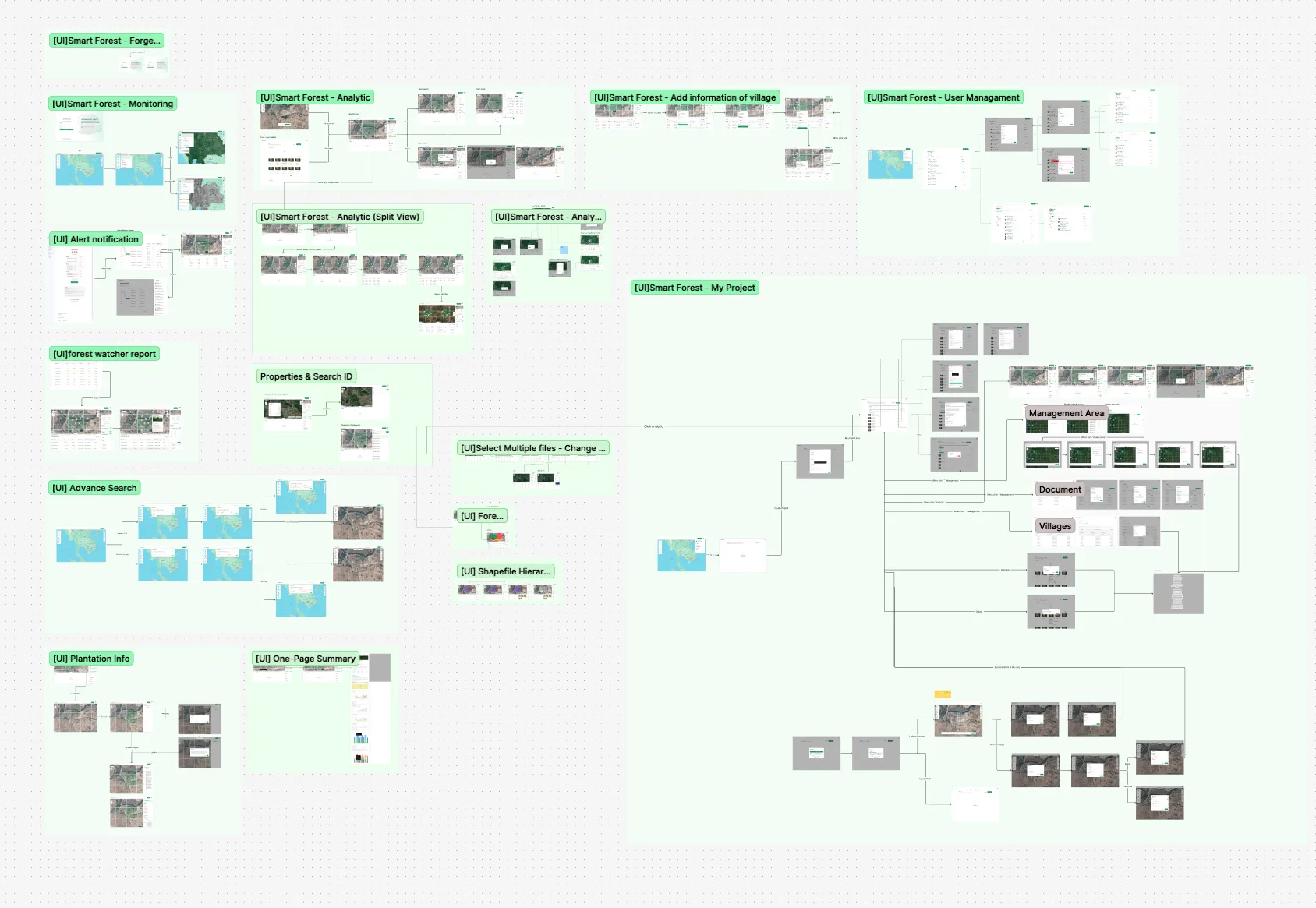
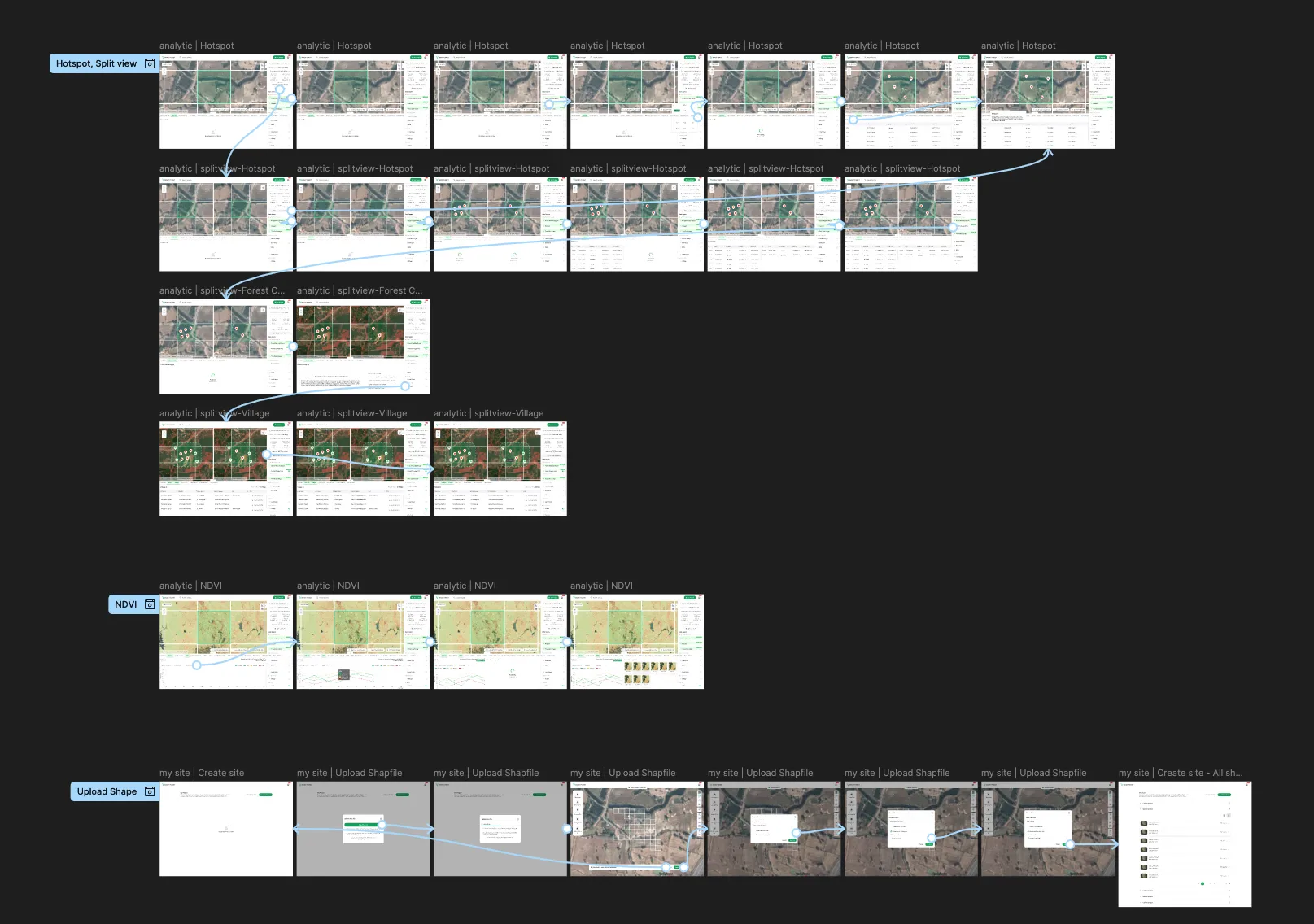
All sections were laid out on one screen-flow map, from monitoring and analytics to user management and the project area with its documents and villages, so the navigation between them could be checked as a whole. The main paths were then wired into clickable prototypes: hotspots in split view, NDVI analysis, and uploading a shapefile to create a site.
Step 12
Design Spec and Developer Handoff
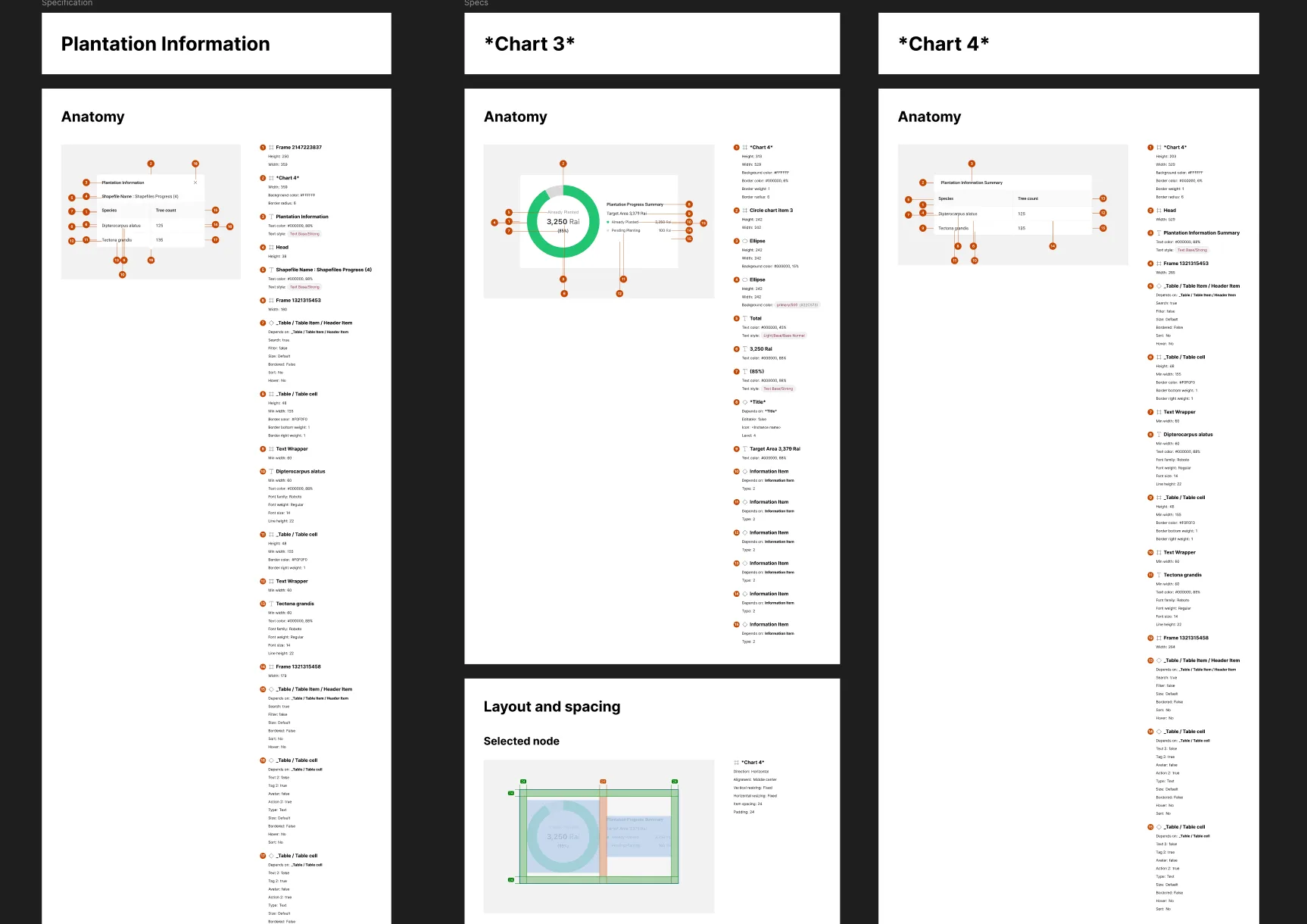
Components were specified with numbered anatomy callouts, the properties of every layer, and a layout and spacing view for the selected node, as in the plantation information panel and the planting progress chart. The spec gives developers the measurements and properties directly instead of leaving them to read them off the design.
Step 13
Usability Testing
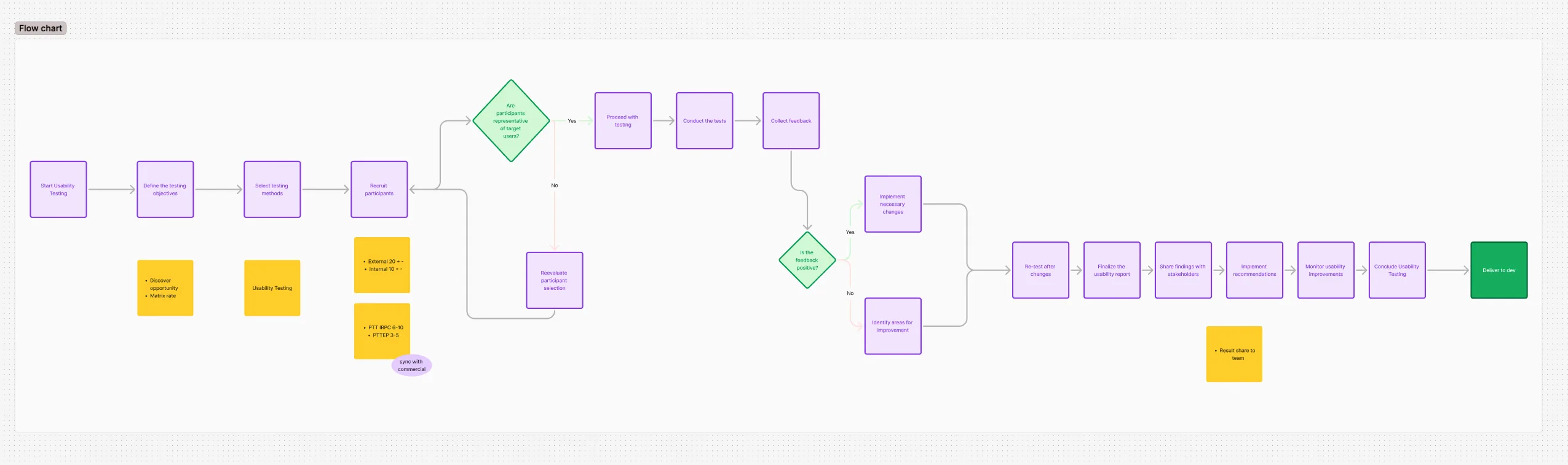
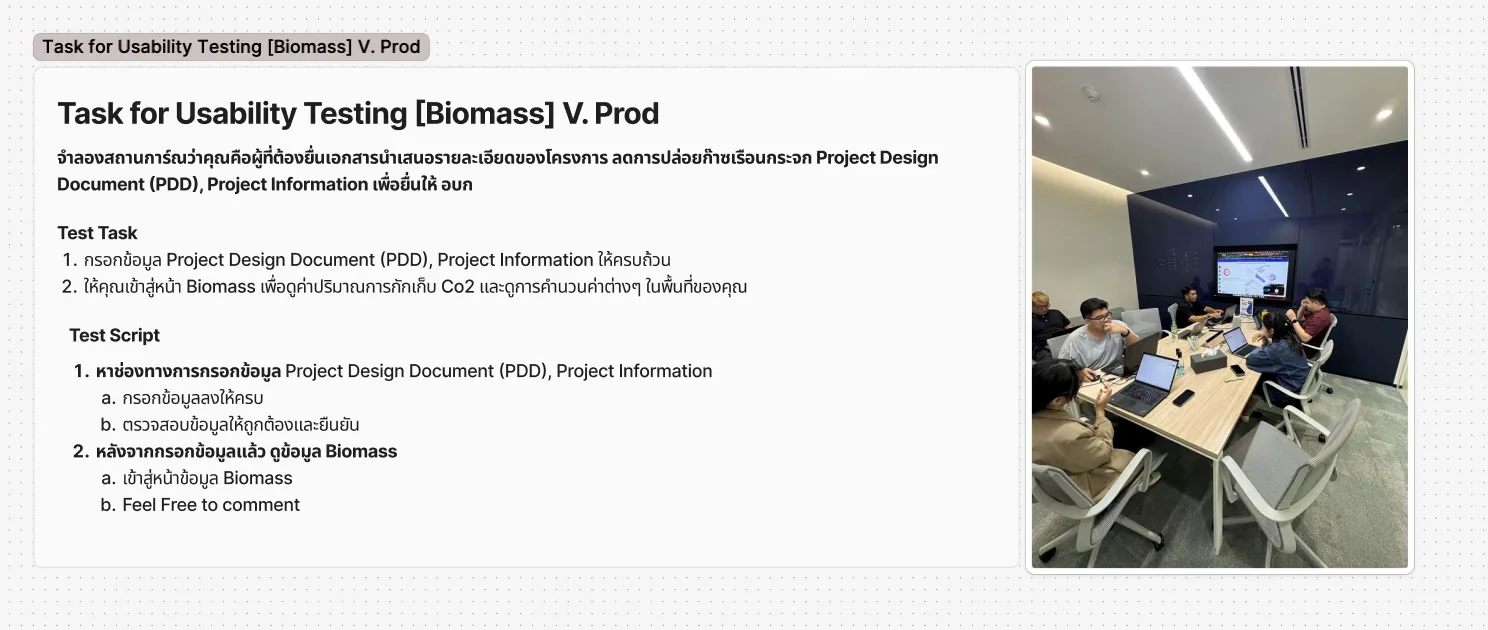
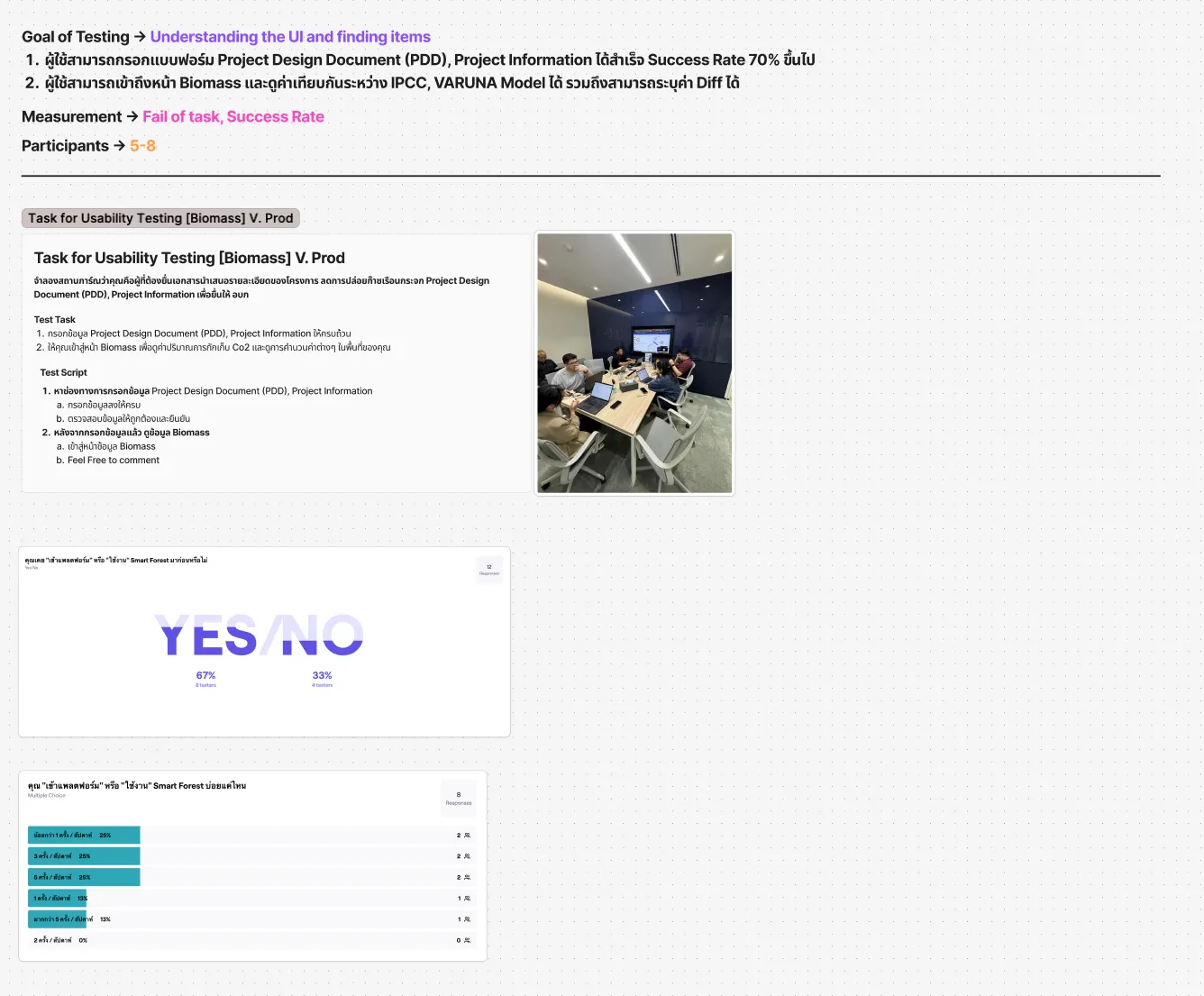
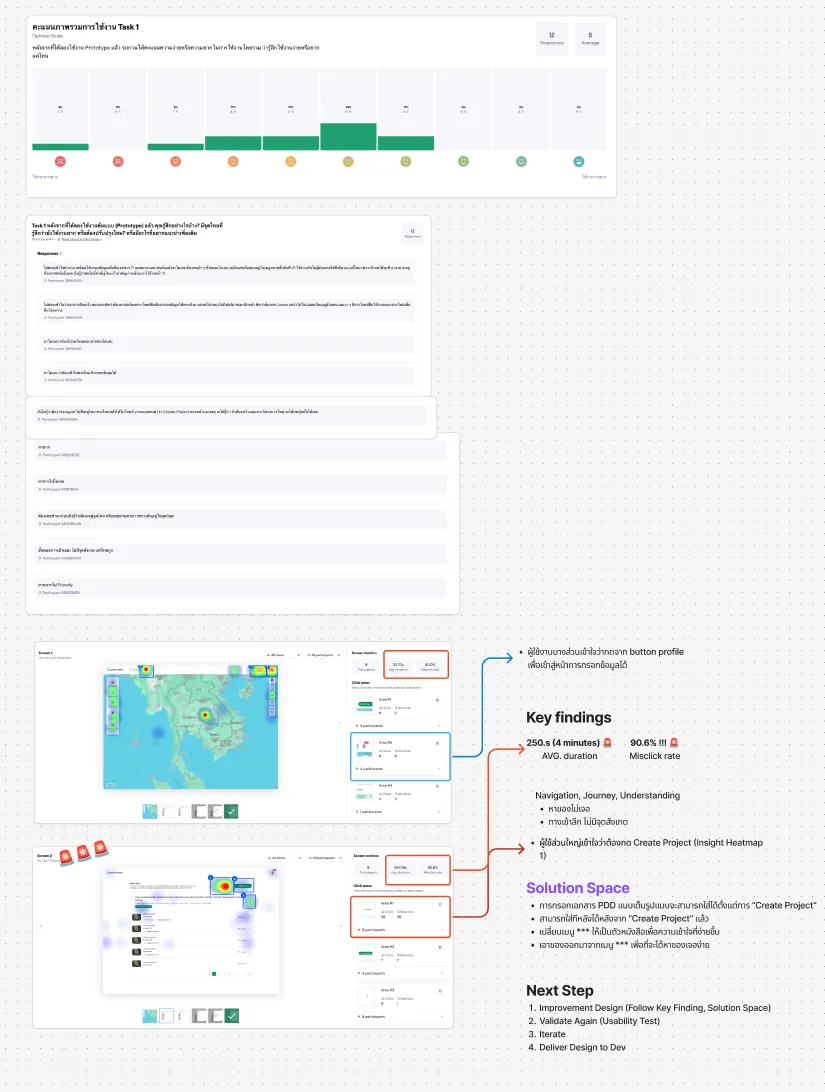
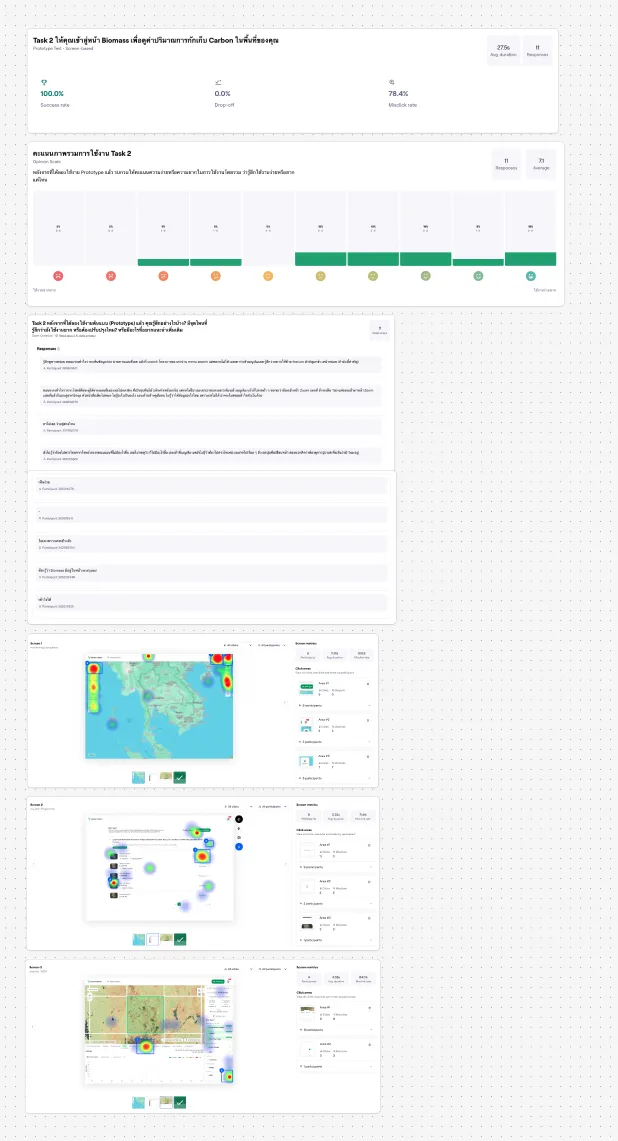
Testing was planned as a flow, from objectives and participant selection to retesting after changes and handover. The biomass test asked participants to fill in a project design document and then read the carbon figures on the biomass page. The first task averaged about four minutes with a 90.6% misclick rate, and the heatmaps showed most participants starting from Create Project rather than the profile button that held the form. The proposed fixes were to let the document be filled in from Create Project, to label the menu in words, and to bring the entry out of the menu. The second task reached 100% success with no drop-off but a 78.4% misclick rate.
Step 14
Feedback and Product Direction
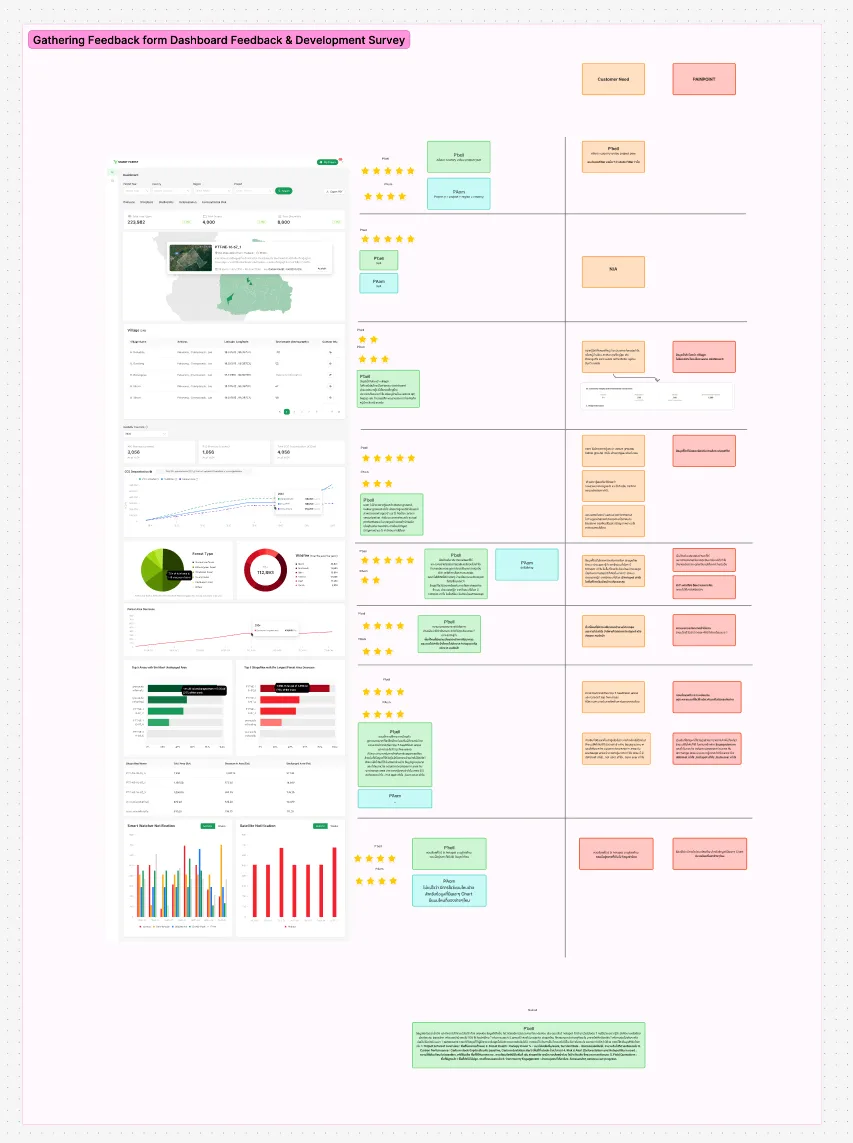
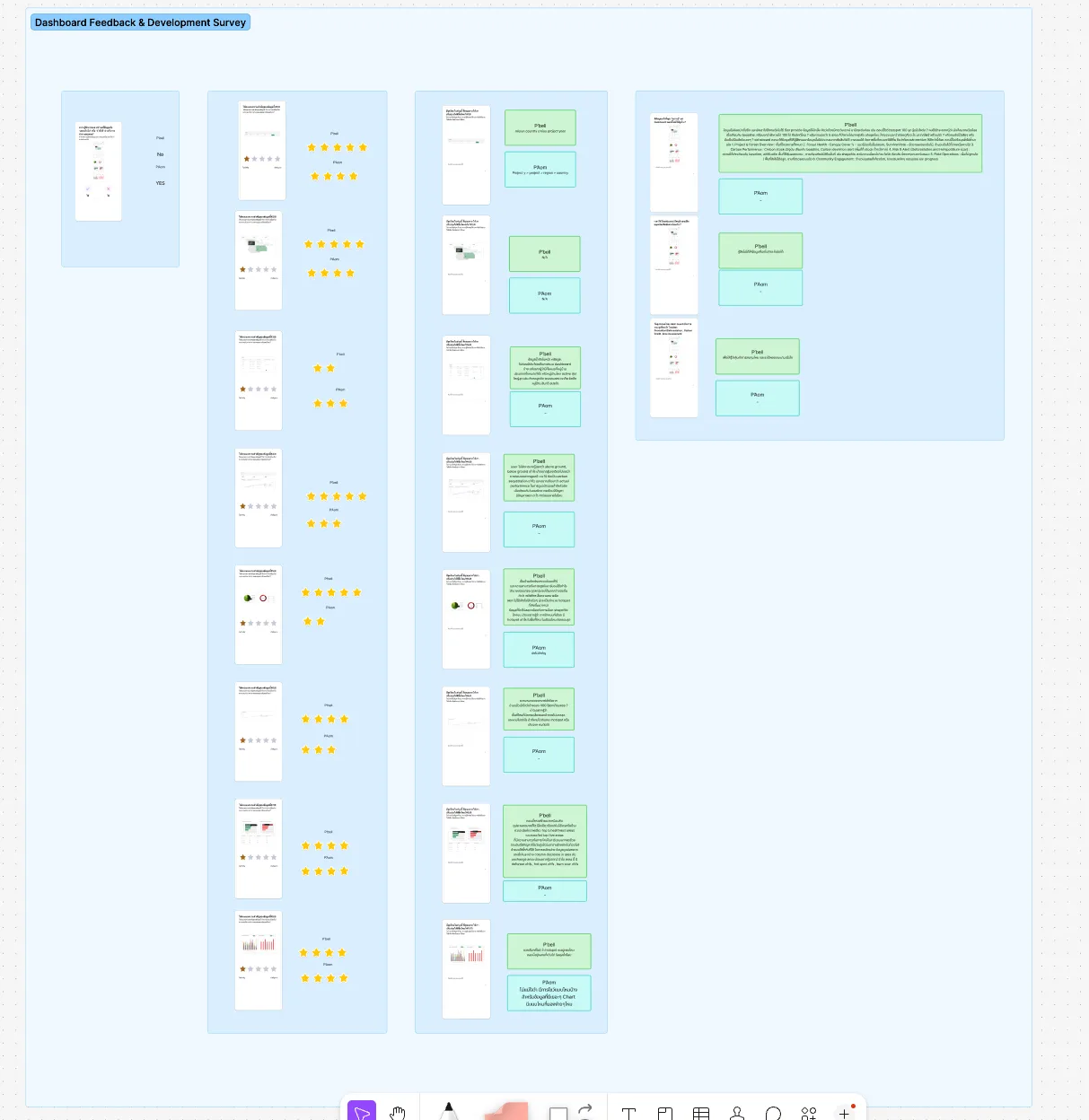
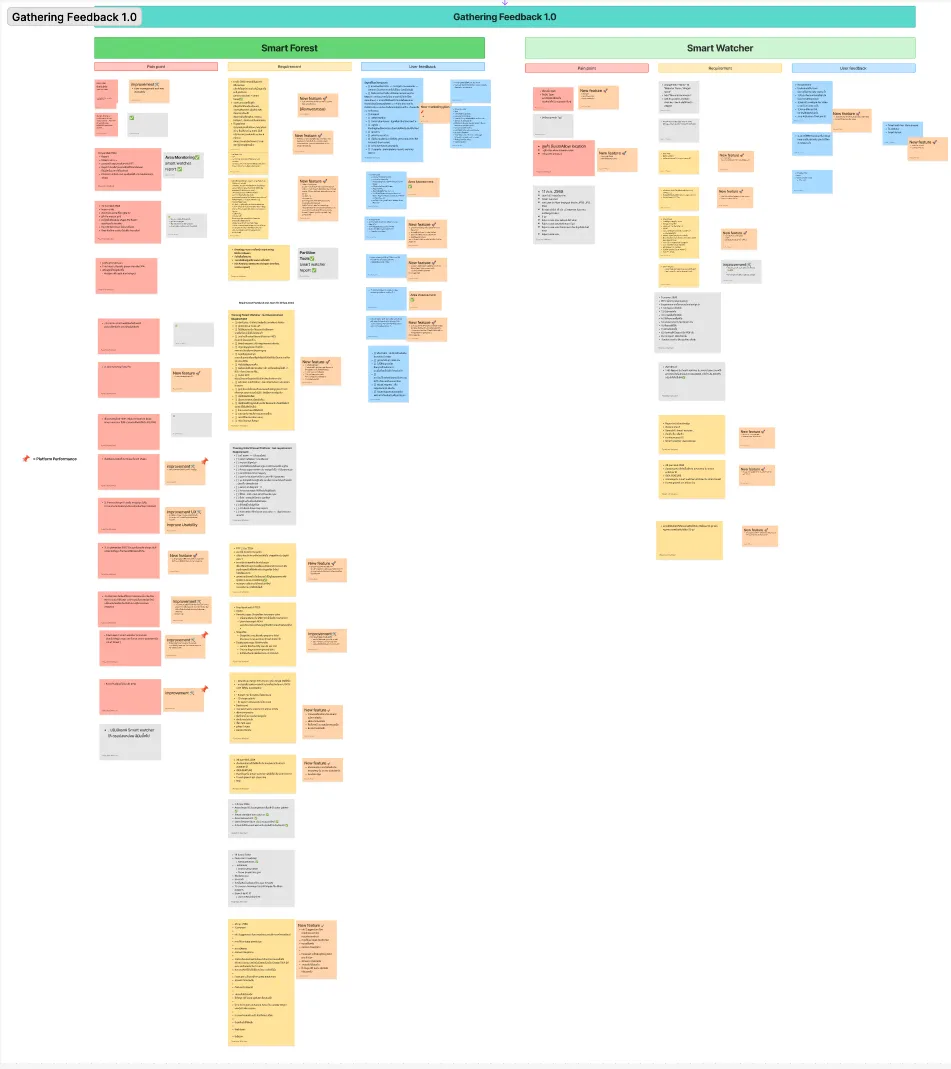
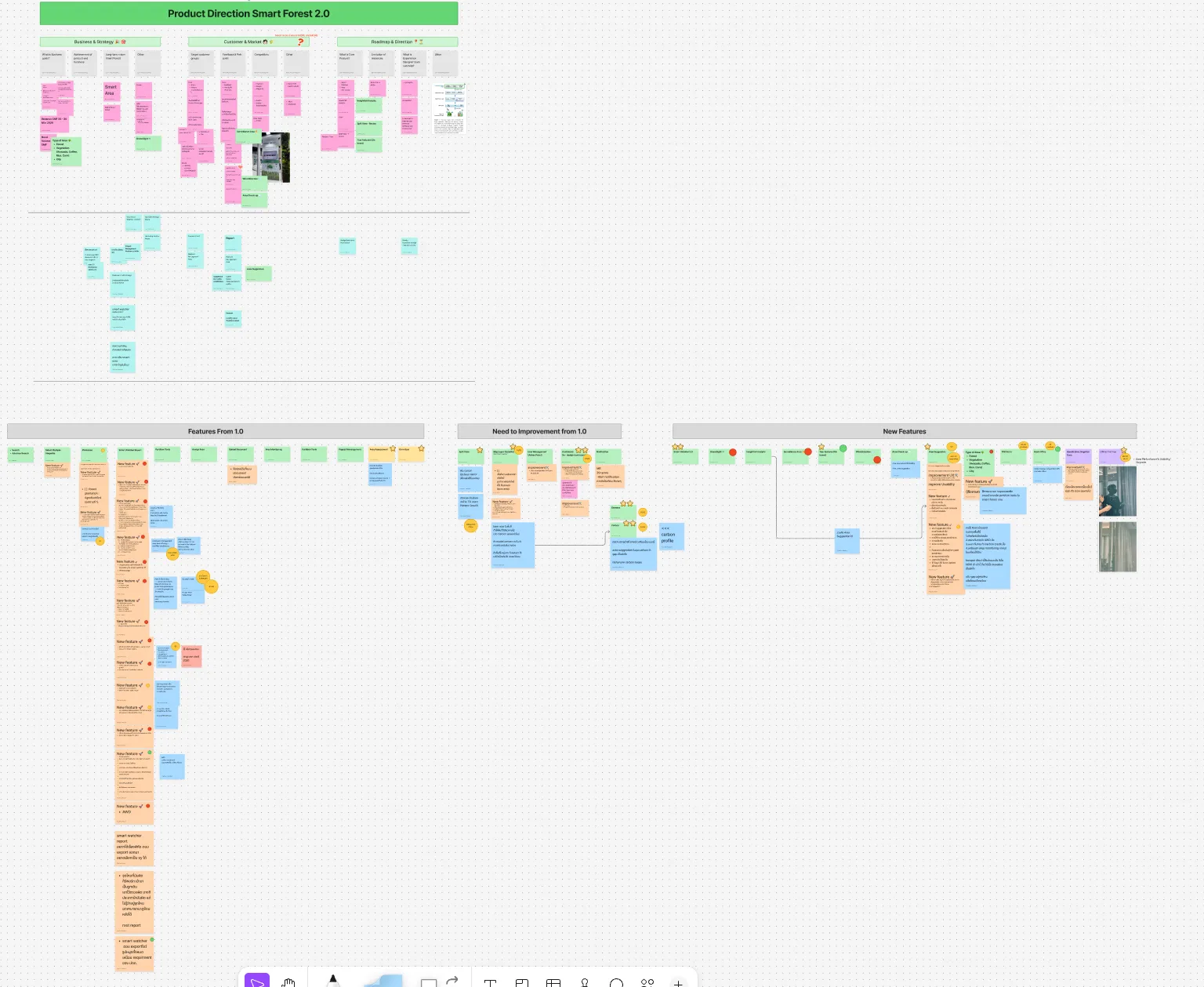
After release, a dashboard feedback survey had stakeholders rate and comment on each section of the dashboard, and each comment was mapped to a customer need and a pain point. A feedback board for Smart Forest and Smart Watcher sorted every item into pain point, requirement or user feedback and tagged it as a new feature or an improvement. A product direction board for the next version then grouped the work into what to keep from the first version, what needs improving and what is new.
Executive Summary & Impact
Plain-Language Layers
Five groups, each explained
Biosphere, atmosphere, land cover, risk and socioeconomics, with a short explanation and a legend for every layer.
Analysis per Plot
One view per metric
NDVI, CO2 sequestration, biomass and forest change each get their own analysis, with a split view to compare layers.
Shared Design System
One theme, five products
A core theme shared by five company products, each overriding only its colour, radius and font, built on BaseBlocksUI.
Smart Forest is a GIS platform for monitoring forest plots and their carbon, working alongside Smart Watcher's field reports and the Forest of Tomorrow carbon marketplace. The design groups the map layers into five plain-language categories, gives each metric its own analysis view, shows a plot either as its own shapefile or as the analysis grid, and sends hotspot, deforestation and forest-change alerts by email.
01 / Discovery & Context
Problem & Baseline
Forest officers needed to understand the condition of large planted areas and report on them, but the satellite and GIS data that could show it was hard to read without specialist training. The research found users switching between several systems, finding GIS complex, and facing areas too large to survey on foot, with long journeys to hard-to-reach plots and reports still made manually. The platform also had to show plots the way customers define them in their own shapefiles, while running its analysis on a common grid.
Many systems
Users switched between several systems to see the data for one area.
Complex GIS
Satellite and GIS layers were hard to read, and one persona had little technical background.
Areas too large
Plots were too large and too remote to survey on foot, so officers needed to know where to look first.
Two shapes of data
Customers define plots in their own shapefiles, while the analysis runs on a common master grid.
02 / Architecture & UX System
Key Design Decisions
01
Layers Grouped and Explained
Grouped the map layers into biosphere, atmosphere, land cover, risk and vulnerability, and socioeconomics, and gave every layer a short 'What is it?' explanation and a legend.
02
One Analysis View per Metric
Gave NDVI, CO2 sequestration, above-ground biomass and forest change their own analysis views, with time series, monthly imagery and a split view for comparing layers side by side.
03
Original Polygon or Master Grid
Let a plot be shown as its original shapefile polygon or as the master grid used for analysis, for one file or several, with uploads tracked in a progress summary of the area covered.
04
Alerts That Come to the User
Designed email alerts for hotspots, deforestation and forest change, including the email sent when nothing was detected, answering the research call for alerts and automatic reports.
05
One Theme Across Five Products
Built a core theme shared by five products, each overriding only its colour, radius and font, with components in BaseBlocksUI and an empty, loading, data and error state defined for every layer.
03 / Verification & Evidence
Outcomes
Area
Before
After
Outcome
Reading the layers
Layers assumed GIS knowledge
Five groups, each layer explained with a legend
Easier to read
Seeing one area
Data for one area sat in several systems
Each metric analysed per plot, with a split view
One place
Plot boundaries
Customers' shapefiles and the analysis grid differed
Switch between the original polygon and the master grid
Both views
Alerts and reports
Reports were made manually
Email alerts for hotspots, deforestation and forest change
Proactive
Finding the project form
Production test: about four minutes, 90.6% misclick
Fix proposed: start the form from Create Project, menu labelled in words
To retest
04 / Retrospective
What I Learned
→
Writing the problem as one question, how officers could understand a forest without GIS expertise, gave every later decision a test: does this screen need specialist knowledge to read?
→
Testing the production version showed that a working feature can still be hard to find: most participants looked for the project form under Create Project rather than where it was placed.
→
Sharing one core theme across five products, with each overriding only its colour, radius and font, kept them related without forcing them to look identical.