Lead UX/UI DesignerWeb ApplicationField Reporting / Incident Verification
Smart Watcher Platform
VARUNA CO., LTD. (ARV) · 1 yr 8 mo · Oct 2024 – May 2026
Design Process & Workflow
From Field Roles to Tested Reports
How field reporting was framed around the people who file reports, built into flows, a design system and report screens, then tested with scripted tasks before handoff.
Step 01
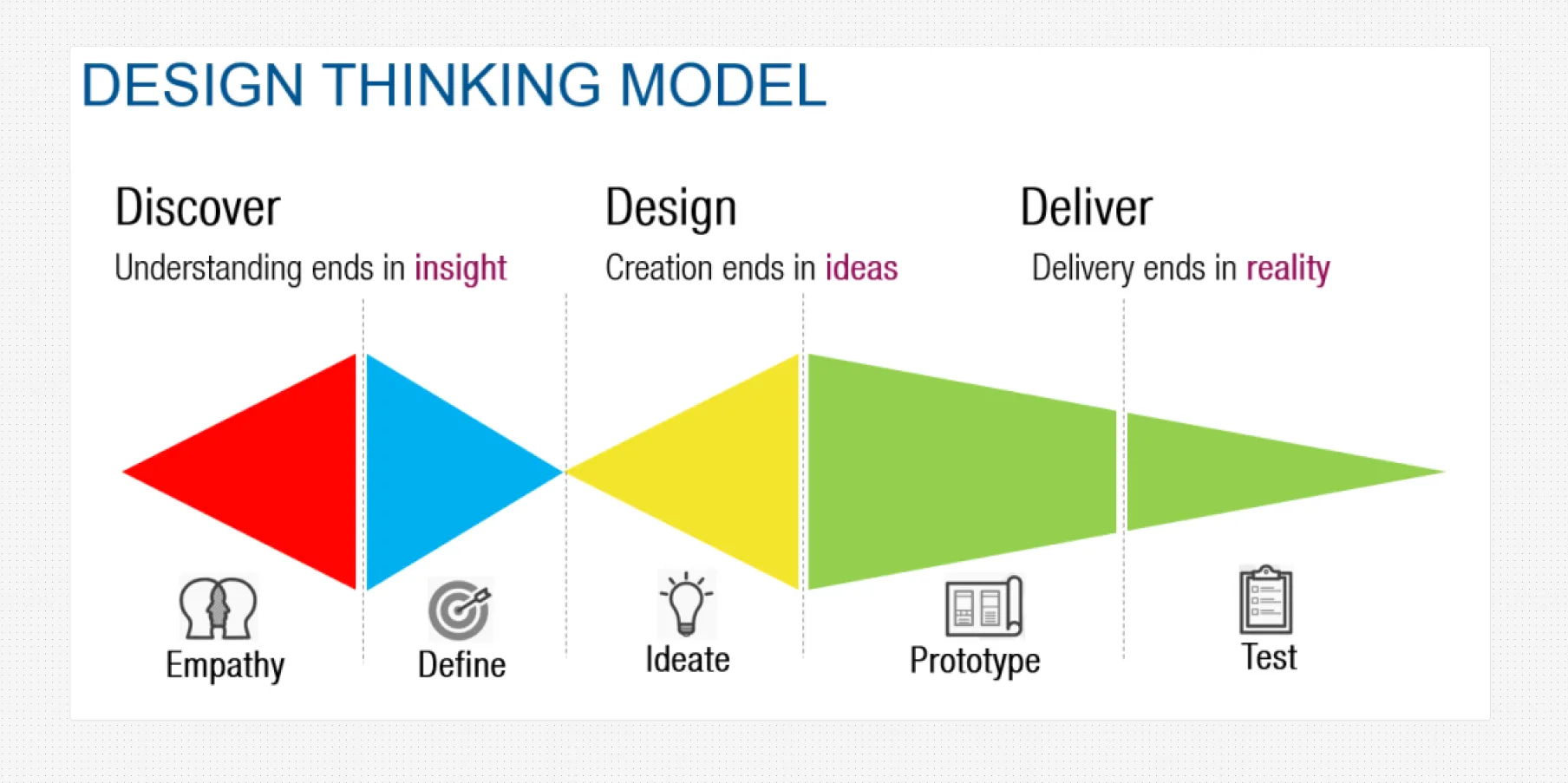
Design Thinking & Process Framing
Framed the engagement around a reporting problem rather than a dashboard request. Satellite monitoring already covered the forest areas, so the design question was how a person standing in the plot could record what they were seeing in a form the monitoring side could actually use.
Step 02
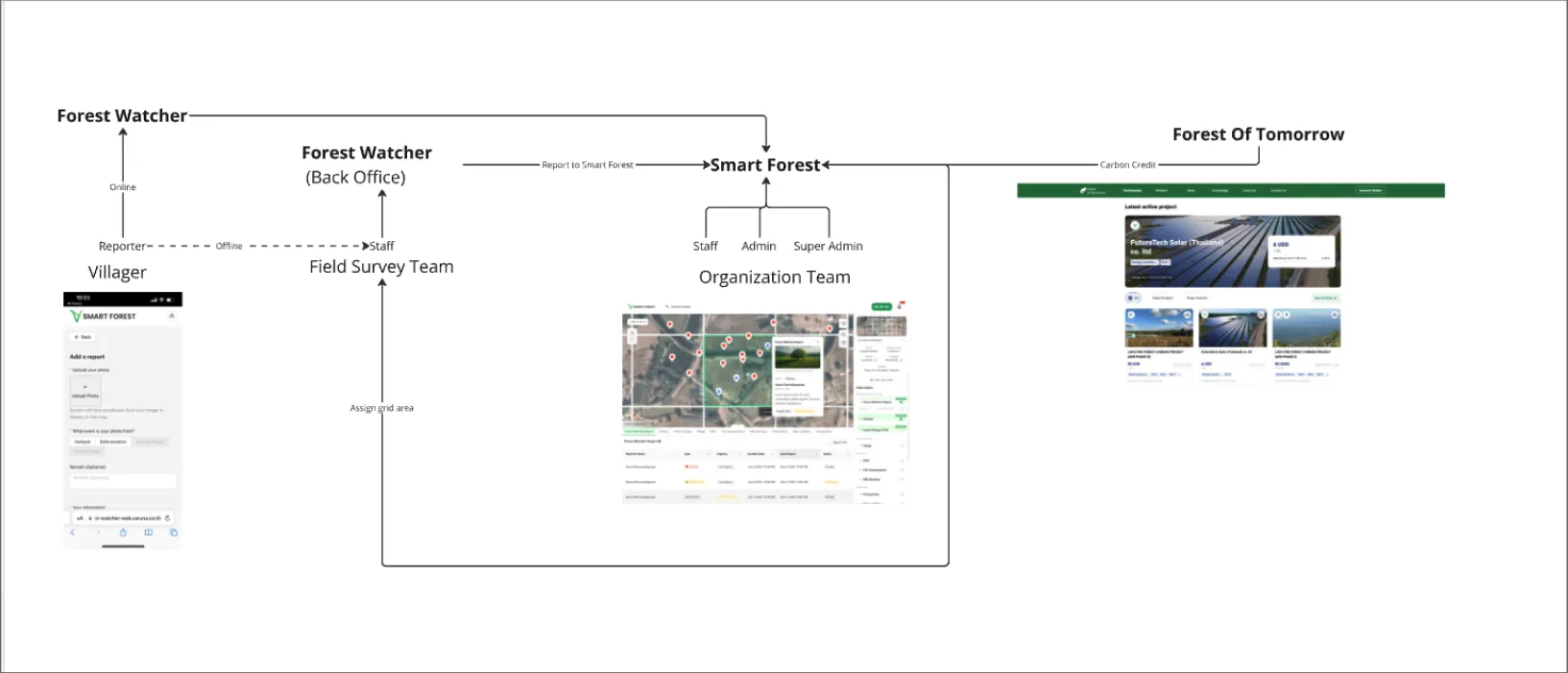
Product Ecosystem Mapping
Mapped how the reporting app sits alongside Smart Forest, the organisations whose plots are being reported on, and the administrators who review what comes in. Making these relationships explicit clarified which information had to travel with every report for it to be worth anything downstream.
Step 03
Personas & Field Roles
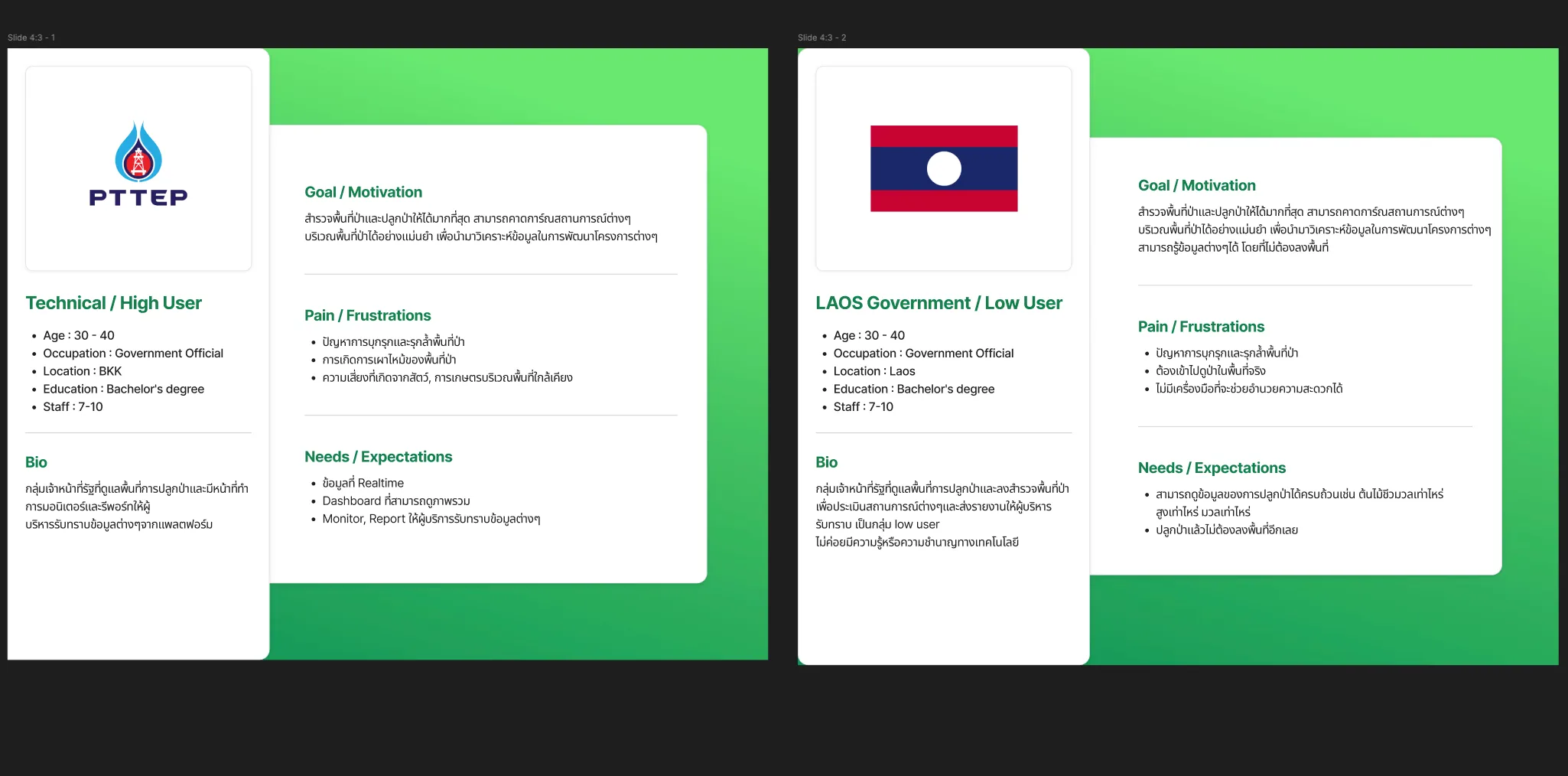
Defined two government-official profiles with very different conditions. One is a technical high user based in Bangkok who monitors plots and reports upward to management, and needs an overview and a dashboard. The other is a low-technology user in Laos who has to walk into the area itself to assess it and had no tool supporting that trip. Both name forest encroachment and burning as the problems they are watching for.
Step 04
User Flow Architecture
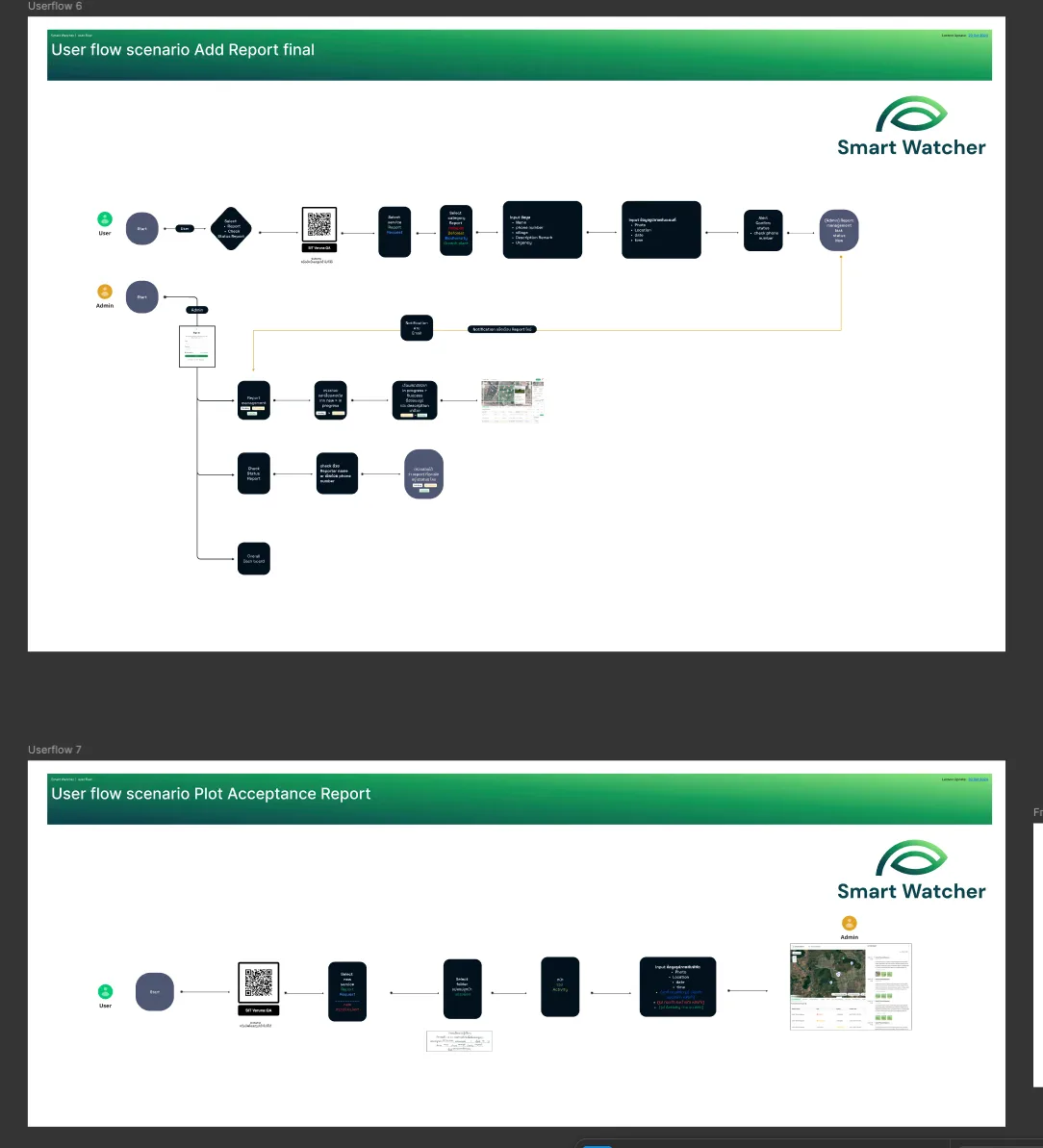
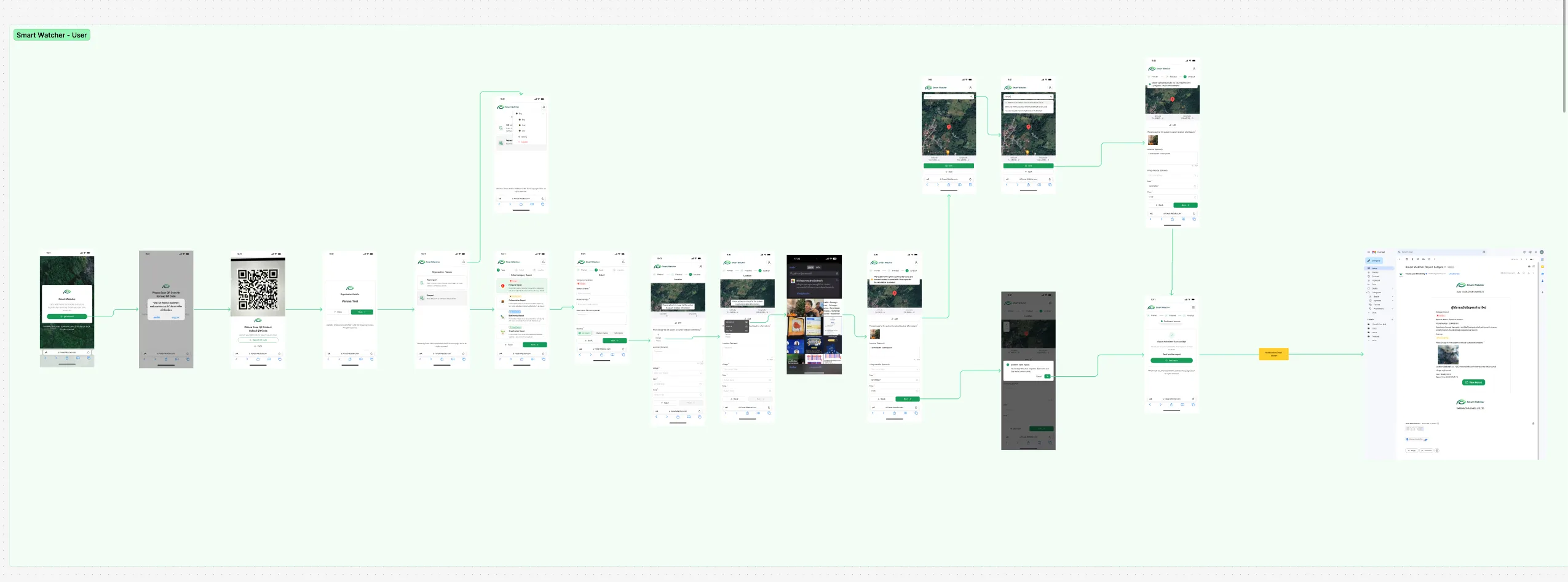
Structured the flows around the report lifecycle for both roles. A field user scans a QR code, picks a report type, fills in the incident and its location, and gets a status back; an administrator receives an email notification and works through report management, status checks and an overall dashboard. Anchoring navigation to that sequence kept both sides looking at the same object.
Step 05
Design System & Theme
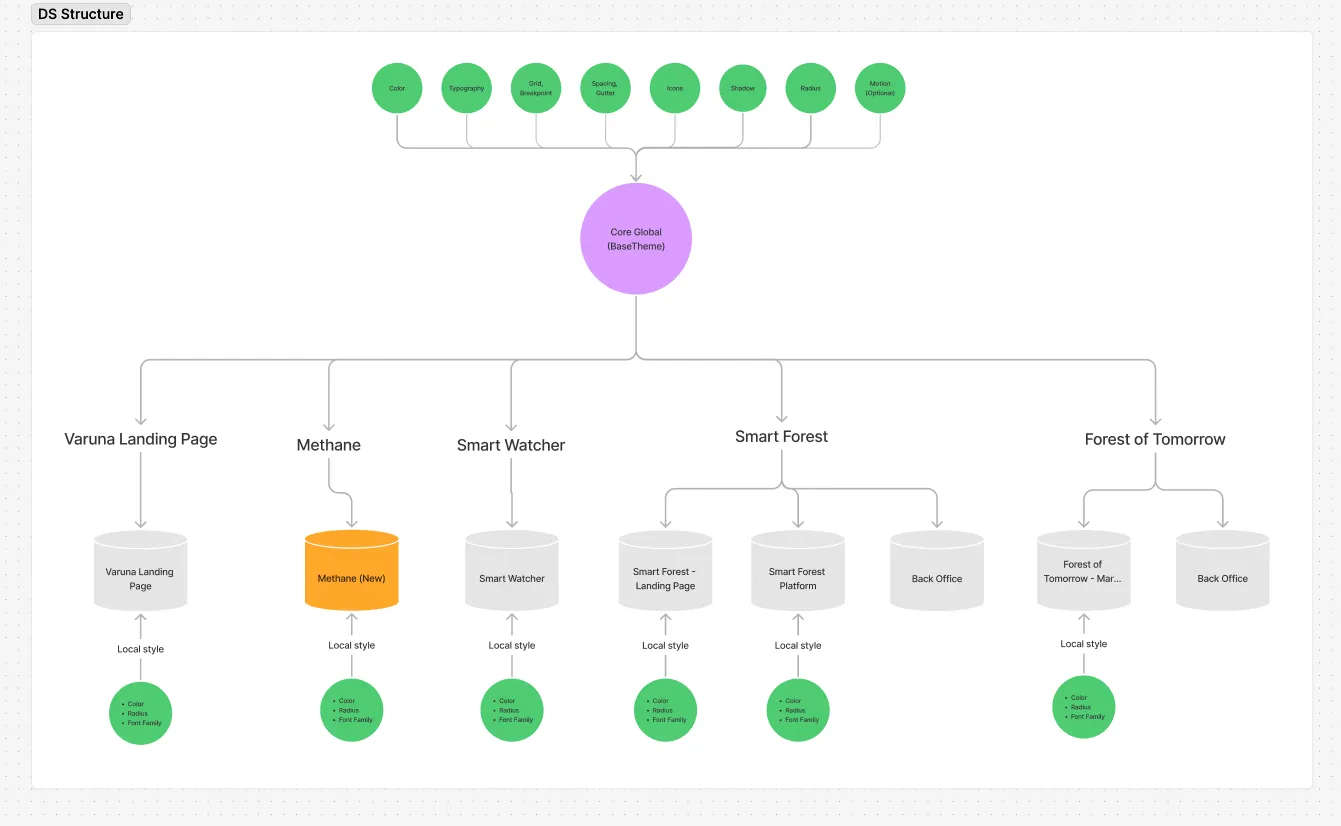
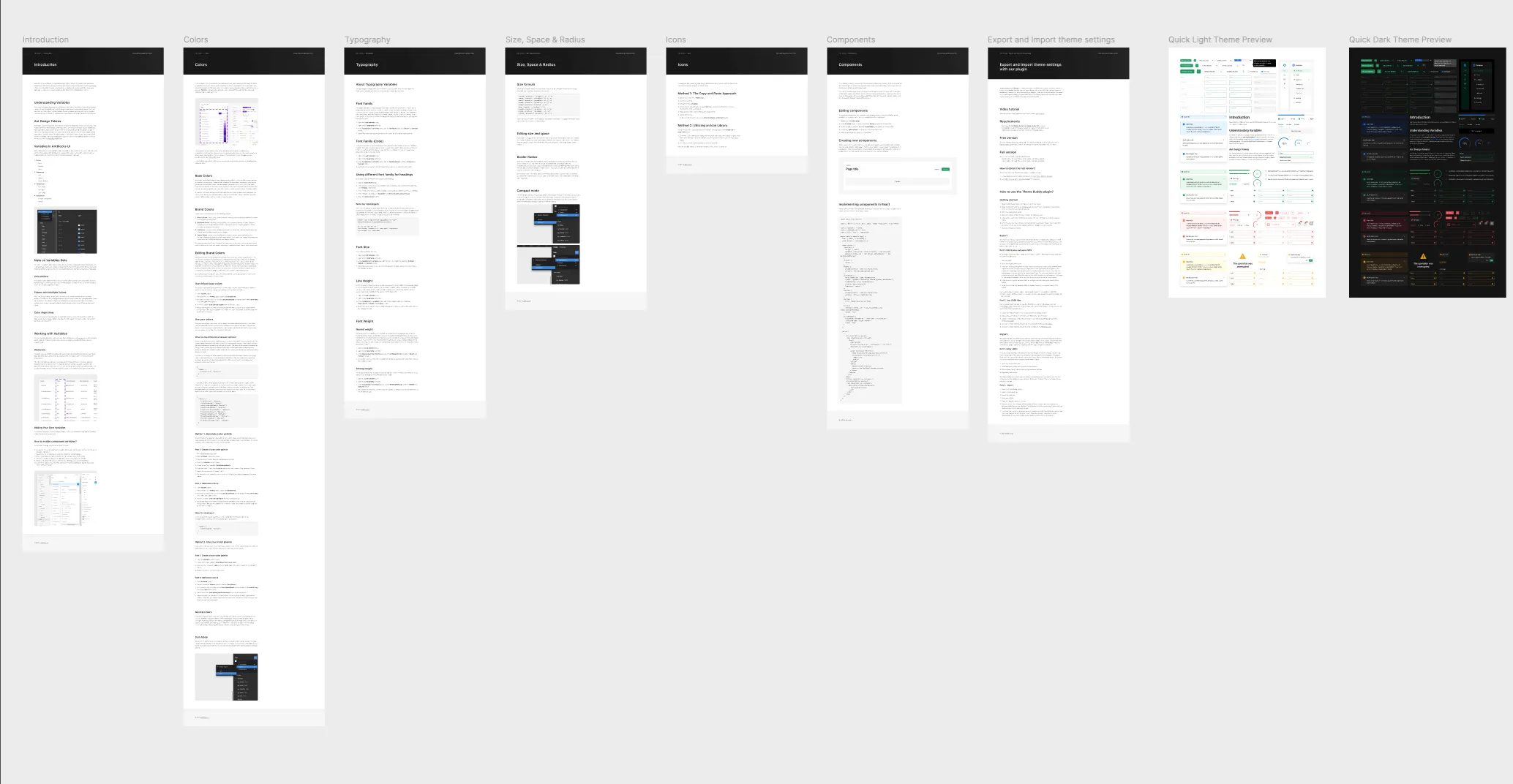
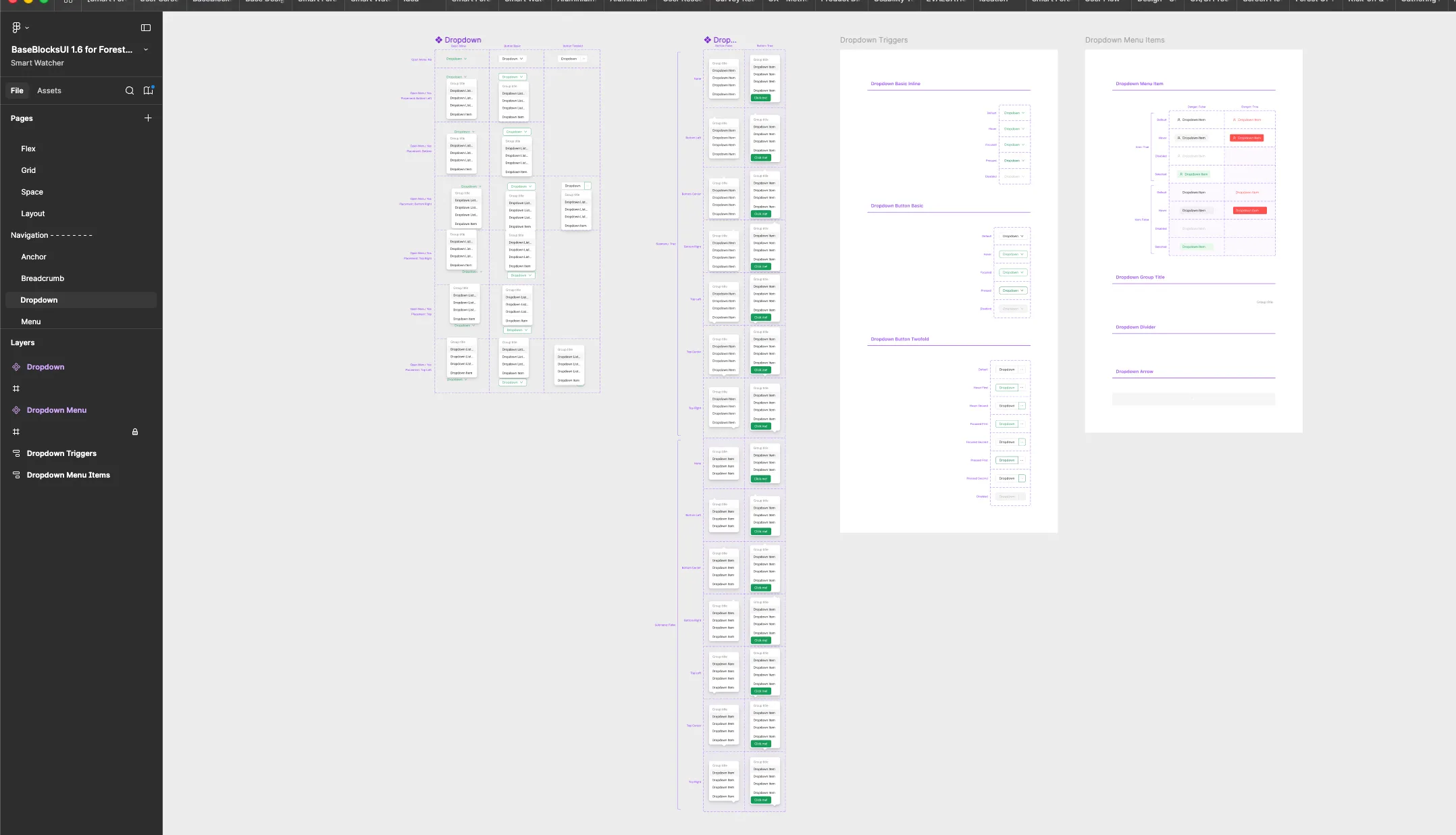
Smart Watcher draws on the same core theme as the company's other products, colour, type, grid, spacing, icons, shadow, radius and motion, and overrides only its own colour, radius and font family. The theme's documentation covers its variables for colour, type, size, space and radius, with quick light and dark previews, and the components live in BaseBlocksUI, where each one, such as the dropdown, is drawn in all its placements and states.
Step 06
Chart Library & Data Visualisation
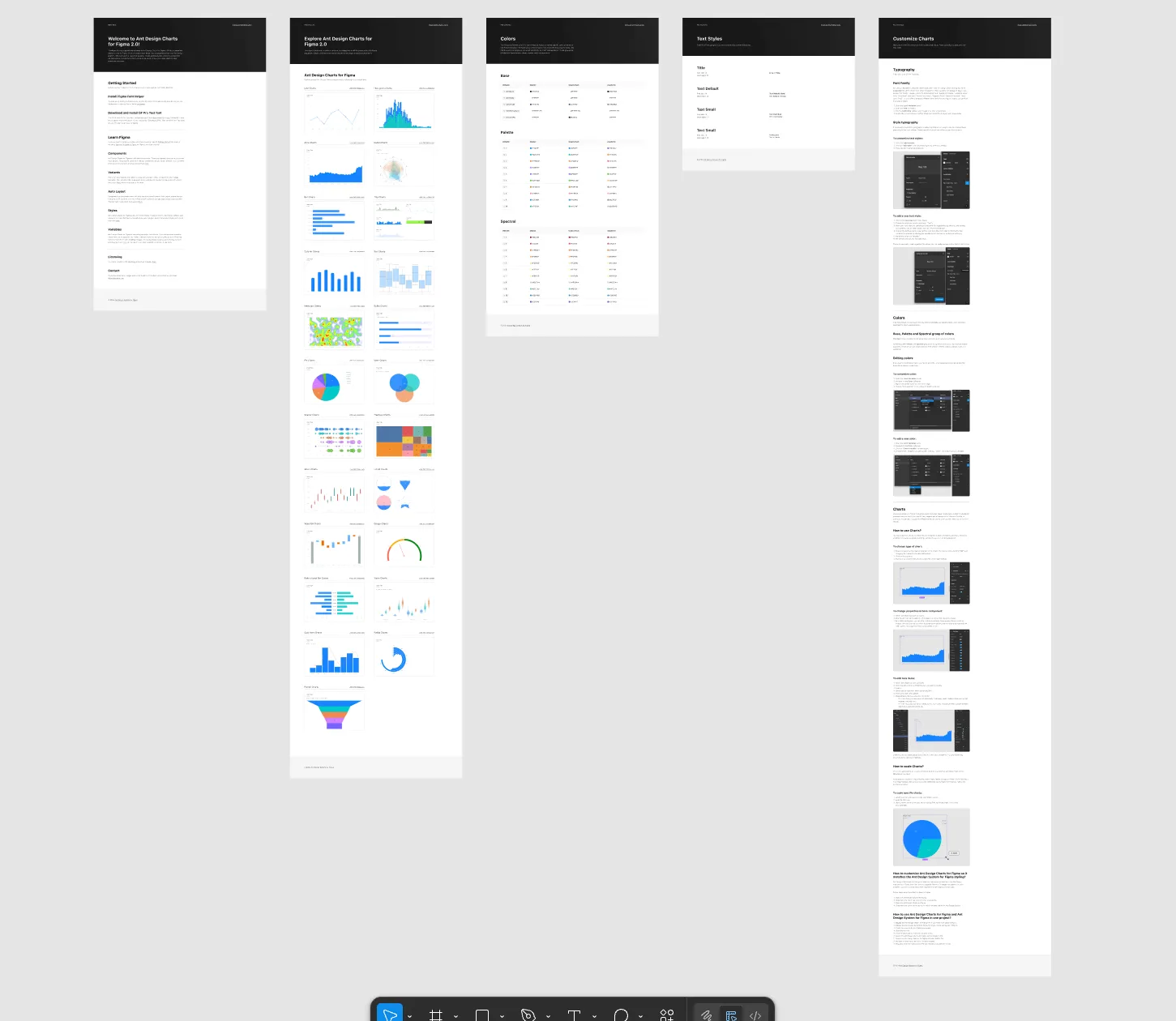
Adopted a documented Figma chart library as the data-visualisation layer rather than drawing charts by hand, and set its colour, typography and customisation rules against the system tokens. That kept the analytics views consistent with the rest of the product and gave engineering a chart vocabulary that already existed in code.
Step 07
Wireframing
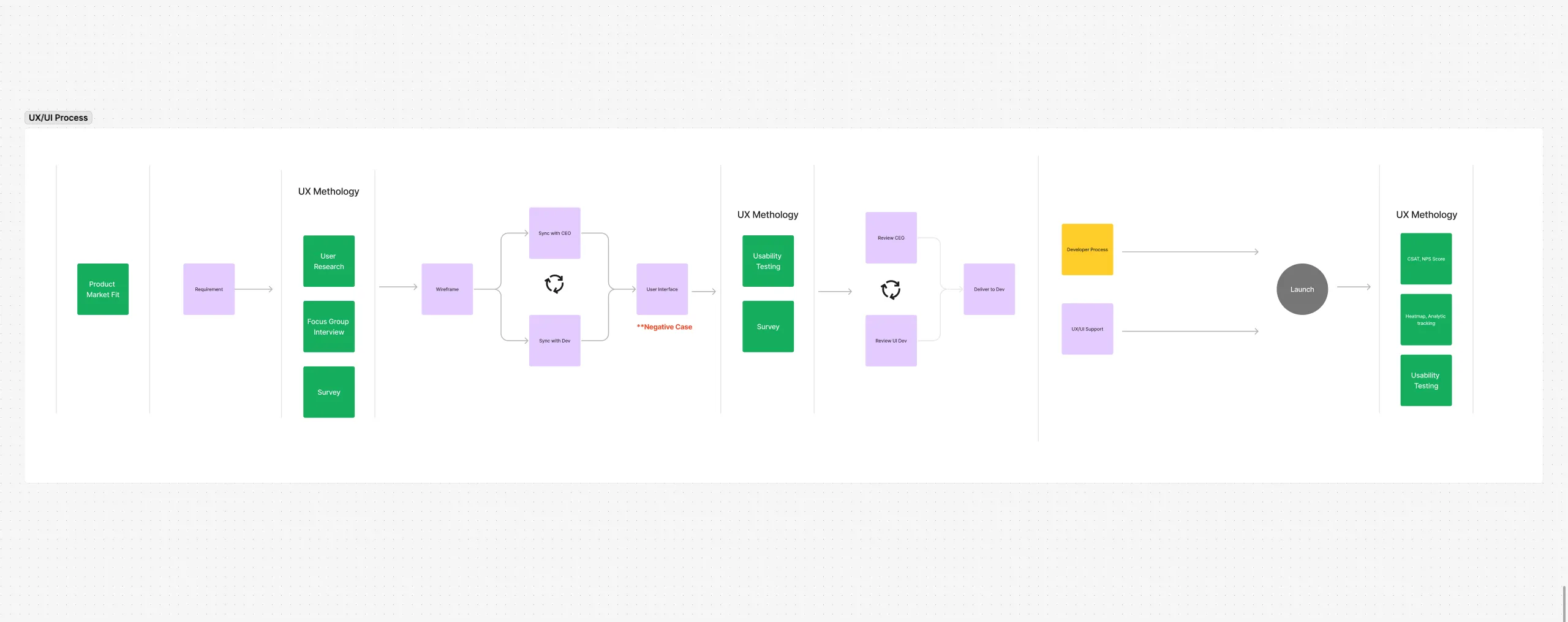
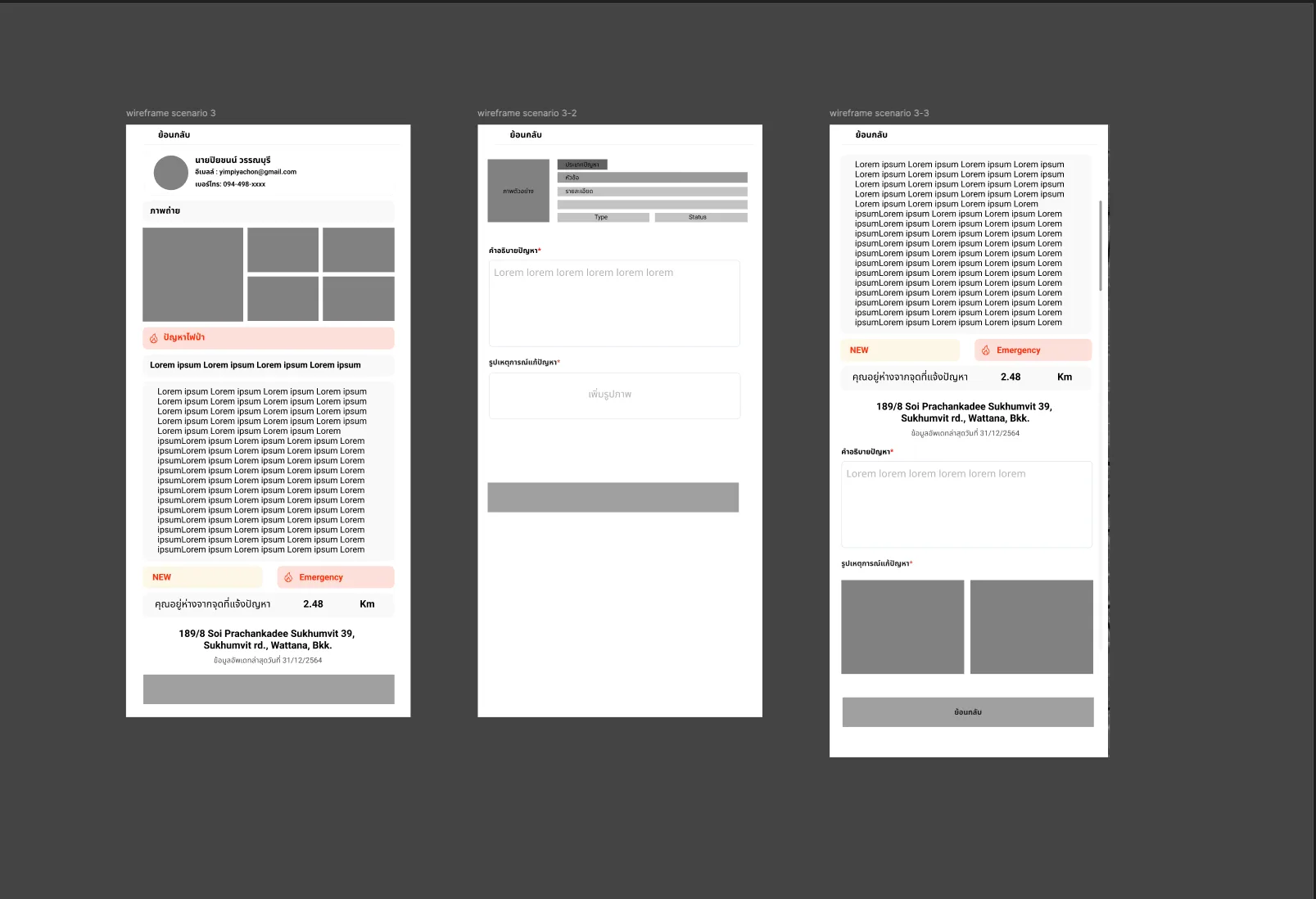
Worked through the report layout in low fidelity: reporter identity, evidence photos, the issue type, an urgency tag, the description, and how far the viewer is from the reported point. Testing the order in wireframe settled what a reviewer needs to see before scrolling and what can wait.
Step 08
UI Design
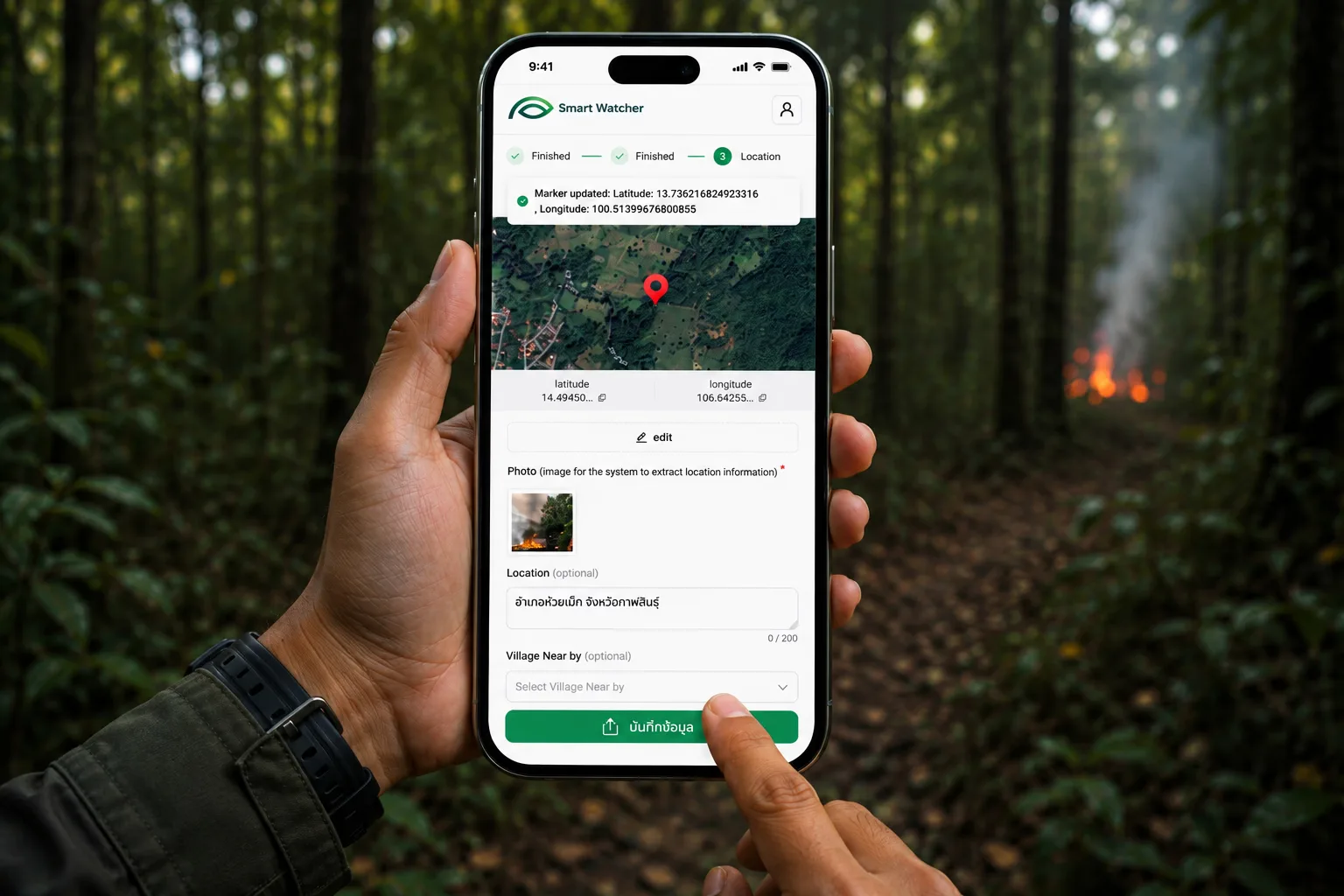
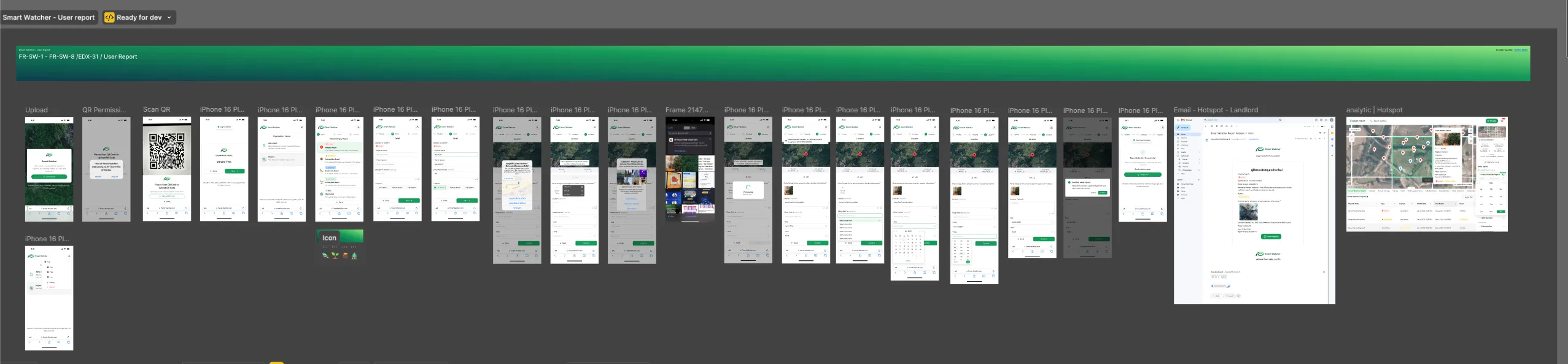
Resolved the wireframes into the production interface — a mobile reporting flow from QR sign-in through photo, location, date and submission, paired with the web side where submitted reports appear on a map with their supporting detail.
Step 09
Report Types & Edge-Case States
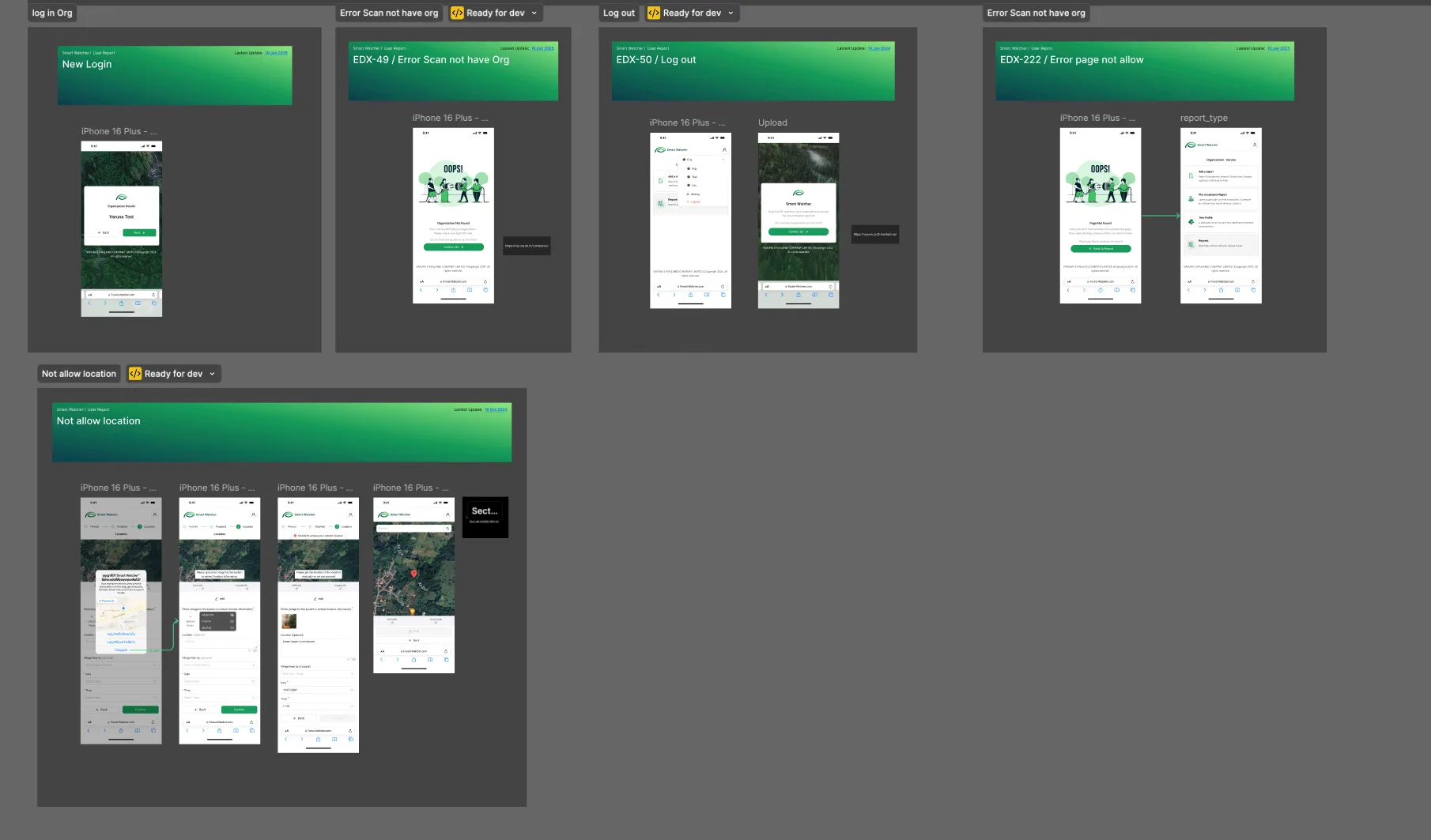
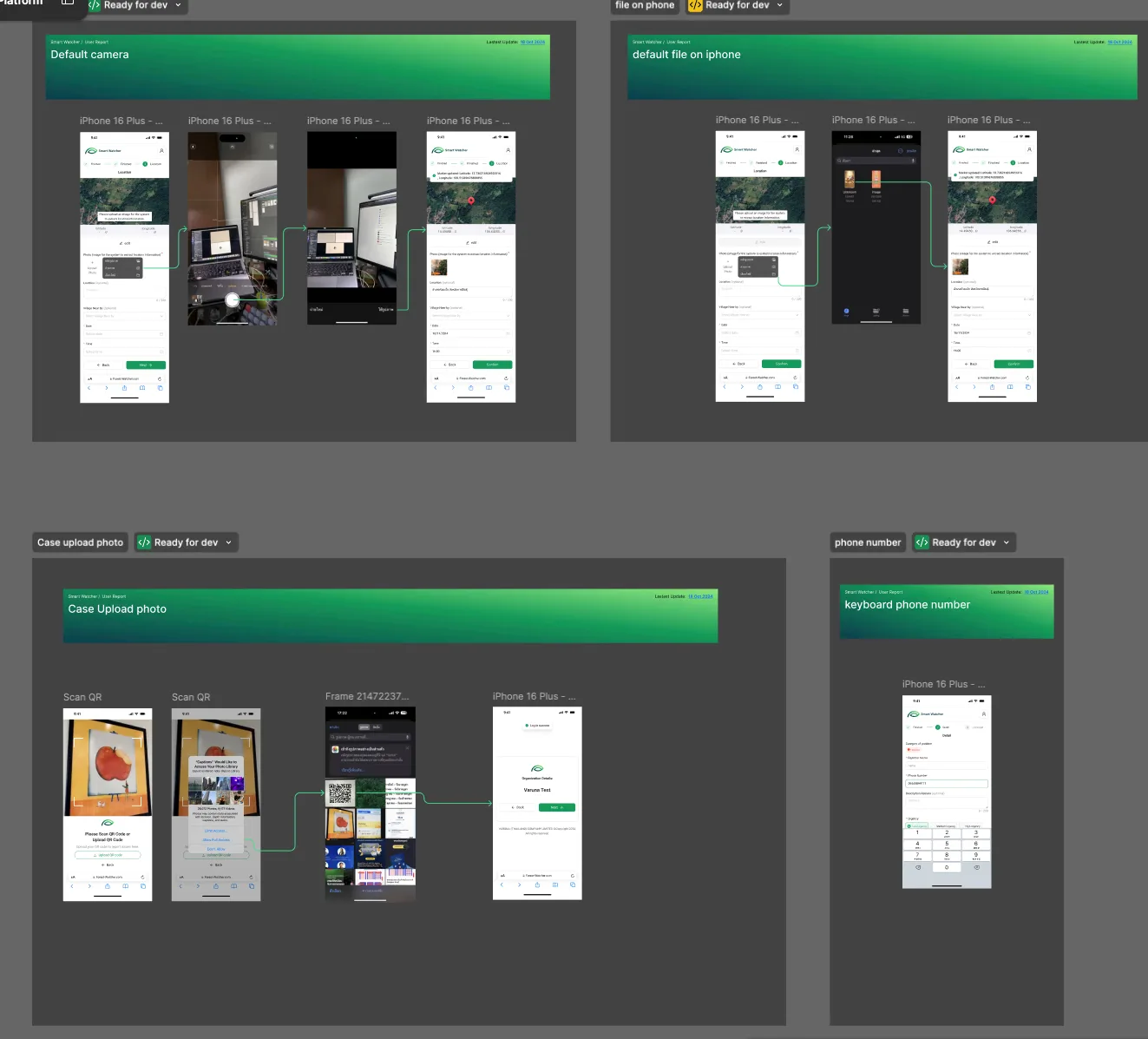
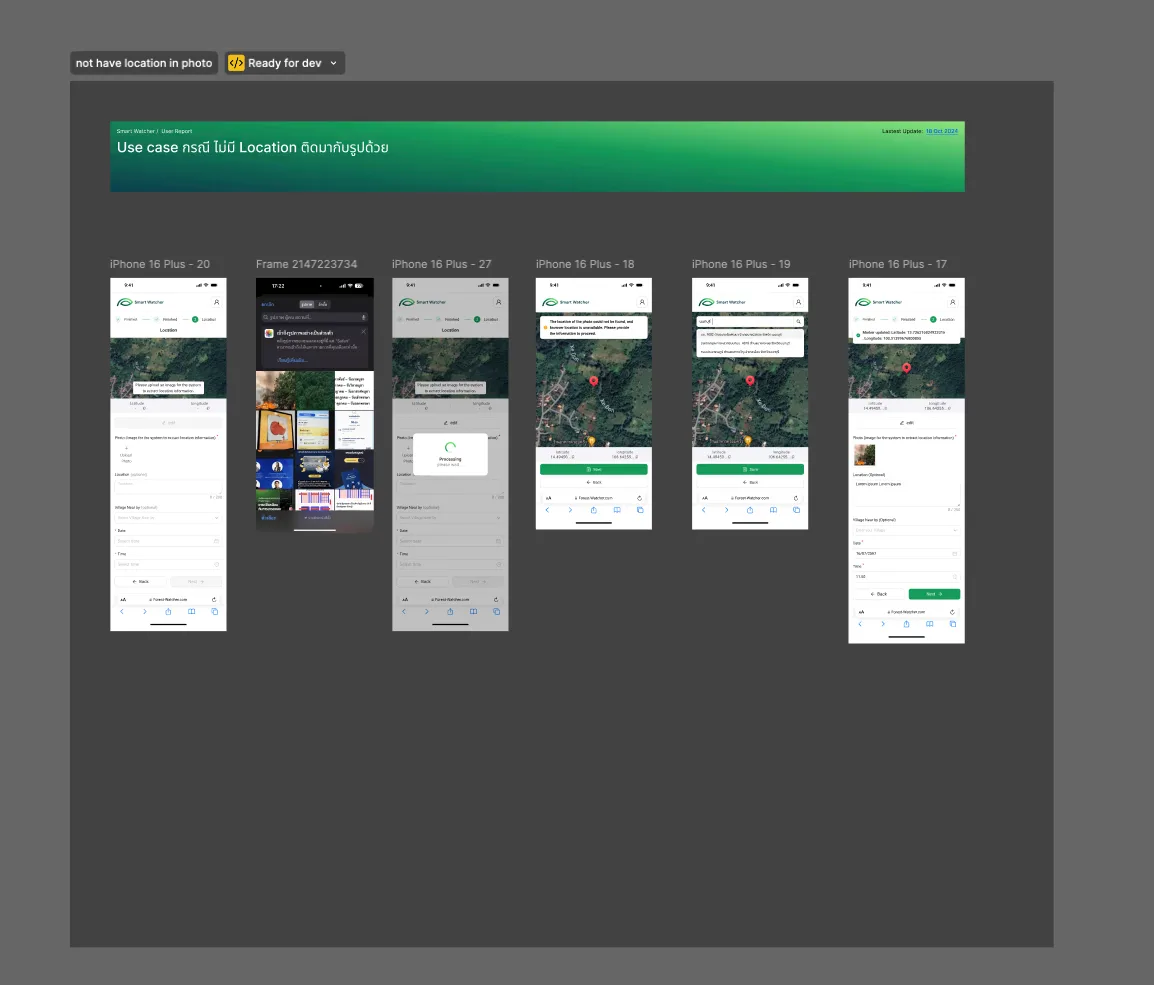
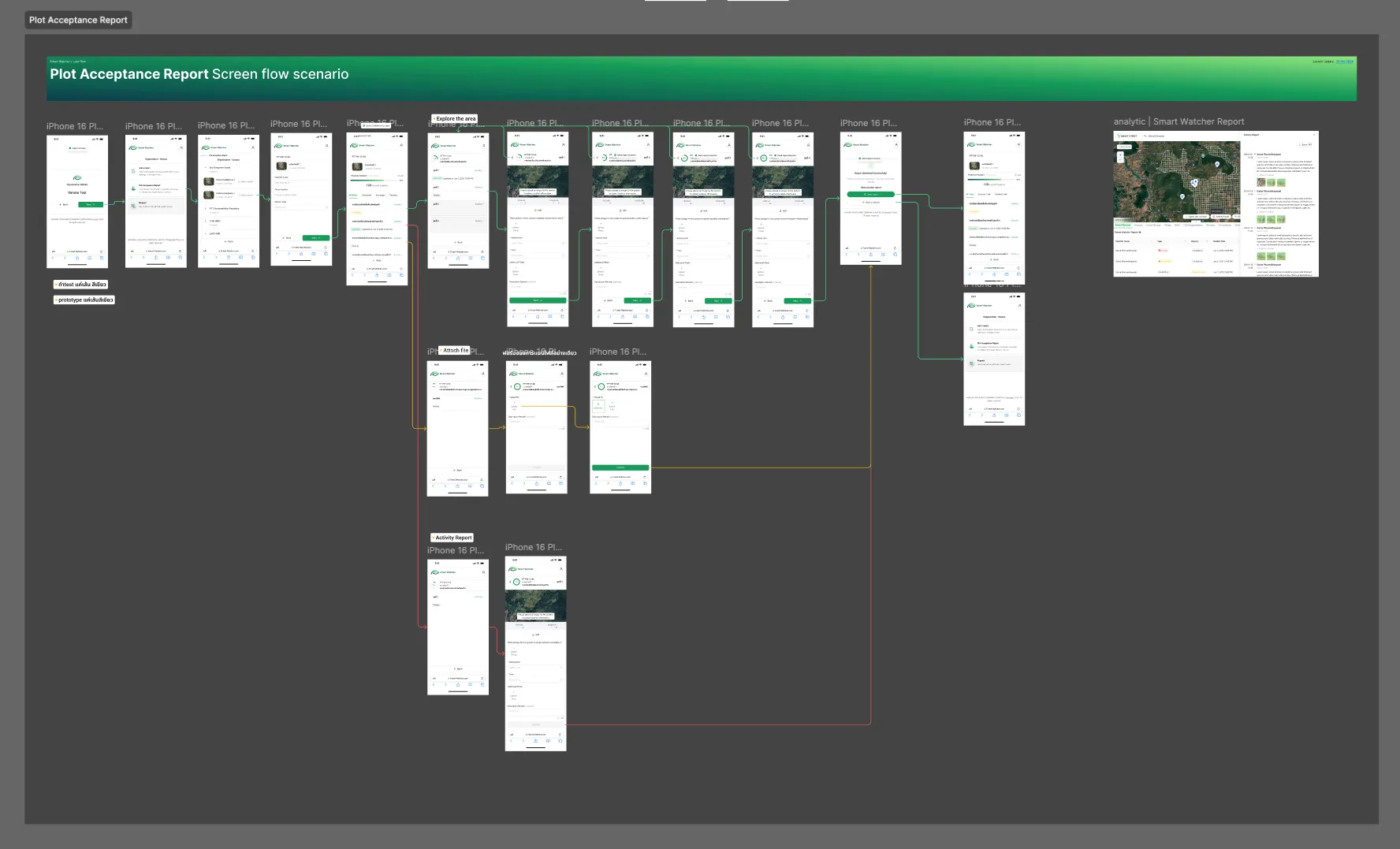
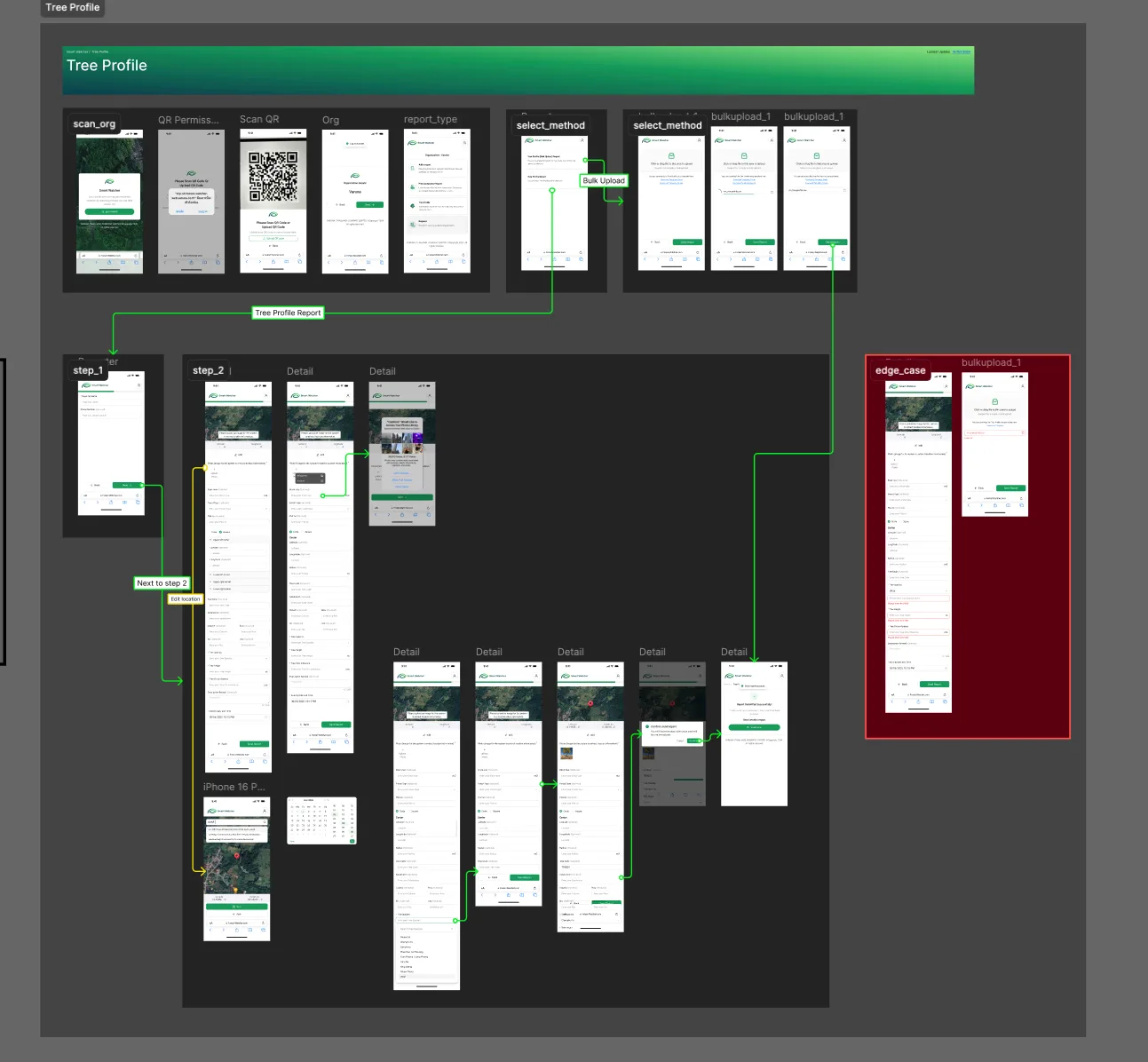
Designed the report types the platform supports, including plot acceptance and tree profile, each with its own step sequence, bulk-upload path and detail form. Alongside them sit the states that decide whether a report can be filed at all: no organisation behind the scanned code, location permission denied, a page the account is not allowed to open, camera versus photo-library upload, and logged out.
Step 10
Design Spec & Developer Handoff
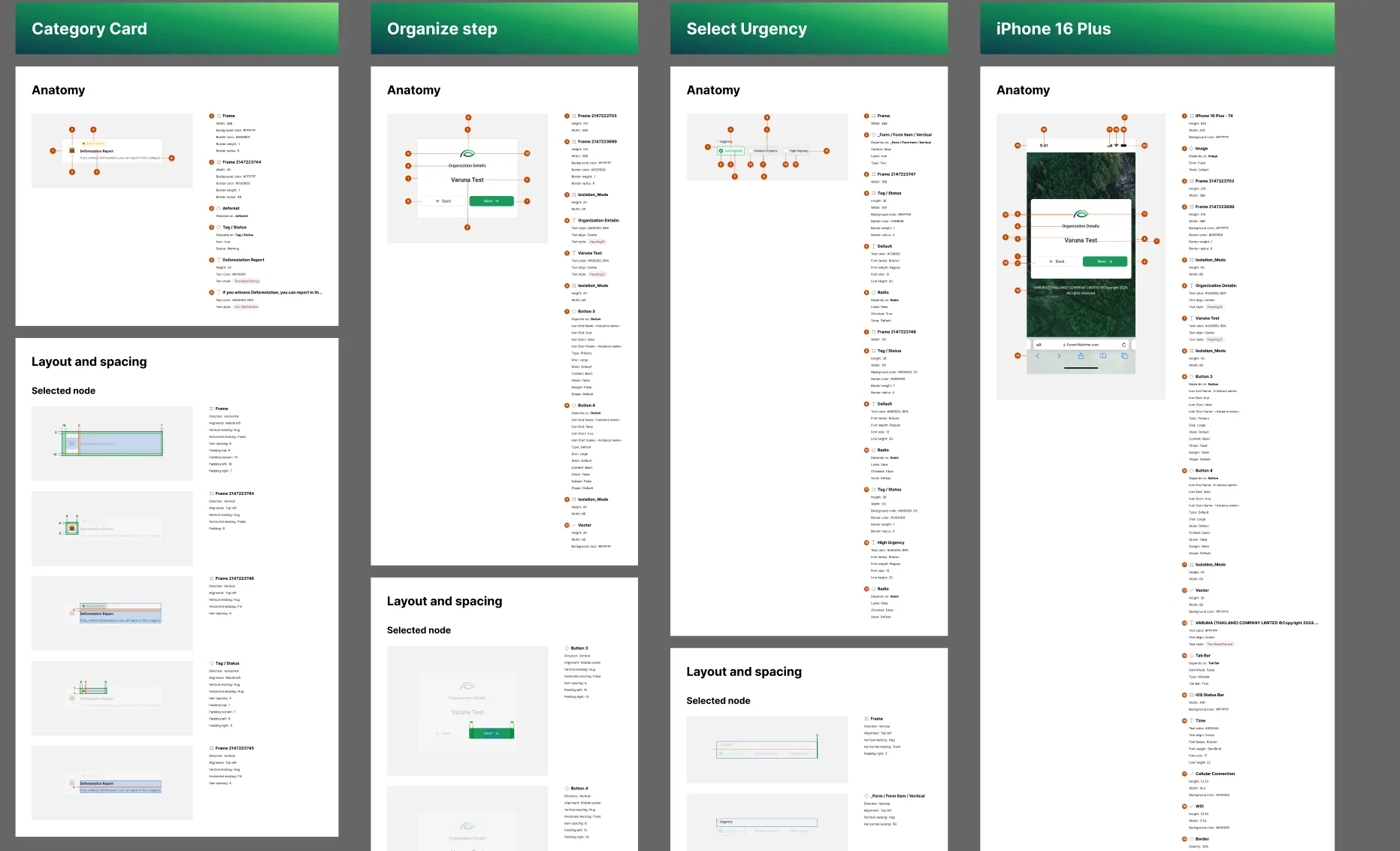
Components were specified with numbered anatomy callouts and a layout and spacing view for each selected node: the report category card, the organisation step, the urgency selector and a full phone screen. The edge cases themselves, from a code with no organisation to a denied location, are drawn on their own boards in the step before.
Step 11
Screen Flow & Report Entry
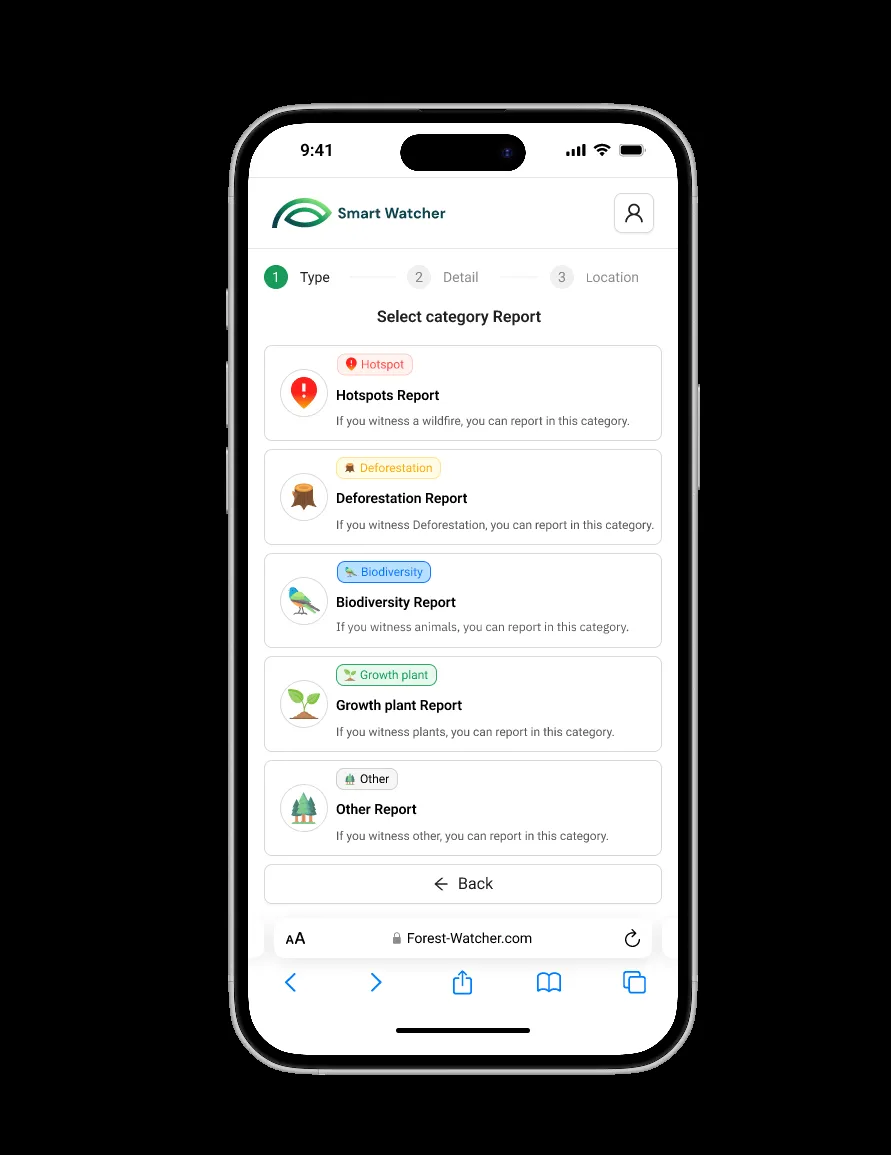
The reporter's screens were laid out as one flow, from the welcome screen and the QR scan through the organisation, the report category, the details, the location pin and the photos to the confirmation, ending in the email the landowner receives. Report entry runs as three numbered steps, type, detail and location, and the category screen offers hotspot, deforestation, biodiversity, plant growth and other reports, each with a line on when to use it.
Step 12
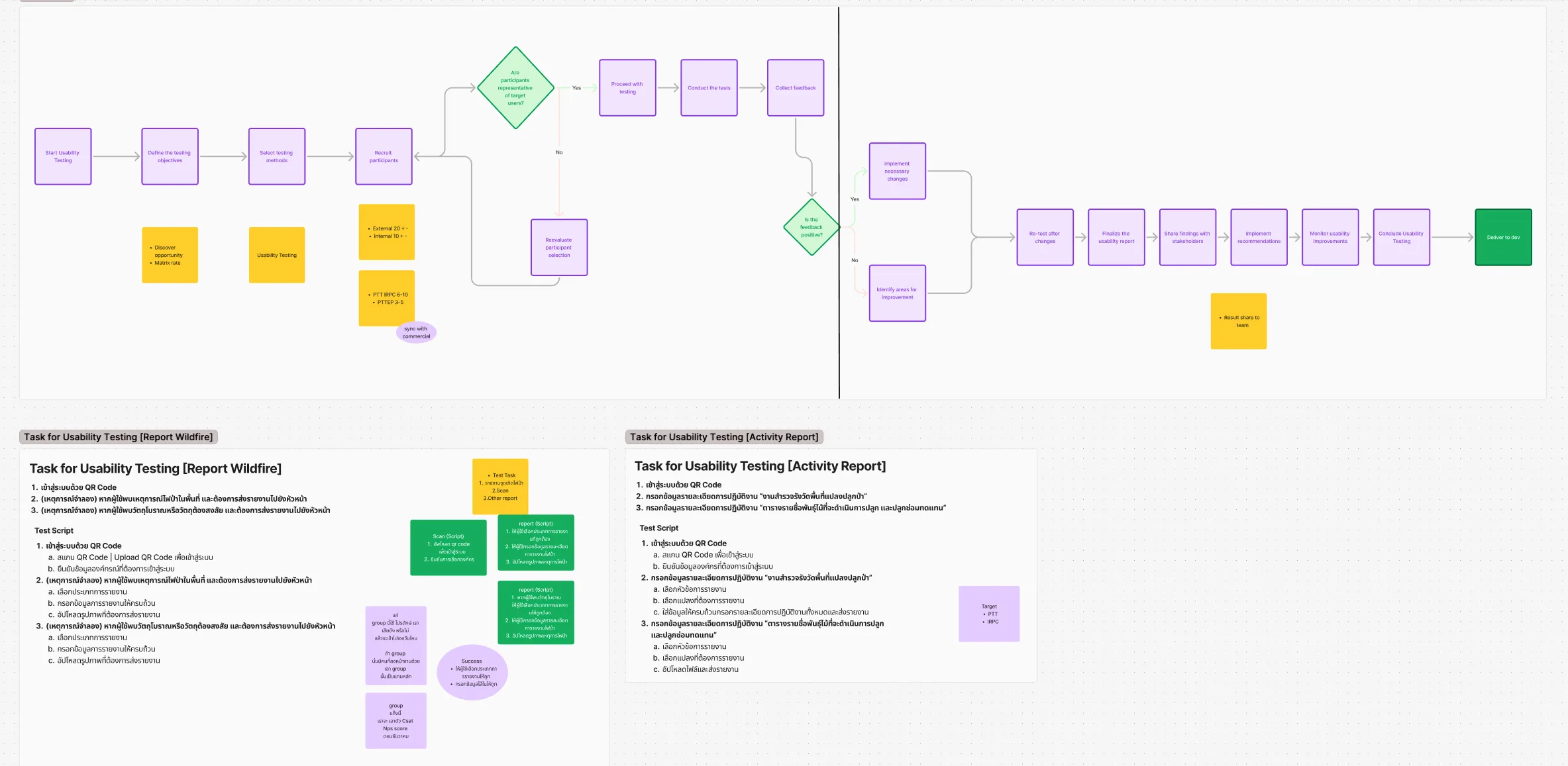
Usability Testing
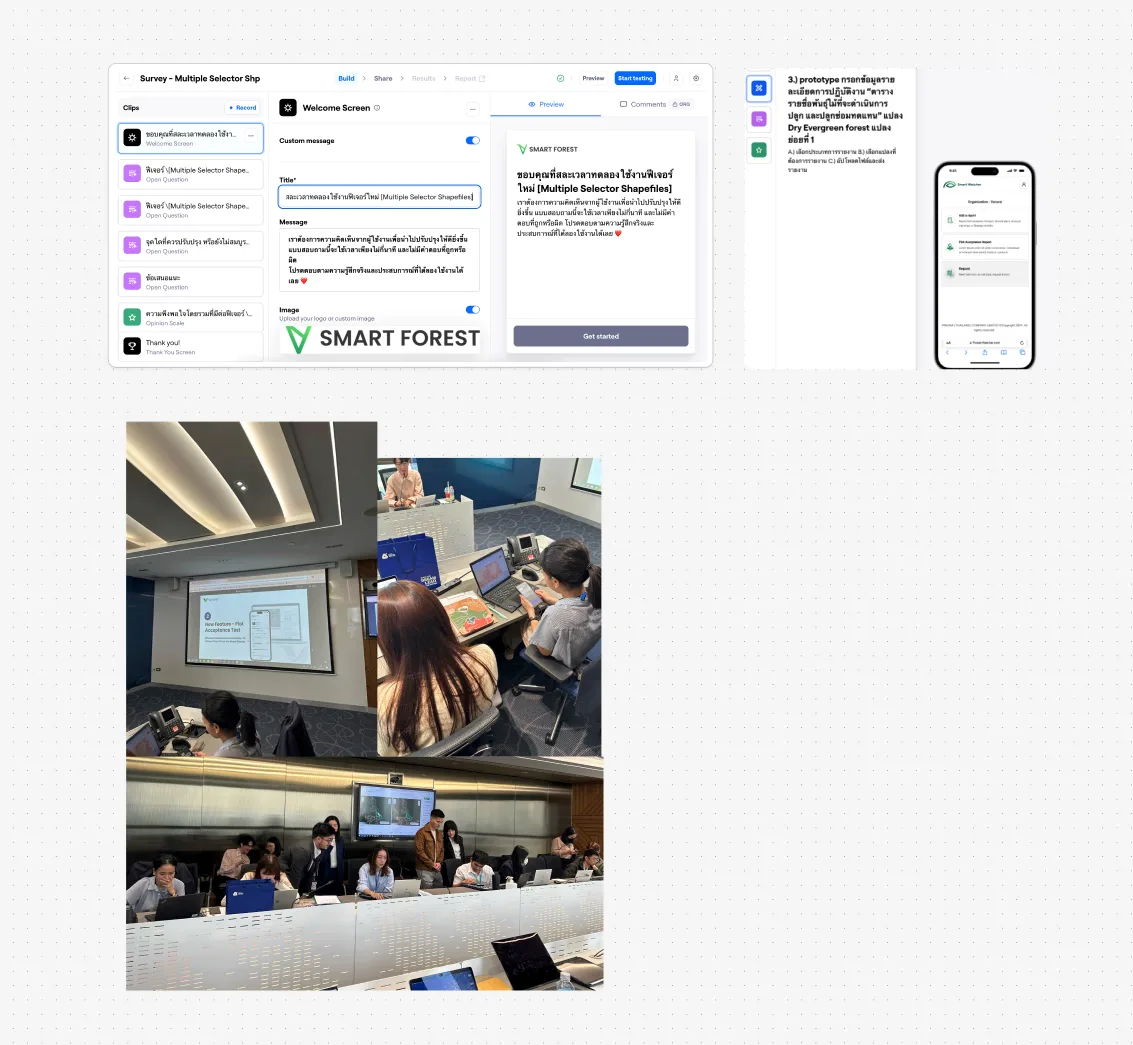
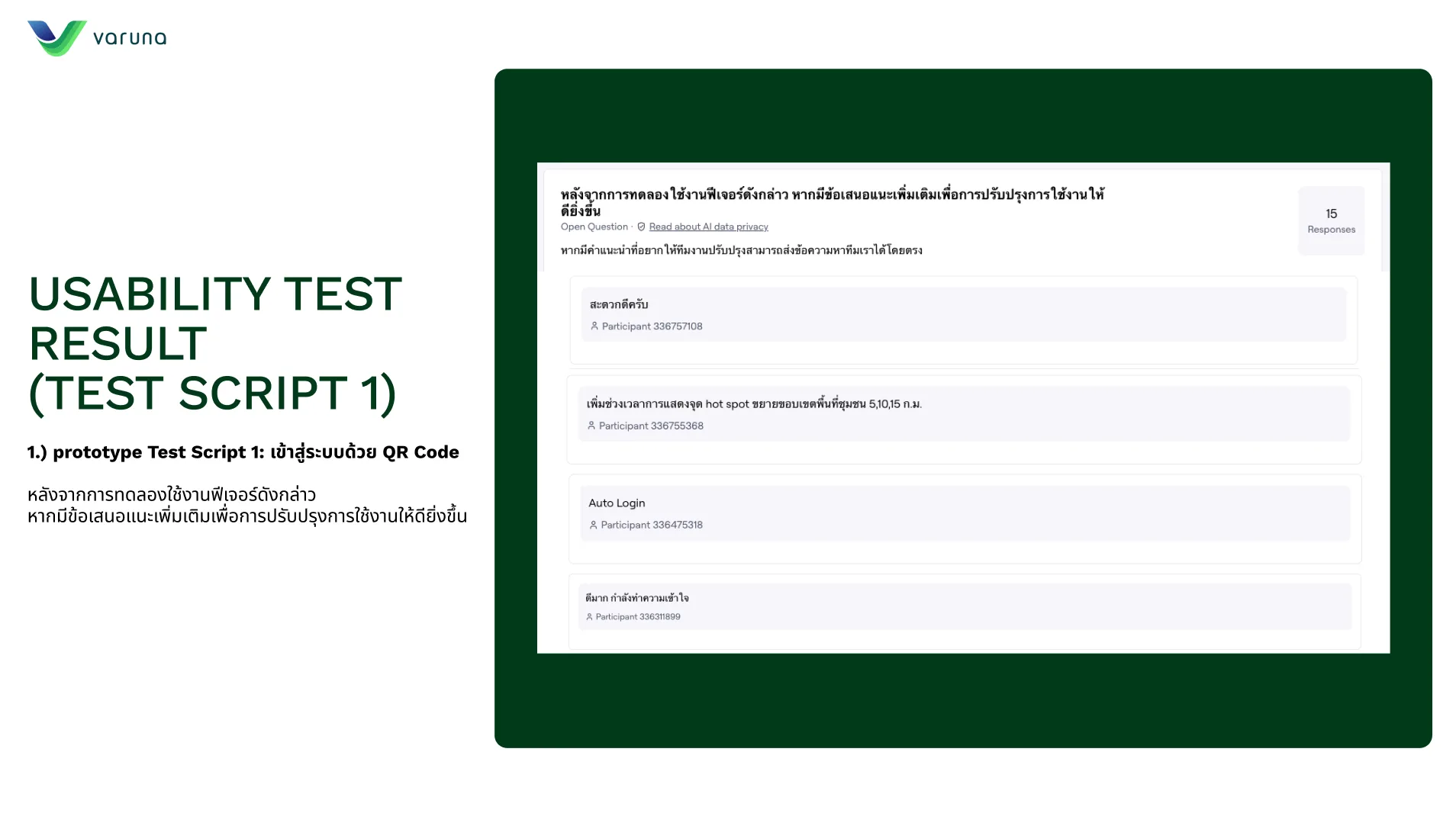
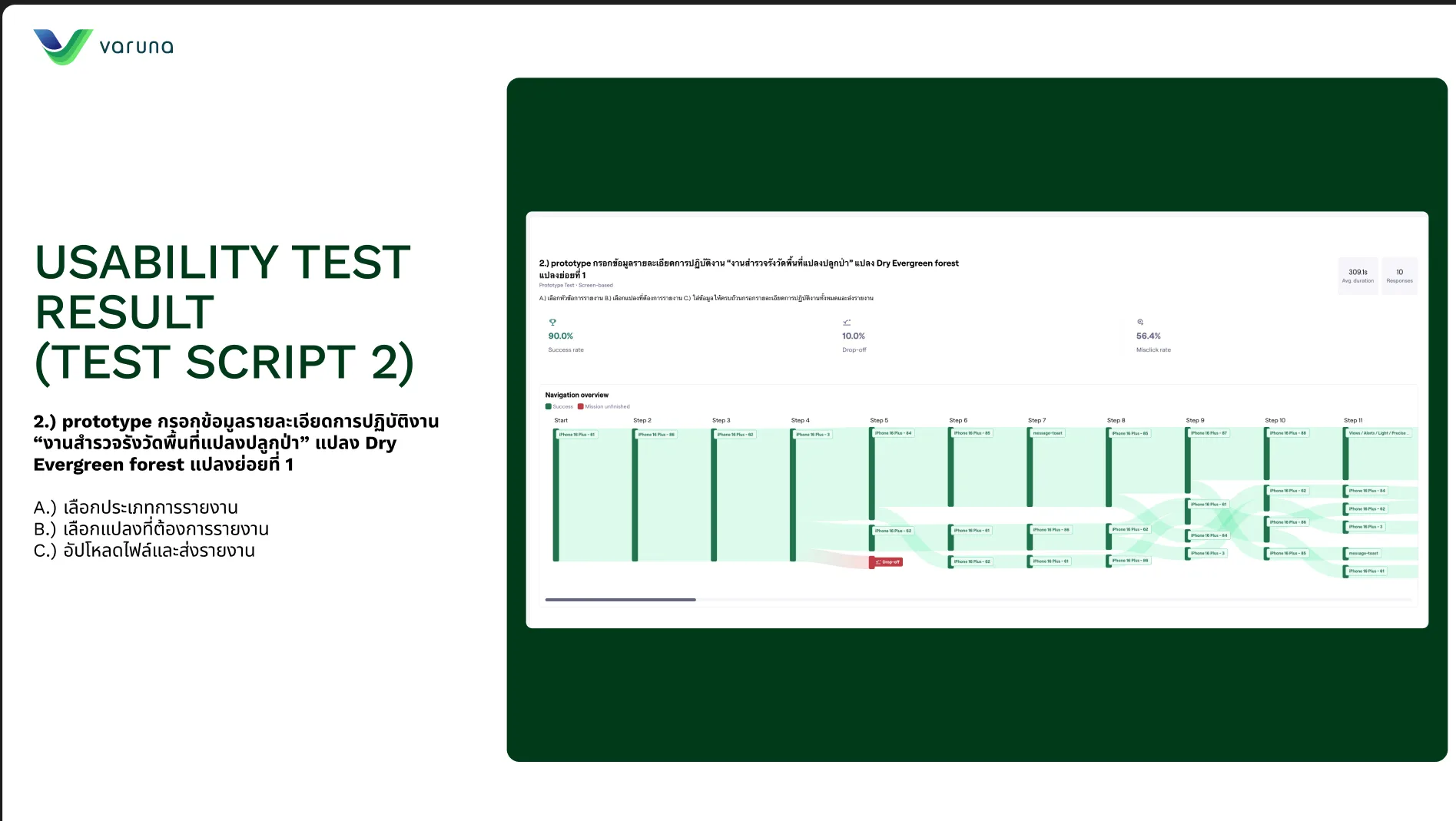
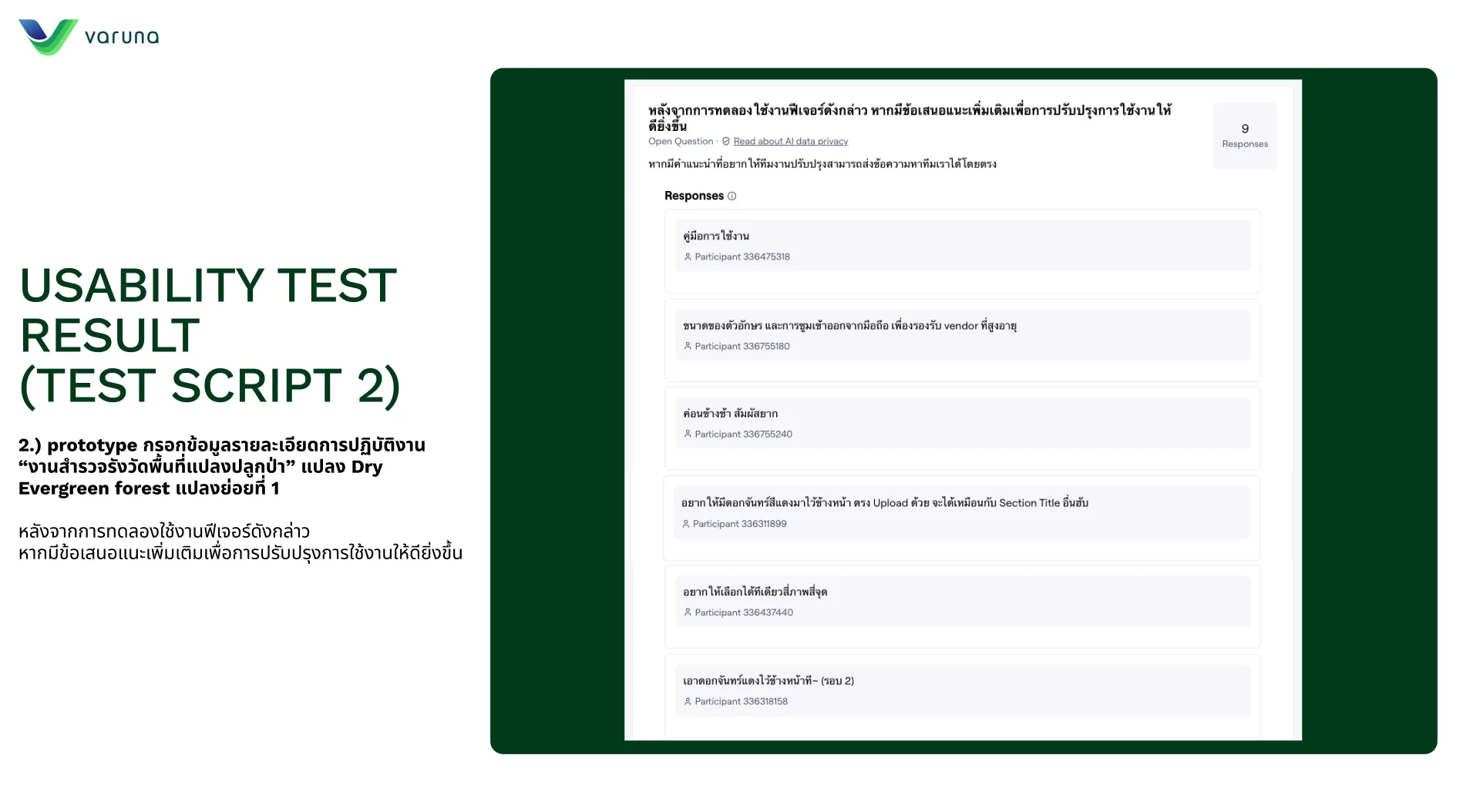
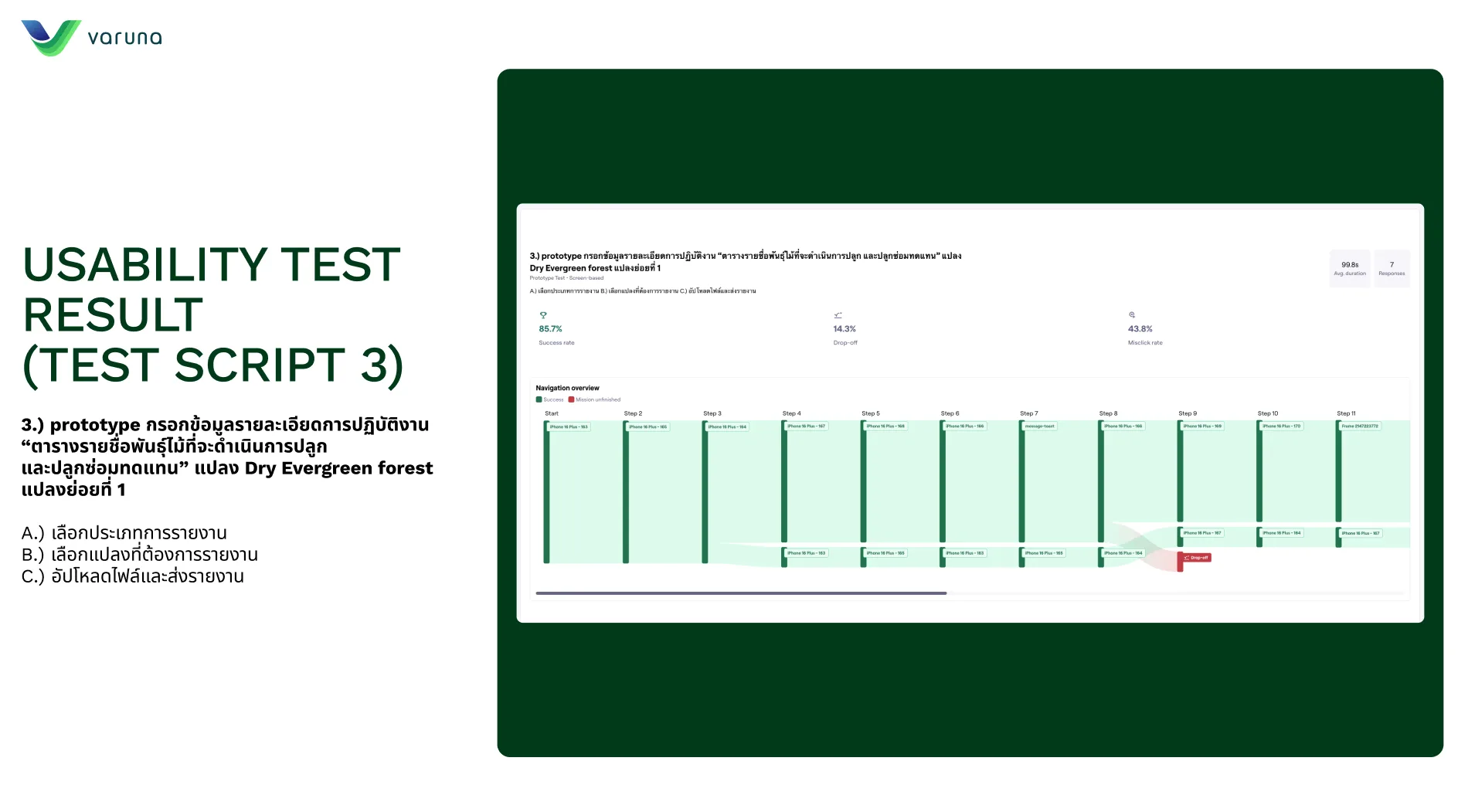
Testing followed a planned flow, from setting objectives and recruiting participants to retesting after changes and handing over. Two task scripts were written: signing in with the QR code and reporting a wildfire or a suspicious object found in the area, and filing activity reports for a plot. The sessions ran in person with participants from the client organisations, and a separate survey collected feedback on the multiple-shapefile selector.
Step 13
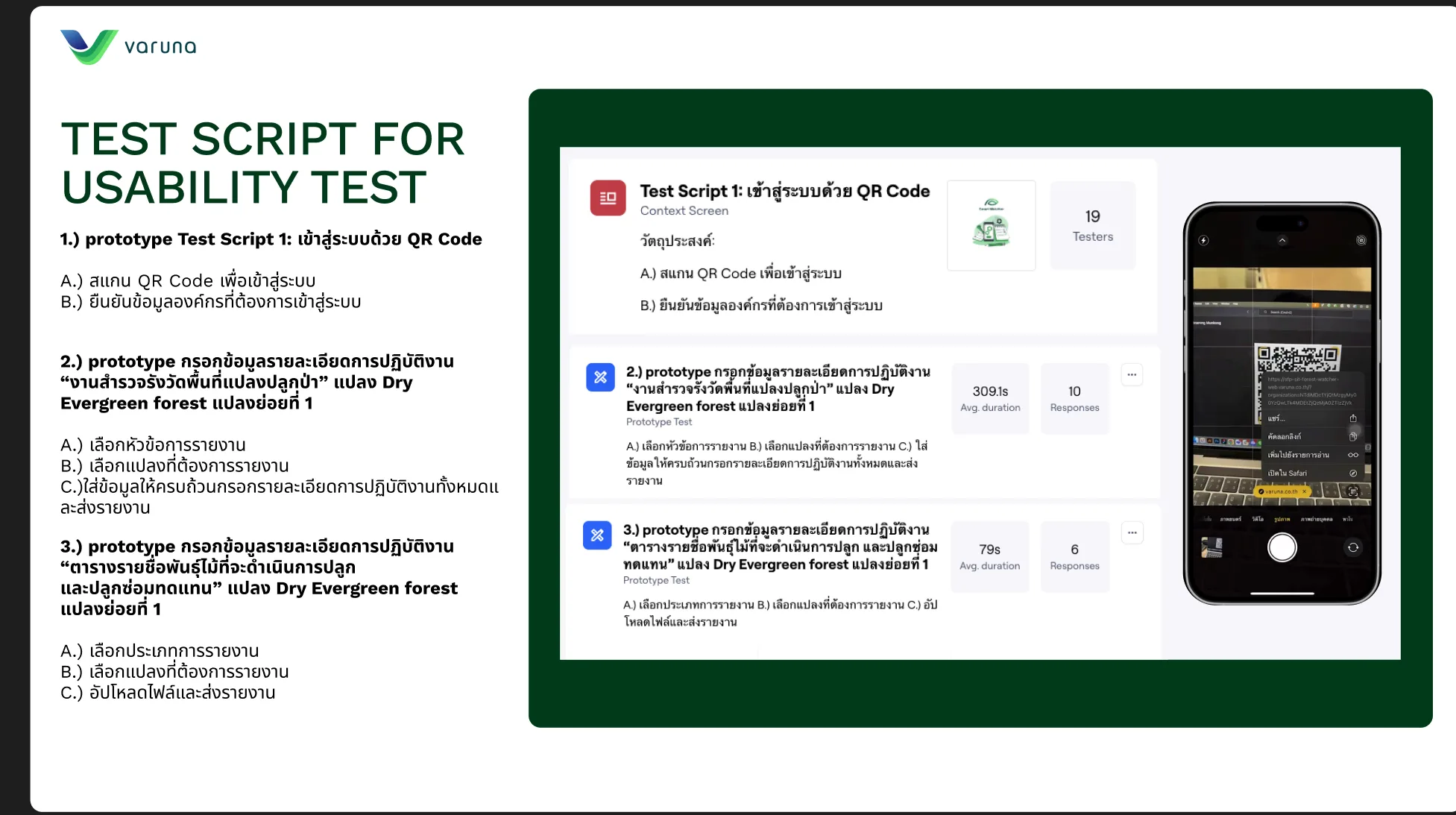
Test Scripts & Measured Results
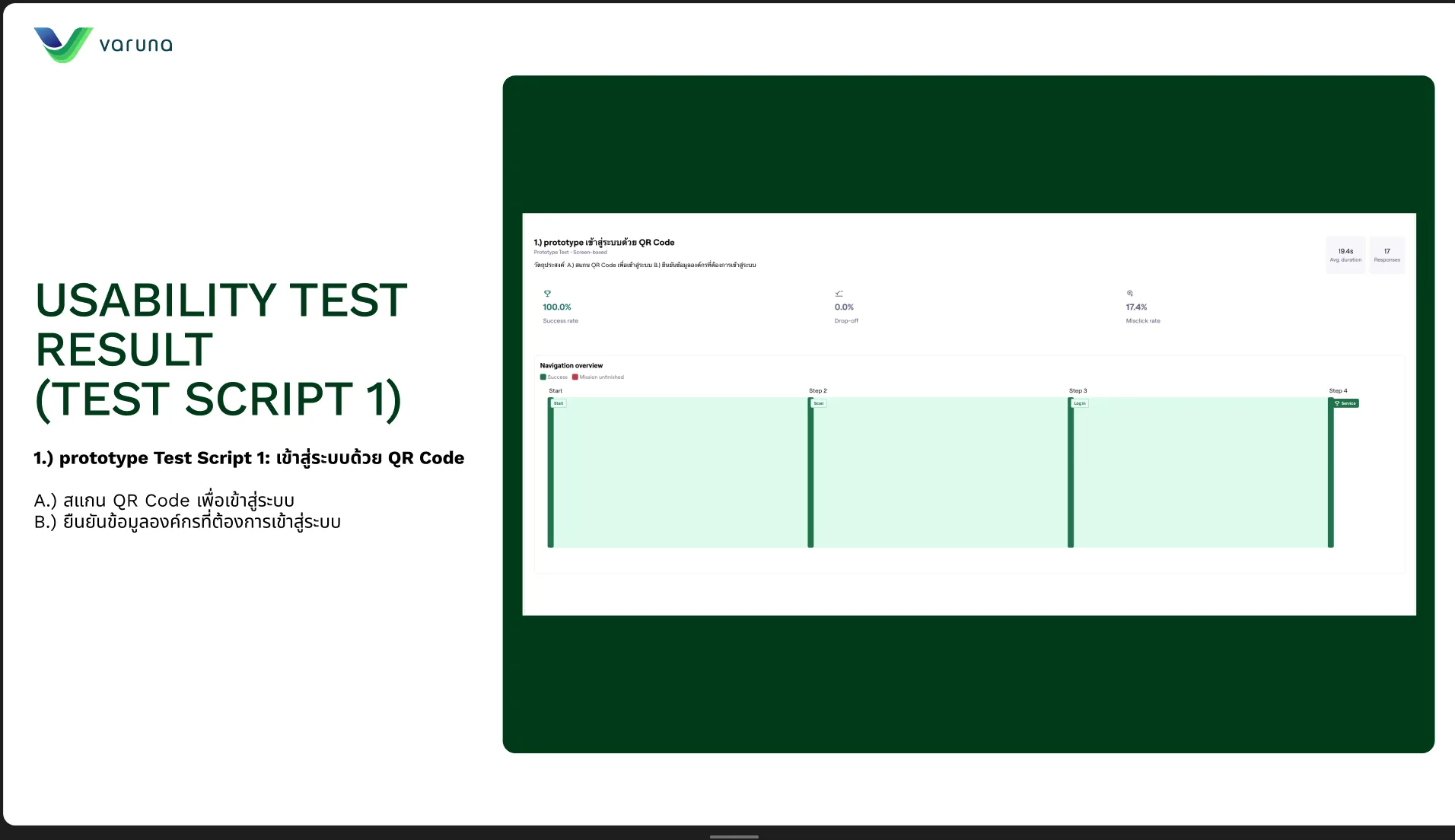
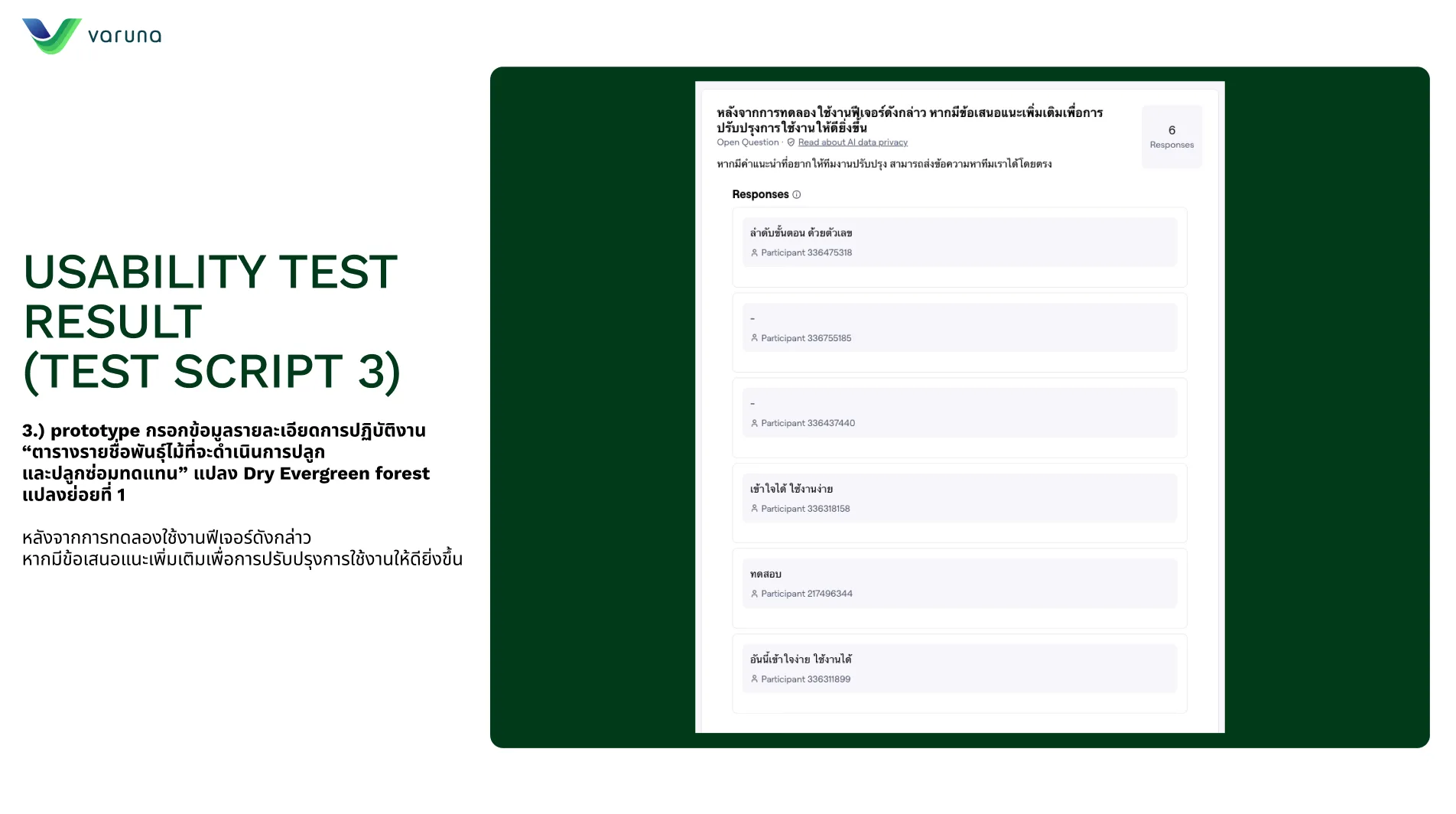
Each task was written as a numbered script with an explicit objective before anyone was put in front of the prototype — QR-code sign-in, then the two report-entry flows for a Dry Evergreen forest sub-plot. Running them through Maze returned success rate, drop-off, misclick rate and time on task per script instead of impressions: script 1 came back at 100% success and 0% drop-off but a 17.4% misclick rate, which pointed at target sizing rather than comprehension. The open question at the end of each script is where the qualitative signal came from.
Step 14
Gathering Feedback & Synthesis
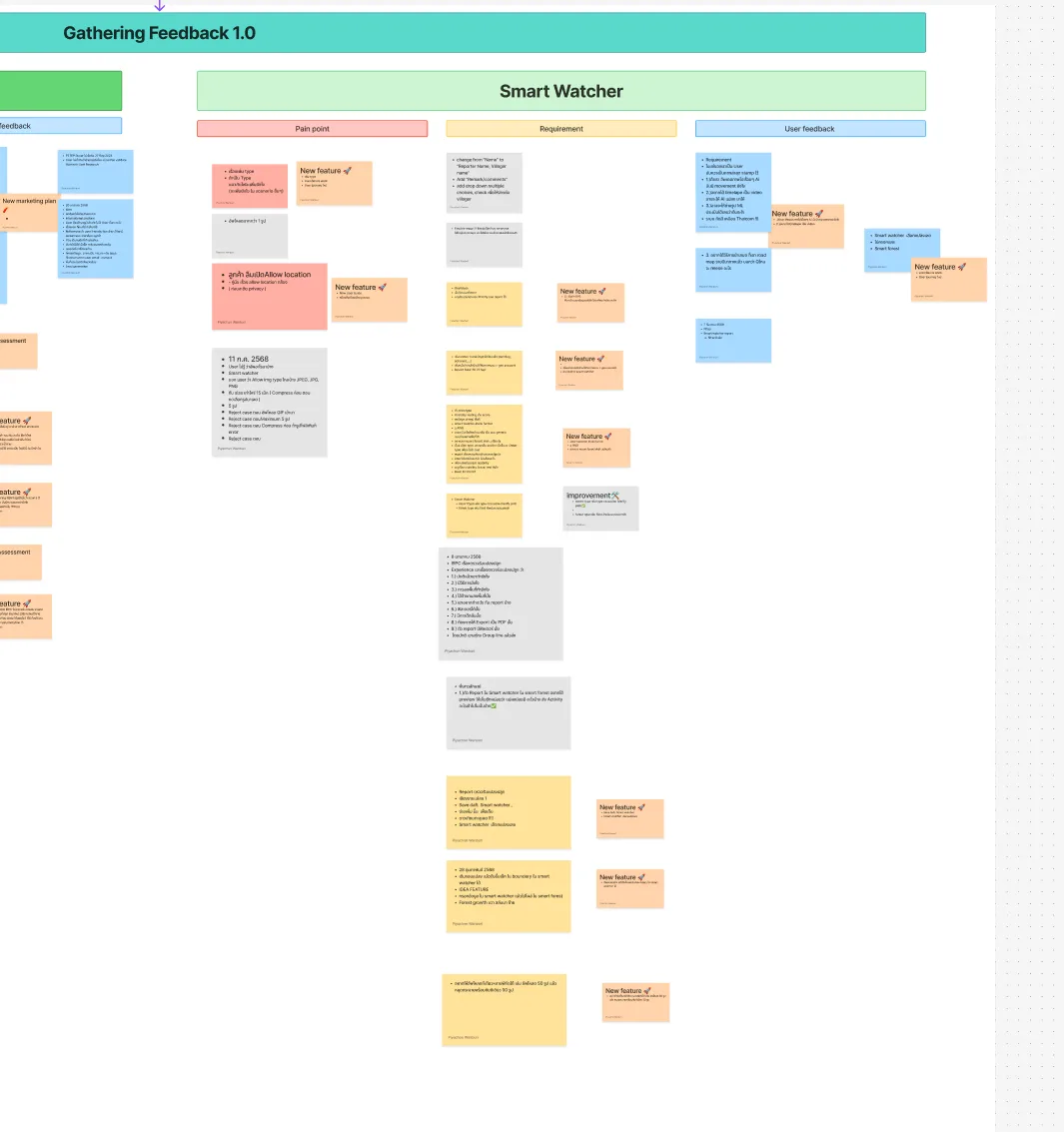
Testing output and stakeholder comments were consolidated onto one board split into pain point, requirement and user feedback, with every proposed change tagged as a new feature or an improvement. Separating what users struggled with from what they asked for is what kept the backlog honest — a request only became scope when a pain point stood behind it.
Executive Summary & Impact
QR Sign-In
Reporting starts with a scan
Scanning the organisation's QR code opens the right reporting space, with screens for a code that leads nowhere.
Three-Step Report
Type, detail, location
Five report categories, then the reporter's details and urgency, then the photos, map pin, date and time.
Linked to Smart Forest
Ground truth beside satellite
Each report emails the landowner and appears in Smart Forest, where it can be checked against the satellite layers.
Smart Watcher is the field reporting side of Smart Forest. People on the ground sign in by scanning their organisation's QR code, choose what they saw, add the details, photos and location, and submit; the landowner is emailed, and the report appears in Smart Forest beside the satellite data it can confirm.
01 / Discovery & Context
Problem & Baseline
Satellite monitoring covers large forest areas but cannot watch one place continuously, and it can show a change without confirming what caused it. The people who can confirm it, villagers and field survey teams, had no simple way to report what they saw. The officers who use the reports range from a technical user in Bangkok who monitors plots and reports upward to a less technical user in Laos who has to walk into the area to assess it.
Satellite revisit gap
The same area is not observed continuously, so changes between passes go unseen.
No reporting tool
People who saw a fire or forest clearing on the ground had no simple way to report it.
Two kinds of user
A technical officer monitoring from Bangkok and a less technical officer on site needed different things from the same reports.
Edge cases in the field
A code with no organisation, a denied location or a blocked page could stop a report before it was filed.
02 / Architecture & UX System
Key Design Decisions
01
QR Code as the Way In
Reporters start by scanning their organisation's QR code, which opens the right reporting space, with screens for a code that has no organisation and for pages an account cannot open.
02
A Report in Three Steps
Report entry runs as type, detail and location, starting from five categories, hotspot, deforestation, biodiversity, plant growth and other, each with a line on when to use it.
03
Location and Evidence From the Site
The location step pins the report on the map from the device or a photo, shows the latitude and longitude, and takes photos from the camera or the library, with its own path when location access is denied.
04
Urgency and Distance at a Glance
A report shows the reporter, the photos, the issue type, a new or emergency tag, and how far the viewer is from the reported point, settled in wireframes before the visual design.
05
Reports That Reach the Right People
Each submission emails the landowner and appears in Smart Forest, while administrators work through report management, status checks by reporter name or phone, and an overall dashboard.
03 / Verification & Evidence
Outcomes
Area
Before
After
Outcome
Getting started
No simple way into a reporting tool
One QR scan opens the organisation's reporting space
One scan
Report entry
No structured way to report an incident
Five categories and three numbered steps
Guided
Location
Sightings were hard to place on the map
Map pin from the device or the photo, with a path for denied location
Pinned
Follow-up
Reports needed to reach the right people
Email to the landowner, report management and status checks
Routed
QR sign-in (tested)
Flow not yet tried by users
100% success and no drop-off in Maze, with a 17.4% misclick rate to fix
Validated
04 / Retrospective
What I Learned
→
Designing for two very different officers, one monitoring from Bangkok and one walking into the forest in Laos, meant a report had to be quick to file on site and complete enough to review from a desk.
→
Much of the work was in the edge cases: a code with no organisation, a denied location or a blocked page decides whether a report is filed at all, so each one got its own screen.
→
Field reports and satellite data do not replace each other; a report is most useful when it lands on the same map as the layer it confirms.